Tietoja SHIELD TV:Stä

Kiitos, että olet valinnut NVIDIA SHIELD TV:n.Tässä käyttöoppaassa on ohjeet SHIELD-laitteesi käytön aloittamisesta ja vinkkejä sen käyttöä varten.

1. Pakkauksessa

SHIELD TV -tuotepakkaus sisältää seuraavat:

SHIELD TV body

SHIELD-kaukosäädin

Virtajohto

Pikaopas ja tukitietokirjanen.

2. Käytön Aloittaminen

2.1 Edellytykset

SHIELD TV:n käytön aloittamiseen tarvitaan seuraavat:

  1. TV tai näyttö, jossa on HDMI-liitäntä (HDCP-yhteensopiva)
  2. Nopean tiedonsiirron HDMI 2.0 -kaapeli
  3. Wi-Fi- tai Ethernet-pohjainen Internet-yhteys
  4. Google-tili

2.2 Alkuasetukset

Kytke SHIELD TV Pro ja yhdistä kaukosäädin seuraavasti:

  1. Kytke SHIELD TV televisioosi nopeaa tiedonsiirtoa tukevalla HDMI 2.0 -kaapelilla.
    • Varmista, että televisio tai näyttö on pois päältä, ja kytke HDMI-kaapelin toinen pää SHIELD TV:n takana olevaan HDMI-liitäntään.Kytke kaapelin toinen pää television tai virittimen HDMI-liitäntään.
  2. Kytke SHIELD TV:n virtajohto virtapistokkeeseen.
    • Kytke virtajohdon toinen pää SHIELD TV:n takana olevaan virtaliitäntään ja toinen pää pistokkeeseen.SHIELD TV kytkeytyy automaattisesti päälle, kun kytket virtajohdon. Vihreä merkkivalo syttyy, kun virta on kytketty.Kun et käytä laitetta, se siirtyy automaattisesti lepotilaan.
  3. VALINNAINEN VAIHE: yhdistä SHIELD TV Ethernet-verkkoon. Jos et käytä Ethernet-yhteyttä, voit muodostaa yhteyden Wi-Fi-verkkoon myöhemmin.
  4. Kytke televisio päälle ja valitse HDMI-tulo, johon SHIELD TV on kytketty.
    • Voit tarkistaa HDMI-tulon numeron television tai näytön liitännästä.
    • Kirjaudu Google-tilillesi ja muodosta Wi-Fi-yhteys (jos tarpeen) näyttöön tulevien ohjeiden mukaan.

2.3 Wi-Fi-Yhteyden Muodostusvinkkejä

Jos verkko edellyttää tunnistautumista (kirjautumissivu tulee näkyviin), SHIELD TV avaa tunnistautumissivun, jotta voit kirjautua sisään verkkoon.

Kokeile näitä ohjeita, jos laite ei muodosta yhteyttä Wi-Fi-verkkoon. Napsauta tästä.

2.4 Äänenvoimakkuuden Säädön Määrittäminen Shield-Kaukosäätimeen

Voit käyttää SHIELD-kaukosäädintä myös television/virittimen ohjaamiseen infrapunayhteydellä.  Voit määrittää infrapunaohjauksen tai äänenvoimakkuuden CEC-säätöä varten valitsemalla Asetukset  Laite > Näyttö ja ääni > Äänenvoimakkuuden säätö.

Käytettävissä on seuraavat äänenvoimakkuden säädön asetukset:

  • HDMI-CEC (suositusasetus, jos televisio tai viritin tukee sitä)
  • Infrapuna (kaukosäädin on suunnattava televisiota tai viritintä kohti)

3. Shield TV:n Osat

3.1 SHIELD TV

SHIELD TV Side View
1

Ethernet

2

Virtaliitäntä

3

Kaukosäätimen paikannin

4

HDMI

5

MicroSD-korttipaikka

3.2 Shield-Kaukosäädin

SHIELD-KAUKOSÄÄTIMESSÄ on 1 sisäänrakennettu mikrofoni ja 13 painiketta.


1

SISÄÄNRAKENNETTU MIKROFONI SHIELD-KAUKOSÄÄTIMEN yläosassa

2

POWER-painike, ensimmäisen rivin vasen painike

3

SETTINGS-painiketta, ensimmäisen rivin oikeaa painiketta, voi myös muokata valitsemalla alla olevan polun
(muokattavissa kohdasta Asetukset > Laitteet ja lisävarusteet > Mukauta asetuspainiketta)

4

Navigointirengaspainike, toisella rivillä oleva ulompi rengaspainike

5

SELECT-painike, sisäinen pyöreä painike

6

BACK-painike, kolmannen rivin vasen painike

7

HOME-painike, kolmannen rivin oikea painike

8

FAST-FORWARD-painike, neljännen rivin vasen painike

9

PLAY/PAUSE-painike, vasen painike viidennellä rivillä

10

REWIND-painike, kuudennen rivin vasen painike

11

VOICE SEARCH -painike, neljännen rivin oikea painike

12

INCREASE VOLUME -painike, viidennen rivin oikea painike

13

DECREASE VOLUME -painike, kuudennen rivin oikea painike

14

OPEN NETFLIX -painike, viimeisen rivin soikea painike

3.3 Shield-Kaukosäätimen Käyttö

3.3.1 Siirtyminen

Käytä navigointirengasta (voit siirtyä ylös, alas, vasemmalle tai oikealle).

3.3.2 Kohteen valitseminen

Kohteen valitseminen Paina valintapainiketta.

3.3.3 Siirtyminen edelliseen näkymään

Paina paluupainiketta.

3.3.4 Siirtyminen aloitusnäyttöön

Paina aloitusnäyttöpainiketta.

3.3.5 Viimeksi käytettyjen sovellusten tarkastelu

Paina aloitusnäyttöpainiketta kahdesti.

3.3.6 Kaikkien sovellusten tarkastelu

Pidä aloitusnäyttöpainiketta painettuna.

3.3.7 Pelikuvan lähetys ja pelaamisen tallennus

Pidä aloitusnäyttöpainiketta painettuna (NVIDIA Sharen on oltava käytössä).

3.3.8 Asetusten tarkastelu

Paina asetuspainiketta tai pidä paluupainiketta painettuna (aloitusnäytössä).

3.3.9 SHIELDin asettaminen lepotilaan

Paina virtapainiketta (TV sammuu myös, jos HDMI-CEC- tai infrapunaohjaus on käytössä).

3.3.10 Äänihaku Google Assistantilla

Paina äänihakupainiketta ja sano komento.Voit käyttää komentoja kuten "Play Stranger Things" tai "What’s the weather?". Huomaa, että äänikomennot eivät toimi suomeksi.

3.3.11 Äänenvoimakkuuden säätö

Paina äänenvoimakkuuden nosto- tai laskupainiketta.

3.3.12 Kuvan kelaus eteenpäin

Paina äänenvoimakkuuden nosto- tai laskupainiketta.

3.3.13 Kuvan kelaus eteenpäin

Paina eteenkelauspainiketta.

3.3.14 Kuvan kelaus taaksepäin

Paina taaksekelauspainiketta.

3.3.15 Toiston käynnistys tai keskeytys

Paina toisto-/pysäytyspainiketta.

3.3.16 Kaukosäätimen asettaminen laiteparin muodostustilaan

Pidä aloitusnäkymä- ja paluupainikkeita painettuna, kunnes ne alkavat vilkkua.

3.4 Kaukosäätimen yhdistäminen

SHIELD-laitteen mukana toimitettava kaukosäädin on määritetty automaattisesti laitepariksi SHIELD TV:si kanssa. Voit kytkeä sen päälle valintapainiketta painamalla.

Varmista, että televisiossa on näkyvissä SHIELD-aloitusnäkymä.

Pidä SHIELD-kaukosäädintä noin 30 cm:n päässä SHIELD-TV:stä.

Jos määrität uutta kaukosäädintä laitepariksi, pidä kaukosäätimen Select-painiketta painettuna, kunnes kaukosäätimen merkkivalo alkaa vilkkua ja kuulet äänikehotuksen. Jos kaukosäätimesi on määritetty laitepariksi toisen SHIELD-laitteen kanssa, pidä Home- ja Back-painikkeita painettuna, kunnes kaukosäätimen merkkivalo alkaa vilkkua ja kuulet äänikehotuksen.

Kaukosäätimen pitäisi muodostaa yhteys hetken kuluttua. Kun pariliitos onnistuu, kuulet äänikehotteen.

Kun haluat yhdistää uuden kaukosäätimen SHIELD-laitteeseen, seuraa näitä ohjeita.

HUOMAUTUS: SHIELD-kaukosäädin käynnistyy ja sammuu automaattisesti.Jos kaukosäädin ei reagoi, sen paristot on ehkä vaihdettava.Paristojen virtatason voi tarkistaa SHIELD accessories -sovelluksesta.

3.5 Mukautettava Asetuspainike

Asetuspainike avaa oletusnäköisesti asetukset, mutta sen voi mukauttaa tekemään suosikkitoiminnon. Asetuspainikkeen toimintaa voi muuttaa valitsemalla Asetukset > Kaukosäädin ja lisälaitteet > Mukauta asetuspainiketta.

3.6 Kadonneen Shield-Kaukosäätimen Paikantaminen

SHIELD-kaukosäätimessä on paikannusominaisuus. Kun se aktivoidaan, SHIELD-kaukosäätin alkaa toistaa äänimerkkiä. Sitä toistetaan 10 sekunnin ajan. Tämän ominaisuuden voi aktivoida monella tapaa:

Kaukosäätimen paikanninpainike SHIELD-laitteessa

  • Etsi kaukosäätimen paikanninpainike SHIELD-laitteen toisesta kyljestä (HDMI-liitännän yläpuolelta) ja paina sitä. SHIELD-kaukosäätimen paikannus käynnistyy.

SHIELD TV -mobiilisovellus (iOS/Android)

  • Lataa SHIELD TV -sovellus laitteeseesi, jos et ole vielä tehnyt sitä.
  • Napauta sovelluksen lisätoimintovaihtoehtoa (oikeassa yläkulmassa näkyvää kolmea pistettä).
  • Napauta "find my remote" (etsi kaukosäädin) -vaihtoehtoa.

Google Home

  • Tärkeä huomautus: Google Home -kaiuttimen on oltava samassa verkossa kuin SHIELD-laitteen ja sen käyttämän Google-tilin on oltava sama, jolla olet kirjautunut SHIELD-laitteeseen.
  • Sano Google Home -laitteelle "OK Google, start SHIELD remote locator".

Amazon Echo -laitteet

  • Tärkeä huomautus: Echo-laitteen ja SHIELDin on oltava määritettynä laitepariksi Amazon Alexan avulla.
  • Sano Echo-laitteelle "Alexa, Ask SHIELD to find my remote".

Huomautus: Kaukosäätimen paikannus toimii vain, jos SHIELD-kaukosäädin on yhdistetty SHIELD-laitteeseen. Jos paikannusominaisuus ei toimi, se voi johtua seuraavista yleisistä syistä:

  • SHIELD ei ole kytkettynä pistokkeeseen (tarkista virtajohton kytkennät).
  • Kaukosäätimen paristojen virta on erittäin vähissä tai ne ovat tyhjät.
  • Kaukosäätimen ja SHIELDin välinen laiteparimääritys on hävinnyt.

Customize Remote Name

  • SHIELD-kaukosäätimelle voi määrittää mukautetun nimen.Kun haluat nimetä SHIELD-kaukosäätimen uudelleen, valitse Kaukosäädin ja lisälaitteet > SHIELD-lisävarusteet > Aktiivinen ohjain > Lisälaitteen nimi.

Battery Replacement

SHIELD-kaukosäädin toimii kahdella (2) AAA-paristolla.Voit vaihtaa paristot seuraavien ohjeiden mukaisesti.

  1. Liu'uta SHIELD-kaukosäätimen takakansi auki. 
    • Paikallista SHIELD-kaukosäätimen takana oleva alaspäin osoittava nuoli.
    • Liu'uta takakansi auki painamalla nuolta peukalollasi alaspäin ja kaukosäätimen pohjaa kohti.
  2. Vaihda paristot niin, että niiden plusnapa (+) osoittaa alaspäin.
  3. Liu'ta takakansi takaisin SHIELD-kaukosäätimeen niin, että se naksahtaa paikalleen.

3.7 Kadonneen Shield-Kaukosäätimen Paikantaminen

SHIELD-laite voi ladata ja asentaa järjestelmäpäivitykset automaattisesti.  Voit ottaa tämän toiminnon käyttöön valitsemalla Asetukset   > Laite > Tietoja > Järjestelmäpäivitys ja ottamalla Automaattinen päivitys -asetuksen käyttöön.  Voit lisäksi määrittää kellonajan, jolloin SHIELD ottaa päivitykset käyttöön.

3.8 Järjestelmäpäivitysten Saatavuuden Tarkistus

NVIDIA välittää järjestelmäpäivitykset suoraan SHIELD TV -laitteisiin. Kun päivitys on saatavilla, SHIELD TV -aloitusnäkymän yläosaan tulee näkyviin ilmoituspalkki.Kun valitset ilmoituksesta "Tietoja", SHIELD TV lataa ja asentaa päivityksen automaattisesti.Voit tarkistaa päivitysten saatavuuden myös manuaalisesti valitsemalla Asetukset   > Laite > Tietoja > Järjestelmäpäivitys.

3.9 Helppokäyttöisyys – Talkback-toiminto

Talkback-toiminnon ottaminen käyttöön:

  1. Paina näppäinyhdistelmää BACK+DOWN 3 sekunnin ajan, kunnes kuulet äänikehotteen.
  2. Ota Talkback käyttöön painamalla näppäinyhdistelmää BACK+DOWN uudelleen 3 sekunnin ajan.

Talkback-toiminnon poistaminen käytöstä:

  1. Poista Talkback käytöstä painamalla näppäinyhdistelmää BACK+DOWN uudelleen 3 sekunnin ajan.

4. Android Tv:n Esittely

4.1 Perusasettelu Ja Siirtyminen

Android TV -aloitusnäytöstä pääset siirtymään helposti elokuviin, TV-ohjelmiin, musiikkiin, sovelluksiin, peleihin tai asetuksiin.Voit siirtyä aloitusnäkymään milloin tahansa painamalla SHIELD-kaukosäätimen tai SHIELD-ohjaimen aloitusnäkymäpainiketta.

1. Suosikkisovellukset

Voit valita näytettävät sovellukset ja niiden järjestyksen itse. Kun haluat siirtää sovellusta, pidä valintapainiketta painettuna, kun sovellus valittuna. Kun haluat tarkastella kaikkia sovelluksiasi, pidä aloitusnäkymäpainiketta painettuna tai valitse punainen sovelluskuvake.

2. Play Next -kanava

Tästä voit jatkaa TV-ohjelmaa, elokuvaa tai peliä siitä, mihin viimeksi jäit. Voit lisätä sisältöä Play Next -kanavalle siirtymällä sisällön kohdalle ja pitämällä valintapainiketta painettuna.

HUOMAUTUS: kaikki sovellukset eivät tue Play Next -kanavaa.

3. Kanavarivit

Tästä näet suosikkisovellusten uuden sisällön. Voit valita itse kanavat ja niiden järjestyksen. Voit siirtää kanavaa tai poistaa sen siirtymällä vasemmalle, kun kanava on valittuna.

HUOMAUTUS: kaikki sovellukset eivät tue kanavariville lisäämistä.

Haku

Voit hakea sisältöä Android TV:ssä siirtymällä aloitusnäkymän yläosaan ja valitsemalla hakukuvakkeen.Voit myös aloittaa äänihaun milloin tahansa painamalla SHIELD-ohjaimesi NVIDIA-painiketta tai SHIELD-kaukosäätimen äänihakupainiketta.Lue lisää siitä, mitä voit hakea Android TV:stä.

5. Sovellukset Ja Pelit

Voit tarkastella kaikkia asennettuja sovelluksia ja pelejä valitsemalla Sovellukset-kuvakkeen aloitusnäkymästä tai pitämällä SHIELD-kaukosäätimen aloitusnäkymäpainiketta painettuna.

5.1 Lisää sovelluksia (Google Play Kauppa)

Tämän pikavalinnan valitsemalla voit avata Google Play Kaupan uusien sovellusten etsimiseen SHIELD TV:hen.

5.2 Sovelluksen tai pelin käynnistäminen

Voit käynnistää sovelluksen painamalla valintapainiketta.

5.3 Sovellusten siirtäminen, poistaminen tai lisääminen suosikkisovellusriville

Avaa sovellusvalikko pitämällä valintapainiketta painettuna.

6. Pika-Asetukset

Pika-asetusten avulla pääset nopeasti yleisemmin käytettyihin asetuksiin. Saat asetukset näkyviin painamalla SHIELD-kaukosäätimen asetuspainiketta. Pika-asetuksissa näkyviä vaihtoehtoja voi mukauttaa. Voit lisätä ja poistaa valintoja tai muuttaa niiden järjestystä valitsemallaAsetukset > Laite > Järjestelmä > Mukauta pika-asetuksia

7. Tekoälyä Hyödyntävä Kuvanparannus

SHIELD sisältää tehokkaan tekoälyä hyödyntävän kuvanparannustekniikan, joka parantaa älykkäästi alemman resoluution videoiden kuvaa TV:n oman resoluution tasolle.  Tämän uuden ominaisuuden ansiosta Netflixin tai Prime Videon HD-elokuvat näyttävät tavallista tarkemmilta 4K-kuvaruudullasi.

Oletusarvoisesti SHIELD-laitteessa on käytössä normaalisti tehostettu kuvanparannus.  Jos haluat ottaa tekoälyä hyödyntävän kuvanparannuksen käyttöön, valitse Asetukset   > Tekoälyä hyödyntävä kuvanskaalaus ja valitse Tekoälyllä tehostettu.

Yksityiskohtien parannus on käytössä vain tekoälytehostusta käytettäessä. Voit mukauttaa sitä omien mieltymystesi mukaan.  Voit verrata perustason kuvanparannusta tekoälyä hyödyntävään kuvanparannukseen demossa, jossa niiden vaikutus näytetään vierekkäin.

HUOMAUTUS: Tekoälyä hyödyntävä kuvanskaalaus ei ole käytettävissä seuraavantyyppisille sisällöille:
  • Videot, joiden tarkkuus on alle 480p.
  • Videot, joiden freiminopeus on suurempi kuin 30 Hz.
  • Videosisältö, jonka väritila on RGB, HDR tai Dolby Vision.
Tällaisen sisällön toiston ajaksi tekoälyä hyödyntävä kuvanparannus palautetaan perustasolle.

8. GOOGLE ASSISTANT JA SHIELD TV

8.1 Google Assistantin Käyttäminen

Google Assistantin avulla voit etsiä SHIELD-laitteesta elokuvia ja TV-ohjelmia, käynnistää sovelluksia ja pelejä ja hallita älykotisi toimintoja.  Tarjolla ovat kaikki Google Home -laitteista tutut toiminnot olohuoneita varten viritettynä.

8.2 Käytettävyys

Google Assistant toimii SHIELD-laitteilla seuraavilla kielillä:

  • Englanti (USA)
  • Englanti (Iso-Britannia)
  • Englanti (Kanada)
  • Englanti (Australia)
  • Ranska
  • Saksa
  • Espanja
  • Italia

Muiden maiden tuki on suunnitteilla, mutta niiden kielitukia ei ole vielä saatavana.

8.3 Google Assistantin Käyttö

Tee seuraavat toimet SHIELD-kaukosäätimellä:

  1. Paina äänihakupainiketta missä tahansa sovelluksessa tai aloitusnäkymässä.Voice Search
  2. Pidä SHIELD-kaukosäädintä kasvojesi edessä ja sano kysymyksesi ääneen.Assistantin tulokset tulevat näkyviin, kun lakkaat puhumasta.
HUOMAUTUS: Jos olet huoneessa, jossa on runsaasti taustamelua tai puhuvia ihmisiä, voit lähettää äänihaun painamalla SHIELD-kaukosäätimen valintapainiketta kysymyksesi esittämisen jälkeen.Äänentunnistus lopettaa tällöin äänten kuuntelemisen.

8.4 Lisätulosten Näyttäminen


Useimmissa tapauksissa saat lisää hakutuloksia näkyviin painamalla SHIELD-kaukosäätimen navigointirengasta ylöspäin.Muiden sovellusten hakutulokset tulevat näkyviin tähän valikkoon.

8.5 Ok Google - Komento Handsfreenä

Jos sinulla on vuosimallin 2017 SHIELD-ohjain, voit aktivoida äänikomennt sanomalla "OK Google" tai "Hei Google".

Voit ottaa tämän ominaisuuden käyttöön valitsemalla Asetukset  > Laite > Google Assistant > Ota OK Google -tunnistus käyttöön .

8.6 Google Assistantin Käyttömahdollisuudet Shieldissä

Seuraavassa on muutamia esimerkkejä siitä, mitä voit tehdä Google Assistantin avulla SHIELD TV -laitteella.

8.7 Television ja SHIELD-laitteen sammuttaminen (edellyttäen, että HDMI CEC -ohjaus on käytössä)

  • Sammuta televisio sanomalla "Turn off the TV".

8.8 Elokuvien tai TV-ohjelmien etsiminen

  1. Nimellä etsiminen
    • Etsi Batman-elokuvia sanomalla "Show me Batman movies".
    • Aloita Sukuvika-sarjan katselu sanomalla "I want to watch Arrested Development".
  2. Ohjaajan tai näyttelijän perusteella etsiminen
    • Etsi Steven Spielbergin ohjaamia elokuvia sanomalla "Show me movies directed by Steven Spielberg".
    • Etsi TV-sarjoja, joissa esiintyy Chris Pratt, sanomalla "Show me TV shows with Chris Pratt".
  3. Eri hakuehtojen käyttäminen
    • Etsi Tom Cruisen tähdittämiä toimintaelokuvia sanomalla "Show me action movies with Tom Cruise".
    • Hae Dwayne "The Rock" Johnsonin komedioita sanomalla "Show me comedies with The Rock".

8.9 Suosikkiohjelmien käynnistäminen välittömästi

Osa sovelluksista, kuten Netflix, Hulu, YouTube ja HBO Now, voi aloittaa ohjelmien toistamisen automaattisesti.

  • Aloita Stranger Thingsin katselu Netfilixistä sanomalla "Watch Stranger Things on Netflix".
  • Aloita kissavideoiden toisto YouTubesta sanomalla "Play cat videos on YouTube".

8.10 Suosikkisovellusten käynnistäminen

  • Avaa NVIDIA Games sanomalla "Open NVIDIA Games".
  • Käynnistä Netflix sanomalla "Launch Netflix".

8.11 Älykodin ohjaaminen

Kun yhdistät älykotisi laitteet Google Assistantiin, voit ohjata valoja ja katkaisimia puhekomennoilla.

  • Kytke olohuoneen valot päälle sanomalla "Turn on the living room lights".
  • Himmennä valot puolelle teholle sanomalla "Dim the lights to 50%".

8.12 Päiväohjelman suunnitteleminen

  • Tarkista päivän ensimmäinen kokous sanomalla "What's my first meeting today?".
  • Tarkista työmatkan pituus sanomalla "How long is my commute this morning".

8.13 Valokuvien näyttäminen Google Kuvat -tililtä

  • Katso vuoden 2010 kuvia sanomalla "Show me my pictures from 2010".
  • Katso omia kuviasi autoista sanomalla "Show me my pictures of cars".

8.14 ja paljon muuta

8.15 Hakutuloksissa Näytettävät Sovellukset

Hakutuloksissa saattaa näkyvä myös sovelluksia, jotka olet asentanut TV:hen.Nämä tulokset näytetään erillisellä rivillä.Osa hakutuloksista voi olla käytettävissä useilla eri sovelluksilla.Kun valitset tällaisen sisällön, voit valita sovelluksen, jota haluat käyttää.Voit mukauttaa hakutuoksia valitsemalla Asetukset > Laite > Google Assistant > Haettavat sovellukset ja ottamalla käyttöön sovellukset, joiden hakutulokset haluat nähdä.

8.16 Äänihaun Tekeminen Sovelluksessa

Äänihaku toimii myös monissa sovelluksissa.Kun aloitat äänihaun sovelluksessa, hakutuloksissa näytetään vain tulokset kyseisestä sovelluksesta.

8.17 Lisäohjeet ja -tiedot

9. Lepotila Ja Uudelleenkäynnistys

9.1 Lepotila

SHIELD TV siirtyy automaattisesti lepotilaan määrätyn ajan kuluttua:

  1. Valitse SHIELD TV -aloitusnäkymässä Asetukset  > Laite > Näytönsäästäjä .
  2. Valitse Alkamisaika.
  3. Valitse jokin vaihtoehdoista.

9.2 Uudelleenkäynnistys

Voit käynnistää laitteen uudelleen seuraavasti:

  1. Valitse SHIELD TV -asetuksista Käynnistä uudelleen.
  2. Jos se ei toimi, voit myös kytkeä virtajohdon irti, odottaa 10 sekuntia ja kytkeä virtajohdon sitten takaisin kiinni.

10. Lepotilan Ajastus Ja Näytönsäästäjä

Voit määrittää SHIELD TV:hen näytönsäästäjän, joka näyttää valokuvia ja värikkäitä kuvituksia.Daydream-sovellus näyttää maisemakuvia kokoelmasta.

10.1 Näytönsäästäjän Valitseminen

  • Valitse SHIELD TV -aloitusnäkymässä Asetukset  > Laite > Näytönsäästäjä  .
  • Valitse Näytönsäästäjä uudelleen.
  • Valitse jokin käytettävissä olevista vaihtoehdoista.

10.2 Näytönsäästäjän Odotusajan Asettaminen

Voit valita, kuinka kauan näytönsäästäjän aktivoituminen kestää, kun SHIELD TV ei ole käytössä:

  1. Valitse SHIELD TV -aloitusnäkymässä Asetukset  > Laite > Näytönsäästäjä  .
  2. Valitse Aseta laite lepotilaan.
  3. Valitse jokin vaihtoehdoista.

11. Bluetooth-Lisälaitteiden Lisääminen

Voit käyttää SHIELD TV:n kanssa Bluetooth-lisälaitteita, kuten langatonta näppäimistöä, hiirtä tai peliohjainta.

Voit lisätä Bluetooth-lisälaitteen seuraavasti:

  1. Valitse SHIELD TV -näkymässä Asetukset  .
  2. Valitse Kaukosäädin ja lisälaitteet -kohdasta Lisää lisälaite  .SHIELD TV etsii kantamalla olevat Bluetooth-lisälaitteet.
  3. Aseta lisälaite yhteystilaan.
  4. Lisälaiteluettelo tulee näkyviin television kuvaruudulle.Valitse lisälaite.
  5. SHIELD TV muodostaa yhteyden lisälaitteeseen.

Bluetooth lisälaitteen lisäämisongelmat

12. 4K HDR- / Dolby Vision - Näytön Asetukset

SHIELD TV tukee 4K Ultra HD (3 840 x 2 160p) -tarkkuuden sisällön näyttämistä HDR10- tai Dolby Vision -väritilassa monissa sovelluksissa.

Voit varmistaa SHIELD TV:n pysymisen optimoituna 4K-videokuvaa varten pitämällä laitteen päivitettynä uusimmilla järjestelmäpäivityksillä.

4K-sisällön katseleminen SHIELD TV:llä edellyttää, että siihen on kytketty 4K-näyttö, joka on HDMI 2.0- ja HDCP 2.2 -yhteensopiva.Varmista, että SHIELD TV on kytketty HDCP 2.2 -yhteensopivaan HDMI-tuliliitäntään.Tarkista 4K-näytön käyttöoppaasta, mihin HDMI-liittimeen SHIELD TV on kytkettävä, jotta sillä voi katsella 4K-sisältöä.

4K-tukea varten kannattaa käyttää HDMI-UHD-liitäntää.Joissakin televisioissa UHD-tulo on oletusarvoisesti poistettu käytöstä TV:n asetuksista, joten varmista, että UHD on käytössä television asetuksissa.

13. Dolby Vision- / Hdr10-Tuen Käyttöönotto Shieldissä

SHIELD vaihtaa automaattisesti HDR10-yhteensopivaan näyttötilaan, kun se tunnistaa näytön tukevan sitä.

Jos omistat Dolby Vision -yhteensopivan näytön, joka tukee 4K-tarkkuutta ja 60 Hz:n virkistystaajuutta, voit ottaa Dolby Vision -tuen käyttöön valitsemalla Asetukset   > Laite > Näyttö ja ääni > Dolby Vision

Jos Dolby Vision -tuen käyttöönotto ei onnistu, syynä voi olla käyttämäsi HDMI-kaapelit.  Kokeile vaihtaa ne korkealaatuisempiin kaapelihin ja yritä sitten uudelleen.

Jos televisiosi tukee 4K Dolby Vision -kuvaa alhaisilla virkistystaajuuksilla, voit vaihtaa näyttöilan valitsemalla Asetukset   > Laite > Näyttö ja ääni > Näytön lisäasetukset > Mukautettu näyttötila ja valitsemalla jonkin Dolby Vision Ready -nimetyistä näyttötiloista. 

VAROITUS: alempien virkistystaajuuksien näyttötilojen valitseminen saa aloitusnäkymän ja sovelluksissa siirtymisen vaikuttamaan tavallista hitaammalta.

14. Dolby Vision- / Hdr10-Tuen Käyttöönotto Televisiossa

Joissakin HDR-televisioissa HDR-lähtö ei ole oletusarvoisesti käytössä HDMI:tä varten.Kun haluat ottaa HDR-lähdön käyttöön SHIELDistä, katso TV:n käyttöopas.Tässä on eräiden yleisten televisioiden asetukset:

  • Samsung HDR -televisiot: Valikko > Kuva > Kuva-asetukset > HDMI UHD -väri > Päällä > Käynnistä uudelleen
  • LG HDR -televisiot: Koti > HDMI > Asetukset > Lisäasetukset > Kuva > HDMI ULTRA DEEP COLOR > Päällä > Käynnistä uudelleen
  • Sony HDR -televisiot: Koti > Asetukset > Ulkoiset tulot > HDMI-signaalin muoto > HDMI [valitse SHIELD-tulo] > Parannettu tulo (TV käynnistyy uudelleen)

15. Netflixin Katseleminen 4K- Tai Hdr-Tarkkuudella

Jos haluat katsella Netflix-ohjelmia 4K- tai HDR-tarkkuudella, sinun on ehkä päivitettävä Netflix-tilisi samanaikaista katselua neljällä laitteelle tukevaksi.Katso lisätietoja Netfilixin uusimmista 4K- tai HDR-sisällön striimausvaatimuksista Netflixin ohjeartikkelista.http://help.netflix.com/en/node/42384

16. Avr-/Surround-Äänten Asetukset

SHIELD TV tukee Dolby Digital (AC3)-, Dolby Digital Plus (E-AC3)-, Dolby ATMOS-, Dolby TrueHD-, DTS:X- ja DTS Core Audio -signaaleja HDMI-liitännän kautta.Dolby-äänet voidaan dekoodata/muuntaa parhaaseen kotiteatterisi tukemaan äänimuotoon.  DTS-ääniä ei muunneta vaan ne välitetään suoraan HDMI-lähtöön.

Jos haluat käyttää surround-ääniä, käytä AV-viritintä tai TV:tä, joka pystyy dekoodaamaan tällaisen audiosignaalin.

HUOMAUTUS Jos viritin tai HDMI-TV ei tue kyseisten äänisignaalien dekoodaamista, mitään ääniä ei ehkä kuulu.
HUOMAUTUS Varmista, että virittimeen on päivitetty uusin laiteohjelmisto.Joissakin tapauksissa se voi ratkaista yhteensopivuus- tai ääni-/kuvaongelmat.

(I) Suosituskokoonpano: SHIELD VIRITIN TV

  1. Kytke SHIELD TV virittimeen HDMI-kaapelilla
  2. Kytke toinen HDMI-kaapeli virittimen HDMI-lähtöliitännästä televisioon.
HUOMAUTUS Jos televisiosi on 4K- tai HDR-yhteensopiva, käytä HDMI 2.0 -kaapelia sekä SHIELD-laitteen ja virittimen että virittimen ja näytön välillä.Virittimesi on lisäksi tuettava HDMI 2.0 (HDCP 2.2) -signaalia.

(II)  Soundbar tai vanhemman version viritin: SHIELD  TV  VIRITIN

VAROITUS: Tätä kokoonpano tulisi käyttää vain, jos Soundbar tai viritin ei ole 4K-, HDR- tai Dolby Vision -yhteensopiva. Soundbarin on oltava Dolby Digital -yhteensopiva
  • Kytke SHIELD TV televisioon HDMI-kaapelilla.
  • Kytke televisio virittimeen optisella SPDIF- tai HDMI-ARC (HDMI Audio Return Channel) -kaapelilla.
  • Valitse Asetukset   > Laite > Näyttö ja ääni > Äänen lisäasetukset > Käytettävissä olevat muodot, valitse Manuaalinen-vaihtoehto ja poista kaikki muut Dolby-äänimuodot käytöstä paitsi AC3. 

Shieldin Asettaminen Kytkemään Televisio/Viritin Päälle Ja Pois Päältä

SHIELD voi hallita television/virittimen virtaa HDMI-CEC-yhteyden kautta.  Voit mukauttaa SHIELD-laitteen ja televisiosi/virittimesi välisen hallintalogiikan valitsemalla Näyttö ja ääni Virranhallinta.

Jos televisio/viritin ei ole HDMI-CEC-yhteensopiva, voit määrittää samasta valikosta SHIELD-kaukosäätimen lähettämään laitteisiin infrapunakomentoja.  

HUOMAUTUS Useimmissa televisioissa television sammutus HDMI-CEC-komennolla on poistettu käytöstä television asetuksista. HDMI-CEC-tuen (yhden kosketuksen toiston ja television sammutuksen) on oltava käytössä television asetuksissa. Selvitä televisiosi valmistajan tuki HDMI-CEC-toiminnoilla ja niiden käyttöönottoohjeet hakemalla tekemällä haku valmistajan ja toiminnon nimellä.

17. Av-Synkronointi

AV-viritintä ja HDMI-kytkentää käytettäessä äänet saattavat kuulua jäljessä kuvasta.Yritä kalibroida äänet ja kuva ensisijaisesti virttimen AV-synkronointiasetuksia käyttämällä.Mikäli se ei onnistu, kalibroi äänten viive valitsemalla Asetukset   > Laite > Näyttö ja ääni > Lisäasetukset > Äänen ja videon synkronointi ja käyttämällä AV-synkronoinnin liukusäädintä.  AV-synkronoinnin liukusäätimellä voit synkronoida äänet ja kuvan määrittämällä äänisignaalin lähetettäväksi enintään yhden sekunnin (10 ms:n säätövälillä) kuvasignaalia myöhemmin.

Huomaa, että tämä työkalu toimii vain, kun SHIELD on kytketty AV-virittimeen HDMI-kaapelilla (eli sekä ääni että kuva välitetään HDMI-liitännän kautta). Työkalua ei pidä käyttää, jos kuuntelet ääniä SHIELD-ohjaimeen/-kaukosäätimeen tai Bluetooth-äänilaitteeseen kytkettyjen kuulokkeiden kautta.

Jos kuva on jäljessä äänistä (eli äänet kuuluvat ennen niihin liittyvän kuvan näkymistä), aseta ääniviive AV-virittimen asetuksista.

17.1 Overscan-Korjauksen Säätö

Televisioissa, joissa ei ole omia overscan-korjausasetuksia, voit säätää kuvan koon kuvaruutuun tämän asetuksen avulla.

Voit muuttaa television tai näytön kuvan kokoa valitsemalla Asetukset   > Laite > Näyttö ja ääni Lisäasetukset > Overscan-säätö. Voit maksimoida television kuvaruudulla näkyvän kuvan säätämällä kuvaa painamalla kaukosäätimen navigointirengasta ylös ja alas. Jättämällä vihreät kolmiot näkyviin varmistat, ettei kuvasta leikkaudu pois mitään.

18. Shieldin Tietonäkymä

Voit tarkastella tietoja SHIELD TV -laitteesta valitsemalla Asetukset   > Laite > Tietoja.

Tämän valikon kautta voit

From this menu, you can

  • tarkistaa järjestelmäpäivitysten saatavuuden manuaalisestis
  • muuttaa SHIELD-laitteesi nimeä
  • tarkastella oikeudellisia tietoja
  • tarkistaa järjestelmän lisätietoja, kuten
    • sarjanumeron
    • IP-osoitteen
    • verkon MAC-osoitteen.

19. Shieldin Nollaus

19.1 Tehdasasetusten Palautus

HUOMAUTUS Jos nollaat SHIELDin palauttamalla sen tehdastiedot, kaikki laitteessa olevat tiedot poistetaan. Google-tiliisi liitetyt tiedot voidaan palauttaa. Kaikki laiteasetukset poistetaan.

19.2 Nollaus Asetusten Kautta

Voit palauttaa SHIELD TV:n tehdasasetuksiin seuraavasti:

  1. Valitse aloitusnäkymässä Asetukset   > Laite > Palauta.
  2. Valitse Palauta.
  3. Vahvista nollaus ja nollaa laite valitsemalla Tyhjennä kaikki.

20. Tallennuslaitteen Kytkeminen Shieldiin

Voit kasvattaa SHIELDin tallennustilan määrää asentamalla siihen microSD-muistikortin.  Kytketty tallennuslaite yhdistetään automaattisesti siirrettävänä tallennusvälineenä, jota SHIELD voi lukea ja johon se voi kirjoittaa suoraan.  Sovelluksia ja sovellustietoja ei voi asentaa siirrettävään tallennusvälineeseen.  Jos yhdistettyyn tallennuslaitteeseen halutaan asentaa sovelluksia, se on alustettava laitteen tallennustilaksi.

Voit alustaa tallennuslaitteen laitteen tallennustilaksi valitsemalla Asetukset   > Laite > Tallennustila > [Muistiväline] > Aseta laitteen tallennustilaksi.  Tallennuslaite alustetaan ja salataan.

SHIELD TV:n kanssa yhteensopivat tiedostojärjestelmät ovat FAT32, exFAT, NTFS ja HFS+.

20.1 Verkkotallennuslaitteen Lisääminen

SHIELD TV -laitteen voi yhdistää myös NAS-verkkotallennuslaitteisiin.Tästä on apua, jos verkossasi on talletettuna suuri määrä mediasisältöä, jota haluat käyttää SHIELD TV:llä (esim. PLEX Media Server).

Voit lisätä NAS-tallennuslaitteen seuraavasti:

  1. Valitse Asetukset  > Laite Tallennustila > Verkkotallennus .
  2. Kaikki verkosta löytyvät tallennusasemat ovat käytettävissä olevina verkkotallennusasemina.
  3. Jos NAS-laitteesi on piilotettu tai ilmoita sijainnistaan, voit valita verkkotallennustilan manuaalisen lisäyksen.

21. Näyttötilojen Säätäminen (Tarkkuus, Virkistystaajuus, Väritila)

Voit muuttaa näyttötilaa valitsemalla Asetukset   > Laite > Näyttö ja ääni > Resoluutio ja valitsemalla jonkin suosituista näyttötiloista.   

Dolby Vision -yhteensopivat tilat eivät ole oletusarvoisesti käytössä, mutta ne voi valita tästä.

Jos haluat valita mukautetun näyttötilan, voit avata näyttösi kaikkien käytettävissä olevien tilojen luettelon valitsemalla Asetukset   > Laite > Näyttö ja ääni > Näytön lisäasetukset > Mukautettu näyttötila.

HUOMAUTUS Jos valitset muun virkistystaajuuden kuin 60 Hz, 60 Hz:n taajuutta tukevien sovellusten (Android TV:n aloitusnäkymä, pelit ja 60 Hz:n videot) suorituskyky on tavallista hitaampi.

22. Match Frame Rate (Beta)

Tärkeä huomautus: Tämä on kokeellinen ominaisuus (beetaversio).  Kaikki sovellukset eivät tue tätä omaisuutta ja joissakin televisioissa voi ilmetä vaikeuksia joidenkin virkistystaajuuksien käytössä. PLEX ja KODI tukevat jo automaattista virkistystaajuuden sovitusta.

Kun striimaat sisältöä freiminopeudella, joka ei ole näyttösi virkistystaajuuden mukainen, SHIELD muuntaa sisällön automaattisesti näytölle sopivaksi.

SHIELDissä on lisäksi kokeelinen ominaisuus, joka sovittaa näytön virkistystaajuuden sisällön freiminopeuden mukaiseksi.  Voit käyttää tätä ominaisuutta seuraavasti:

  • Aloita videotoisto SHIELDissä.
  • Avaa asetusvalikko painamalla asetuspainiketta ja valitse asetuksista freiminopeuden sovitusvaihtoehto (beetaversio).

Huomautus: Näytön virkistystaajuus palautuu alkuperäisen asetuksen mukaiseksi, kun toisto lopetetaan.  Tämä asetus on aktivoitava manuaalisesti erikseen aina, kun haluat käyttää freiminopeuden sovitusta.

Valinnainen vaihe: Voit mukauttaa kaukosäätimen asetuspainikkeen freiminopeuden sovituksen aktivoivaksi.  Valitse Asetukset > Kaukosäädin ja lisälaitteet > Mukauta asetuspainiketta ja valitse sitten Sovita freiminopeus (beetaversio).

Lisätietoja tästä ominaisuudesta tai sen vianmäärityksestä on sivuston tätä aihetta käsittelevässä tietokanta-artikkelissa.

23. Sisällön Siirtäminen Shieldiin

Voit käsitellä SHIELD TV:n sisäistä tallennustilaan ja siihen yhdistettyjä tallennusvälineitä PC:n kautta.

23.1 Paikallisverkko

SHIELD TV:n voi asettaa havaittavissa olevaksi verkko-osoitteelliseksi laitteeksi.

  1. Valitse Asetukset   > LaiteTallennustila > Siirrä tiedostoja paikallisverkossa
  2. Näkyviin tulee sivu, jossa on tarvittavat tiedot SHIELD TV:hen kirjautumiseen tiedostojen siirtämistä varten.


24. Shieldin Hallinta Google Homella

Kirjaudu Google Homessa samalle Google-tilille, jota käytät SHIELD TV:n ohjaamiseen, jos haluat ohjata televisiota handsfree-komennoilla.

Peruskomennot
Kytke SHIELD päälle sanomalla "Turn on [SHIELD]".
Sammuta SHIELD sanomalla "Turn off [SHIELD]".
Avaa SHIELD-sovellus sanomalla "Open [sovelluksen nimi] on [SHIELD]".

Toisto-ominaisuudet
Aloita striimaussovelluksen ohjelman toisto sanomalla "Play [Netflix-, HBO NOW-, CBS-, Viki- tai Starz-ohjelman nimi] on [SHIELD]".
Aloita musiikin toisto SHIELD-sovelluksessa sanomalla "Play [kappaleen nimi] on [sovelluksen nimi] on [SHIELD]".
Aloita YouTube-kanavan katselu sanomalla "Watch [kanavan nimi] on YouTube TV on [SHIELD]".
Aloita YouTube-videon toisto sanomalla "Play [videon nimi] on YouTube on [SHIELD]".
Pysäytä SHIELD-toisto sanomalla "Pause on [SHIELD]".
Aloita SHIELD-toisto sanomalla "Play on [SHIELD]".

Valokuvat ja älykoti
Katso valokuviasi Egyptistä sanomalla "Show me my pictures from Egypt on [SHIELD]".
Katso omia valokuviasi viime viikonlopulta sanomalla "Show me my pictures from last weekend on [SHIELD]".
Himmennä valoja sanomalla "Dim the lights".
Aseta lämpötila 72 Fahrenheitiin sanomalla "Set the temperature to 72 degrees".

HUOMAUTUS: voit vaihtaa komennoissa käytettävän [SHIELD]-laitenimen valitsemalla Asetukset > Laite > Tietoja > Laitteen nimi

25. Shieldin Ohjaus Alexalla Ja Amazon Echolla

Määritä SHIELD ja Amazon Echo laitepariksi, niin voit käynnistää sovelluksia, kytkeä SHIELDin päälle ja pois päältä ja ohjata sisällön toistoa Amazon Echoa käyttämällä.

Etsi NVIDIA SHIELD TV mobiililaitteesi Alexa-sovelluksesta ja toimi ohjeiden mukaan.

Äänikomentojen tukea laajennetaan jatkuvasti, tällä hetkellä käytettävissä ovat seuraavat komennot:

Käytön aloittaminen
Käynnistä SHIELD sanomalla "Alexa, turn on SHIELD".
Sammuta SHIELD sanomalla "Alexa, turn off SHIELD".


Viihdesovellusten avaaminen
Avaa Prime Video SHIELDiin sanomalla "Alexa, open Prime Video (on SHIELD)".
Avaa HBO NOW SHIELDiin sanomalla "Alexa, open HBO NOW (on SHIELD)".

Median ohjaaminen
Pysäytä SHIELD-toisto sanomalla "Alexa, pause (on SHIELD)".
Käynnistä SHIELD-toisto sanomalla "Alexa, play (on SHIELD)".
Siirry seuraavaan SHIELD-toistokohteeseen sanomalla "Alexa, next (on SHIELD)".
Siirry edelliseen SHIELD-toistokohteeseen sanomalla "Alexa, previous (on SHIELD)".
Siirry 10 minuuttia eteenpäin sanomalla "Alexa, fast-forward ten minutes (on SHIELD)".


SHIELDissä siirtyminen
Avaa SHIELD-asetukset sanomalla "Alexa, go to settings (on SHIELD)".
Avaa SHIELD-aloitusnäkymä sanomalla "Alexa, go home (on SHIELD)".
Avaa SHIELD-ohjausasetukset sanomalla "Alexa, go to control settings (on SHIELD)".

26. NVIDIA GeForce NOW for SHIELD TV

NVIDIA GeForce NOW for SHIELD TV sovelluksesta löydät vaivattomasti kaikki pelit, joita voit pelata SHIELD TV:llä.

27. Shield Tv:n Kaukosäädinsovellus

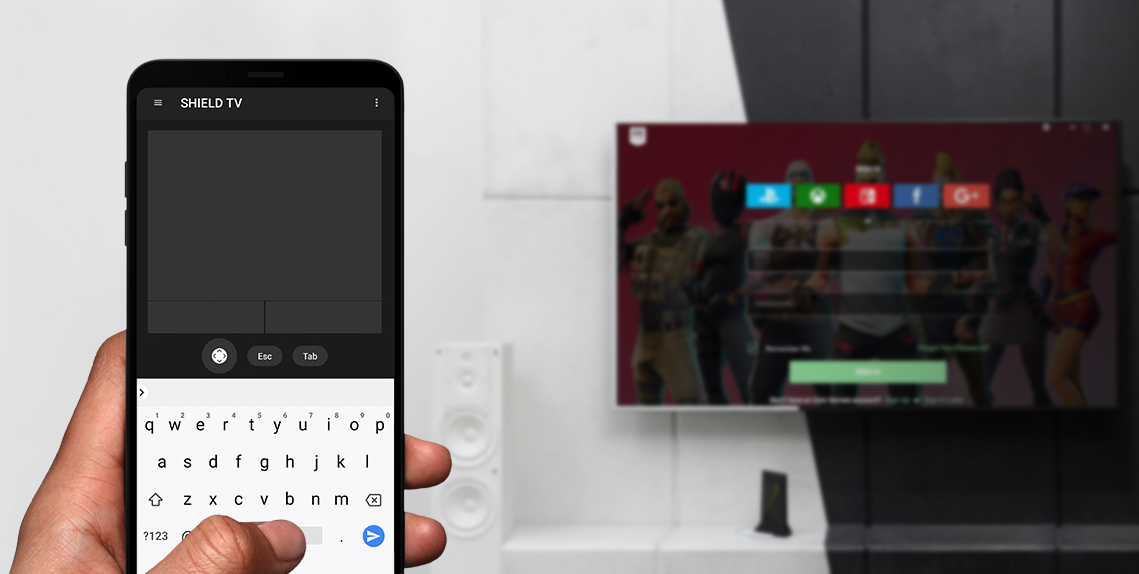
NVIDIA SHIELD TV -sovelluksella voit ohjata SHIELD TV -laitetta, käynnistää sovelluksia ja kirjautua SHIELDin GeForce NOW -suosikkipeleihisi nopeasti.

Sovelluksessa voit käyttää kätevästi virtuaalista hiirtä ja näppäimistöä käyttäjänimesi ja salasanasi syöttämiseen pelipalveluihin.

Ominaisuudet

GeForce NOW -ohjaimet

  • Virtuaalinen hiiren kosketuslevy
  • Virtuaalinäppäimistö (Englanti/USA)

SHIELD TV:n kaukosäädintoiminnot

  • Sovelluksen käynnistin: voit käynnistää sovelluksen SHIELD TV:ssä napauttamalla sovelluksen banneria
  • Ristikko-ohjainsiirtyminen (ylös, alas, oikealla ja vasemmalle) ja valintapainike
  • Android-painikkeet (paluu, aloitus ja aloitusnäkymä)
  • Mediatoisto (toiston käynnistys/pysäytys ja eteen-/taaksekelaus)
  • Äänenvoimakkuuden säätö

Asennusohjeet

  1. Asenna SHIELD TV -sovellus Android- tai iOS-laitteeseen.
  2. Yhdistä mobiililaite samaan verkkoon kuin SHIELD TV.
  3. Käynnistä SHIELD TV -sovellus ja valitse SHIELD-laite havaituista laitteista.
  4. Määritä laitteesi ja SHIELD TV laitepariksi syöttämällä televisiossa näky 6 merkin pituinen koodi.

28. Chromecast 4K

SHIELD TV tukee myös Chromecast-teknologian käyttämistä puhelimen, tabletin tai kannettavan viihdesisällön lähettämiseen suoraan isolle kuvaruudulle.Google Cast toimii sekä iOS- että Android-laitteilla.

28.1 Sisällön Välittäminen Shieldiin

  1. Varmista, että lähetyslähde (älypuhelin, tabletti, kannettava jne.) ja SHIELD TV on yhdistetty samaan verkkoon.
  2. Avaa lähdelaitteessa Google Cast -yhteensopiva sovellus, kuten YouTube.
  3. Napauta tai klikkaa lähetyskuvaketta (Cast).
  4. Valitse Android TV, johon haluat välittää sisällön.Valitse tässä tapauksessa SHIELD.
  5. Aloita toisto puhelimessa tai tabletissa.Sisällön toiston pitäisi alkaa Android TV:ssä ja laitteen lähetyskuvakkeen pitäisi näkyä täytettynä.

Tuetut sovellukset vaihtelevat maittain.Lisätietoja omassa maassasi käytettävissä olevista sovelluksista saat osoitteesta g.co/castapps.

28.2 Sisällön Välitys Shieldiin Peilaamalla

SHIELD TV tukee myös sisällön välitystä peilaamalla (Mirror Casting) tietyistä Android-laitteista.Lisätietoja tuetuista laitteista ja peilaustoistosta SHIELD TV:hen on osoitteessa https://support.google.com/googlecast/answer/6104896.

29. SHIELD Vianmääritys

Ennen kuin aloitat tämän vianmääritysoppaan käytön, varmista, että SHIELD-laitteeseen on päivitetty uusin järjestelmäpäivitys. Sen pitäisi tapahtua automaattisesti, jos SHIELD on yhdistetty Internetiin.

Jos ongelmat eivät ratkea tämän oppaan vianmääritysohjeiden avulla, voit yrittää etsiä ratkaisua GeForce Experience -foorumin SHIELD-osiosta.

SHIELD-laitteen usein kysytyt kysymykset ja SHIELD-tukisivumme sisältävät myös hyödyllistä tietoa.

Jos ongelma ei ratkea, ota yhteyttä NVIDIAN asiakaspalveluun.

30. Health and Safety Information

Important Safety Information

NVIDIA products are designed to operate safely when installed and used according to the product instructions and general safety practices. The guidelines included in this document explain the potential risks associated with equipment operation and provide important safety practices designed to minimize these risks. By carefully following the information contained in this document you can protect yourself from hazards and create a safer environment.

This product is designed and tested to meet IEC-60950-1, the Standard for Safety of Information Technology Equipment. This also covers the national implementation of IEC-60950-1 based safety standards around the world e.g. UL-60950-1. These standards reduce the risk of injury from the following hazards:

  • Electric shock: Hazardous voltage levels contained in parts of the product
  • Fire: Overload, temperature, material flammability
  • Mechanical: Sharp edges, moving parts, instability
  • Energy: Circuits with high energy levels (240 volt-amps) or potential as burn hazards
  • Heath: Accessible parts of the product at high temperatures
  • Chemical: Chemical fumes and vapors
  • Radiation: Noise, ionizing, laser, ultrasonic waves

Retain and follow all product safety and operating instructions. Always refer to the documentation supplied with your equipment. Observe all warnings on the product and in the operating instructions.

Note: Read all safety information below and operating instructions before using the SHIELD to avoid injury.

This is an exclamation mark symbolWARNING: FAILURE TO FOLLOW THESE SAFETY INSTRUCTIONS COULD RESULT IN FIRE, ELECTRIC SHOCK OR OTHER INJURY OR DAMAGE.

ELECTRICAL EQUIPMENT CAN BE HAZARDOUS IF MISUSED. OPERATION OF THIS PRODUCT, OR SIMILAR PRODUCTS, MUST ALWAYS BE SUPERVISED BY AN ADULT. DO NOT ALLOW CHILDREN ACCESS TO THE INTERIOR OF ANY ELECTRICAL PRODUCT AND DO NOT PERMIT THEM TO HANDLE ANY CABLES.

To reduce the risk of bodily injury, electric shock, fire, and damage to the equipment, observe the safety labels included on the equipment.

Symbols on Equipment

This is an exclamation mark symbol This symbol in conjunction with any of the following symbols indicates the presence of a potential hazard. The potential for injury exists if warnings are not observed. Consult your documentation for specific details.

This is an electric shock symbolThis symbol indicates the presence of hazardous energy circuits or electric shock hazards. Refer all servicing to qualified personnel.

This is an exclamation mark symbolWARNING: To reduce the risk of injury from electric shock hazards, do not open this enclosure. Refer all maintenance, upgrades, and servicing to qualified personnel.

This is an presence of electric shock hazards symbolThis symbol indicates the presence of electric shock hazards. The area contains no user or field serviceable parts. Do not open for any reason.

General Precautions

To reduce the risk of electric shock, personal injury, or damage to the equipment, observe the following precautions:

  • Follow all cautions and instructions marked on the equipment.
  • Do not bend, drop, crush, puncture, incinerate, or push objects into openings of the device.
  • Do not connect or disconnect any cables or perform maintenance or reconfiguration of this product during an electrical storm.
  • Do not use the SHIELD TV in rain or near sink, or other wet locations. Take care not to spill any food or liquid into the device. In case the SHIELD device gets wet, unplug all cables and turn off before cleaning, and allow it to dry thoroughly before turning it on again.
  • Do not expose the SHIELD TV to any gas which is not normally contained in the atmosphere. It may cause mis-operation or defects.
  • Never turn on any equipment when there is evidence of fire, water, or structural damage.
  • Place the product away from radiators, heat registers, stoves, amplifiers, or other appliances that produce heat.
  • Never force a connector into a port. Check for obstructions on the port. If the connector and port don't join with reasonable ease, they probably don't match. Make sure that the connector matches the port and that you have positioned the connector correctly in relation to the port.
  • Operate the AC adapter in a ventilated area.
  • When you are using the NVIDIA SHIELD TV, it is normal for the system and/or AC power adapter to get warm.
  • Do not use conductive tools that could bridge live parts.
  • Do not make mechanical or electrical modifications to the equipment.
  • Never attempt to reconnect the SHIELD TV yourself. This device does not contain any user-serviceable parts. Do not attempt to open, disassemble, or remove the battery. You run the risk of electric shock.
  • Operate the SHIELD TV in a place where the temperature is always between 5 and 30°C (41 to 86°F).
  • Store the SHIELD TV in a place where the temperature is always between 0 and 35°C (32 to 95°F) with relative humidity of 70% or lower. When taking the device from a low temperature condition, allow the device to reach room temperature before turning the power on.
  • Use this product only with approved equipment and/or accessories
  • If the product sustains damage requiring service, disconnect the product from the AC electrical outlet and refer servicing to an NVIDIA authorized service provider.

This is an exclamation mark symbolProposition 65 WARNING: This product contains chemicals known to the State of California to cause cancer and birth defects or other reproductive harm. (California law requires this warning be provided to California customers.

A lire avant toute utilisation d'un jeu vidéo par vous-même ou par votre enfant.

I. - Précautions à prendre dans tous les cas pour l'utilisation d'un jeu vidéo.

Evitez de jouer si vous êtes fatigué ou si vous manquez de sommeil.

Assurez-vous que vous jouez dans une pièce bien éclairée en modérant la luminosité de votre écran.

Lorsque vous utilisez un jeu vidéo susceptible d'être connecté à un écran, jouez à bonne distance de cet écran de télévision et aussi loin que le permet le cordon de raccordement.

En cours d'utilisation, faites des pauses de dix à quinze minutes toutes les heures.

II. - Avertissement sur l'épilepsie.

Certaines personnes sont susceptibles de faire des crises d'épilepsie comportant, le cas échéant, des pertes de conscience à la vue, notamment, de certains types de stimulations lumineuses fortes: succession rapide d'images ou répétition de figures géométriques simples, d'éclairs ou d'explosions. Ces personnes s'exposent à des crises lorsqu'elles jouent à certains jeux vidéo comportant de telles stimulations, alors même qu'elles n'ont pas d'antécédent médical ou n'ont jamais été sujettes elles-mêmes à des crises d'épilepsie.

Si vous-même ou un membre de votre famille avez déjà présenté des symptômes liés à l'épilepsie (crise ou perte de conscience) en présence de stimulations lumineuses, consultez votre médecin avant toute utilisation.

Les parents se doivent également d'être particulièrement attentifs à leurs enfants lorsqu'ils jouent avec des jeux vidéo. Si vous-même ou votre enfant présentez un des symptômes suivants : vertige, trouble de la vision, contraction des yeux ou des muscles, trouble de l'orientation, mouvement involontaire ou convulsion, perte momentanée de conscience, il faut cesser immédiatement de jouer et consulter un médecin.

Power Rating

19 V DC, 2.1 A

31. SHIELD TV Compliance

The SHIELD Android TV Game Console is compliant with the regulations listed in this section.

United States

Federal Communications Commission (FCC)

FCC ID: VOB-P3430

This device complies with Part 15 of the FCC Rules. Operation is subject to the following two conditions: (1) this device may not cause harmful interference, and (2) this device must accept any interference received, including any interference that may cause undesired operation of the device.

This equipment has been tested and found to comply with the limits for a Class B digital device, pursuant to Part 15 of the FCC Rules. These limits are designed to provide reasonable protection against harmful interference in a residential installation. This equipment generates, uses and can radiate radio frequency energy and, if not installed and used in accordance with the instructions, may cause harmful interference to radio communications. However, there is no guarantee that interference will not occur in a particular installation.
If this equipment does cause harmful interference to radio or television reception, which can be determined by turning the equipment off and on, the user is encouraged to try to correct the interference by one or more of the following measures:

  • Reorient or relocate the receiving antenna.
  • Increase the separation between the equipment and receiver.
  • Connect the equipment into an outlet on a circuit different from that to which the receiver is connected.
  • Consult the dealer or an experienced radio/TV technician for help.

FCC Warning: The FCC requires that you be notified that any changes or modifications to this device not expressly approved by the manufacturer could void the user's authority to operate the equipment.

RF Radiation Exposure Statement:

SHIELD Android TV Game Console has been tested and complies with FCC RF radiation exposure limits set forth for an uncontrolled environment when used with the NVIDIA accessories supplied or designated for this product. During testing, SHIELD was placed in positions that simulate use against the body. The use of any other accessories may not ensure compliance with FCC RF exposure guidelines.

This equipment must be installed and operated in accordance with provided instructions and the antenna(s) used for this transmitter must be installed to provide a separation distance of at least 20 cm from all persons and must not be co-located or operating in conjunction with any other antenna or transmitter. End-users and installers must be provided with antenna installation instructions and consider removing the no-collocation statement.

Underwriters Laboratories (UL)

I.T.E. E204896

Canada

Innovation, Science and Economic Development Canada (ISED)

IC: 7361A-P3430

CAN ICES-3(B)/NMB-3(B)

This device contains licence-exempt transmitter(s)/receiver(s) that comply with Innovation, Science and Economic Development Canada's licence-exempt RSS(s). Operation is subject to the following two conditions: (1) this device may not cause interference, and (2) this device must accept any interference, including interference that may cause undesired operation of the device.

Le présent appareil est conforme aux CNR d'Innovation, Sciences et Développement économique Canada applicables aux appareils radio exempts de licence. L'exploitation est autorisée aux deux conditions suivantes: (1) l'appareil ne doit pas produire de brouillage, et (2) l'utilisateur de l'appareil doit accepter tout brouillage radioélectrique subi, même si le brouillage est susceptible d'en compromettre le fonctionnement.

Caution: Operation in the band 5150-5250 MHz is only for indoor use to reduce the potential for harmful interference to co-channel mobile satellite systems. Be advised that high-power radars are allocated as primary users of the bands 5250-5350 MHz and 5650-5850 MHz and that these radars could cause interference and/or damage to LE-LAN devices.

Attention: les dispositifs fonctionnant dans la bande de 5 150 à 5 250 MHz sont réservés uniquement pour une utilisation à l'intérieur afin de réduire les risques de brouillage préjudiciable aux systèmes de satellites mobiles utilisant les mêmes canaux

Être informé des radars à haute puissance sont alloués principaux utilisateurs de bandes 5250 à 5350 MHz et 5850 MHz, à 5650 et que ces radars pourraient provoquer des interférences et / ou endommager les appareils RL-EL. radars à haute puissance sont alloués utilisateurs primaires des bandes 5250 à 5350 MHz et 5850 MHz, ce à 5650 et que ces radars pourraient provoquer des interférences et / ou endommager les périphériques RL-EL.

RF Radiation Exposure Statement:

SHIELD Android TV Game Console has been tested and complies with IC RSS 102 RF radiation exposure limits set forth for an uncontrolled environment when used with the NVIDIA accessories supplied or designated for this product. During testing, SHIELD was placed in positions that simulate use against the body. The use of any other accessories may not ensure compliance with IC RSS 102 RF exposure guidelines.

This transmitter must not be co-located or operating in conjunction with any other antenna or transmitter. This equipment should be installed and operated with a minimum distance of 20 centimeters between the radiator and your body.

Déclaration d'exposition aux radiations:

SHIELD Android TV Game Console a ete testee conformemment aux normes d'exposition d'emission RF de la IC RSS 102 pour un environement non controle lors d'utilisation avec les accessoires fournis or recommendes par NVIDIA. Pendant les tests, SHIELD a ete positionnee afin de simule la presence du corps humain. L'utilisation d'accessoires autres que ceux recommendes par NVIDIA ne guarantis pas la compatibilite avec les normes d'emission RF de la IC RSS 102.

Cet émetteur ne doit pas être Co-placé ou ne fonctionnant en même temps qu'aucune autre antenne ou émetteur. Cet équipement devrait être installé et actionné avec une distance minimum de 20 centimètres entre le radiateur et votre corps.

European Union

European Conformity; Conformité Européenne (CE)

This device complies with the following Directives:

  • Radio Equipment Directive 2014/53/EU
  • RoHS Directive 2011/65/EU
  • Energy-related Products Directive (ErP) 2009/125/EC

The full text of EU declaration of conformity is available at the following internet address: www.nvidia.com/support

A copy of the Declaration of Conformity to the essential requirements may be obtained directly from NVIDIA GmbH (Bavaria Towers – Blue Tower, Einsteinstrasse 172, D-81677 Munich, Germany).

This device operates in the following frequency bands and maximum transmitted power:

Frequency Band

Max. EIRP(dBm)

Max. EIRP(mW)

2400.0 - 2483.5 MHz

20.0

100

5150.0 - 5350.0 MHz

23.0

200

5470.0 - 5725.0 MHz

23.0

200

5725.0 - 5875.0 MHz

14.0

25


Warning:

  • Operation in the 5150 - 5350 MHz frequency band is restricted to Indoor Use Only.
  • This equipment should be installed and operated with a minimum distance of 20 centimeters between the radiator and your body.
  • Any changes or modifications to this device not expressly approved by the manufacturer could void the user's authority to operate the equipment.

A LIRE AVANT TOUTE UTILISATION D'UN JEU VIDEO PAR VOUS-MEME OU PAR VOTRE ENFANT

I. - Précautions à prendre dans tous les cas pour l'utilisation d'un jeu vidéo.

Evitez de jouer si vous êtes fatigué ou si vous manquez de sommeil.

Assurez-vous que vous jouez dans une pièce bien éclairée en modérant la luminosité de votre écran.

Lorsque vous utilisez un jeu vidéo susceptible d'être connecté à un écran, jouez à bonne distance de cet écran de télévision et aussi loin que le permet le cordon de raccordement.

En cours d'utilisation, faites des pauses de dix à quinze minutes toutes les heures.

II. - Avertissement sur l'épilepsie.

Certaines personnes sont susceptibles de faire des crises d'épilepsie comportant, le cas échéant, des pertes de conscience à la vue, notamment, de certains types de stimulations lumineuses fortes: succession rapide d'images ou répétition de figures géométriques simples, d'éclairs ou d'explosions. Ces personnes s'exposent à des crises lorsqu'elles jouent à certains jeux vidéo comportant de telles stimulations, alors même qu'elles n'ont pas d'antécédent médical ou n'ont jamais été sujettes elles-mêmes à des crises d'épilepsie. Si vous-même ou un membre de votre famille avez déjà présenté des symptômes liés à l'épilepsie (crise ou perte de conscience) en présence de stimulations lumineuses, consultez votre médecin avant toute utilisation. Les parents se doivent également d'être particulièrement attentifs à leurs enfants lorsqu'ils jouent avec des jeux vidéo. Si vous-même ou votre enfant présentez un des symptômes suivants : vertige, trouble de la vision, contraction des yeux ou des muscles, trouble de l'orientation, mouvement involontaire ou convulsion, perte momentanée de conscience, il faut cesser immédiatement de jouer et consulter un médecin.

Australia and New Zealand

Australian Communications and Media Authority

This product meets the applicable EMC requirements for Class B, I.T.E equipment and applicable radio equipment requirements.
This product meets the applicable requirements for telecommunications equipment and can legally be connected to a telecommunications network.

Japan

Voluntary Control Council for Interference (VCCI)

Radio/Telecommunications Certification

W52/ W53は屋内使用限定

Japan RoHS Material Content Declaration

日本工業規格JIS C 0950:2008により、2006年7月1日以降に販売される特定分野の電気および電子機器について、製造者による含有物質の表示が義務付けられます。

機器名称:SHIELD Android TV Game Console

主な分類

特定化学物質記号

Pb

Hg

Cd

Cr(VI)

PBB

PBDE

メディアストリームコンソール

除外項目

0

0

0

0

0

電源

除外項目

0

0

0

0

0

ケーブル/コネクター

除外項目

0

0

0

0

0

プロセッサー

除外項目

0

0

0

0

0

システムメモリ

除外項目

0

0

0

0

0

プリント基板

除外項目

0

0

0

0

0

機械部品

除外項目

0

0

0

0

0

はんだ付け材料

0

0

0

0

0

0

フラックス、クリームはんだ、ラベル、その他消耗品

0

0

0

0

0

0

注:

1.「0」は、特定化学物質の含有率が日本工業規格JIS C 0950:2008に記載されている含有率基準値より低いことを示します。

2.「除外項目」は、特定化学物質が含有マークの除外項目に該当するため、特定化学物質について、日本工業規格JIS C 0950:2008に基づく含有マークの表示が不要であることを示します。


A Japanese regulatory requirement, defined by specification JIS C 0950: 2008, mandates that manufacturers provide Material Content Declarations for certain categories of electronic products offered for sale after July 1, 2006.

Product Model Number: SHIELD Android TV Game Console

Major Classification

Symbols of Specified Chemical Substance

Pb

Hg

Cd

Cr(VI)

PBB

PBDE

Media Streaming Console

Exempt

0

0

0

0

0

Power adapter

Exempt

0

0

0

0

0

Cables/Connectors

Exempt

0

0

0

0

0

Processor

Exempt

0

0

0

0

0

System memory

Exempt

0

0

0

0

0

PCA

Exempt

0

0

0

0

0

Mechanicals

Exempt

0

0

0

0

0

Soldering material

0

0

0

0

0

0

Flux, Solder Paste, label and other consumable materials

0

0

0

0

0

0

Notes:

1. "0" indicates that the level of the specified chemical substance is less than the threshold level specified in the standard, JIS C 0950: 2008.

2. "Exempt" indicates that the specified chemical substance is exempt from marking and it is not required to display the marking for that specified chemical substance per the standard, JIS C 0950: 2008.


South Korea

Radio Research Agency (RRA)

Korean Agency for Technology and Standards (KATS)

R-R-NVA-P3430

B급 기기

이 기기는 가정용(B급) 전자파적합기기로서 주

(가정용 방송 통신기자재)

로 가정에서 사용하는 것을 목적으로 하며, 모


든 지역에서 사용할 수 있습니다.

Korea RoHS Material Content Declaration

확인 및 평가 양식은 제품에 포함 된 유해 물질의 허용 기준의 준수에 관한

문 준비

상호 :

앤비디아홍콩홀딩즈리미티드( 영업소)

법인등록번호

110181-0036373

대표자성명

카렌테레사번즈

사업자등록번호:

120-84-06711

주소

서울특별시 강남구 영동대로 511, 2101호 ( 삼성동, 코엑스무역타워)

제품 내용

제품의 종류

해당없음

제품명(규격)

해당없음

세부모델명(번호):

해당없음

제품출시일

해당없음

제품의 중량

해당없음

제조, 수입업자

앤비디아

엔비디아의 그래픽 카드제품은 전기 전자제품 및 자동차의 자원순환에 관한 법률 시행령 제 11조 제 1항에 의거한 법 시행행규칙 제 3조에에따른 유해물질함유 기준을 확인 및 평가한 결과, 이를 준수하였음을 공표합니다.

구비서류 : 없음
작성방법

① 제품의 종류는 "전기.전자제품 및 자동차의 자원순환에관한 법률 시행령" 제 8조 제 1항 및 제 2항에 따른 품목별로 구분하여 기재합니다.

② 전기 전자 제품의 경우 모델명 (번호), 자동차의 경우, 제원관리번호를 기재합니다.

③ 해당제품의 제조업자 또는 수입업자를 기재합니다.


Confirmation and Evaluation Form Concerning the Adherence to Acceptable Standards of Hazardous Materials Contained in Products

Statement Prepared by

Company Name:

Nvidia HongKong Holding Ltd.Korea branch

Corporate Identification Number:

110181-0036373

Name of Company Representative:

Karen Theresa Burns

Business Registration Number:

120-84-06711

Address

2788 San Tomas Expressway, Santa Clara, CA 95051

Product Information

Product Category:

N/A

Name of Product:

N/A

Detailed Product Model Name (Number):

N/A

Date of first market release:

N/A

Weight of Product:

N/A

Manufacturer and/or Importer:

NVIDIA Corporation

This for is publicly certify That NVIDIA Company has undergone the confirmation and evaluation procedures for the acceptable amounts of hazardous materials contained in graphic card according to the regulations stipulated in Article 3 of the 'Status on the Recycling of Electrical and Electronic Products, and Automobiles' and that company has graphic card adhered to the Enforcement Regulations of Article 11, Item 1 of the statute.

Attachment: None
*Preparing the Form

① Please indicate the product category according to the categories listed in Article 8, Items 1and 2 of the ' Enforcement Ordinance of the Statute on the Recycling of Electrical, Electronic and Automobile Materials'

② For electrical and electronic products, please indicate the Model Name (and number). For automobiles, please indicate the Vehicle Identification Number.

③ Please indicate the name of manufacturer and/or importer of the product.


Taiwan

National Communications Commission

注意!

依據 低功率電波輻射性電機管理辦法

第十二條

經型式認證合格之低功率射頻電機,非經許可,公司、商號或使用者均不得擅自變更頻率、加大功率或變更原設計之特性及功能。

第十四條

低功率射頻電機之使用不得影響飛航安全及干擾合法通信;經發現有干擾現象時,應立即停用,並改善至無干擾時方得繼續使用。

前項合法通信,指依電信法規定作業之無線電通信。

低功率射頻電機須忍受合法通信或工業、科學及醫療用電波輻射性電機設備之干擾。

應避免影響附近雷達系統之操作。

高增益指向性天線只得應用於固定式點對點系統。

Taiwan RoHS Material Content Declaration

限用物質含有情况標示聲明書
Declaration of the presence condition of the Restricted Sustances Marking
設備名稱:SHIELD Android TV Game Console
Equipment Name: SHIELD Android TV Game Console

單元
Parts

限用物質及其化學符號
Restricted substances and its chemical symbols


(Pb)


(Hg)


(Cd)

六價铬
(Cr(VI))

多溴聯苯
(PBB)

多溴二苯醚
(PBDE)

媒體流控制台
Media Streaming Console

-

0

0

0

0

0

電源設備
Power adapter

-

0

0

0

0

0

線材
Cables

-

0

0

0

0

0

處理器
Processor

-

0

0

0

0

0

存儲設備
System memory

-

0

0

0

0

0

印刷電路部件
PCA

-

0

0

0

0

0

機械部件
Mechanicals

-

0

0

0

0

0

焊接金屬
Soldering material

0

0

0

0

0

0

助焊劑,錫膏,標籤及耗材
Flux, Solder Paste, label and other consumable materials

0

0

0

0

0

0

備考1:O:系指該限用物質未超出百分比含量基準值
Note 1: O:indicates that the percentage content of the restricted substance does not exceed the percentage of reference value of presence.

備考2: -:系指該项限用物質为排外项目。
Note 2:-:indicates that the restricted substance corresponds to the exemption.

此表中所有名稱中含 "-" 的部件均符合歐盟 RoHS 立法。 All parts named in this table with an "-" are in compliance with the European Union's RoHS Legislation.

注:環保使用期限的參考標識取决與產品正常工作的温度和濕度等條件
Note: The referenced Environmental Protection Use Period Marking was determined according to normal operating use conditions of the product such as temperature and humidity.


Russia/Kazakhstan/Belarus

Customs Union Technical Regulations (CU TR)

This device complies with the technical regulations of the Customs Union (CU TR)

ТЕХНИЧЕСКИЙ РЕГЛАМЕНТ ТАМОЖЕННОГО СОЮЗА О безопасности низковольтного оборудования (ТР ТС 004/2011)

ТЕХНИЧЕСКИЙ РЕГЛАМЕНТ ТАМОЖЕННОГО СОЮЗА

Электромагнитная совместимость технических средств (ТР ТС 020/2011)


Federal Agency of Communication (FAC)

This device complies with the rules set forth by Federal Agency of Communications and the Ministry of Communications and Mass Media

Federal Security Service notification has been filed.


Singapore

Infocomm Media Development Authority of Singapore (IMDA)

Bluetooth

Bluetooth logo

Declaration ID: D046888


Wi-Fi Alliance®

Wi-Fi CERTIFIED

Wi-Fi Certified Logo

Certification ID: WFA91178

32. SHIELD Controller 2017 Compliance

The SHIELD Controller 2017 is compliant with the regulations listed in this section.

United States

Federal Communications Commission (FCC)

FCC ID: VOB-P2920

This device complies with Part 15 of the FCC Rules. Operation is subject to the following two conditions: (1) this device may not cause harmful interference, and (2) this device must accept any interference received, including interference that may cause undesired operation.

This equipment has been tested and found to comply with the limits for a Class B digital device, pursuant to Part 15 of the FCC Rules. These limits are designed to provide reasonable protection against harmful interference in a residential installation. This equipment generates, uses and can radiate radio frequency energy and, if not installed and used in accordance with the instructions, may cause harmful interference to radio communications.  However, there is no guarantee that interference will not occur in a particular installation. If this equipment does cause harmful interference to radio or television reception, which can be determined by turning the equipment off and on, the user is encouraged to try to correct the interference by one or more of the following measures:

  • Reorient or relocate the receiving antenna.
  • Increase the separation between the equipment and receiver.
  • Connect the equipment into an outlet on a circuit different from that to which the receiver is connected.
  • Consult the dealer or an experienced radio/TV technician for help.

FCC Warning: The FCC requires that you be notified that any changes or modifications to this device not expressly approved by the manufacturer could void the user’s authority to operate the equipment.

RF Radiation Exposure Statement:

NVIDIA SHIELD Controller 2017 has been tested and complies with FCC RF radiation exposure limits set forth for an uncontrolled environment when used with the NVIDIA accessories supplied or designated for this product.  During testing, the SHIELD was placed in positions that simulate use against the body.  The use of any other accessories may not ensure compliance with FCC RF exposure guidelines.

California Energy Commission

This product meets the applicable energy efficiency requirements for a battery charging system.

Underwriters Laboratories (UL)

I.T.E. E204896


Canada

Industry Canada (IC)

IC: 7361A-P2920

CAN ICES-3(B)/NMB-3(B)

This device complies with Industry Canada license-exempt RSS standard(s). Operation is subject to the following two conditions: (1) this device may not cause interference, and (2) this device must accept any interference, including interference that may cause undesired operation of the device.

Le présent appareil est conforme aux CNR d'Industrie Canada applicables aux appareils radio exempts de licence. L'exploitation est autorisée aux deux conditions suivantes : (1) l'appareil ne doit pas produire de brouillage, et (2) l'utilisateur de l'appareil doit accepter tout brouillage radioélectrique subi, même si le brouillage est susceptible d'en compromettre le fonctionnement.

The device meets the exemption from the routine evaluation limits in section 2.5 of RSS 102 and compliance with RSS-102 RF exposure, users can obtain Canadian information on RF exposure and compliance.

Le dispositif rencontre l'exemption des limites courantes d'évaluation dans la section 2.5 de RSS 102 et la conformité à l'exposition de RSS-102 rf, utilisateurs peut obtenir l'information canadienne sur l'exposition et la conformité de rf.


European Union

European Conformity

Conformité Européenne (CE)

This device bears the CE mark in accordance with Directive 2014/53/EU

This device complies with the following Directives:

  • Radio Equipment Directive for radio equipment
  • RoHS Directive for hazardous substances

The full text of EU declaration of conformity is available at the following internet address: https://images.nvidia.com/shieldwebsite/visuals/public/DoC/EN/SHIELD_Controller_P2920_DoC_EN.pdf

This device operates in the following frequency bands and maximum transmitted power:

Frequency Band

Max. EIRP(dBm)

Max. EIRP(mW)

2402.0 - 2480.0 MHz

9.84

9.64

Warning:

  • Any changes or modifications to this device not expressly approved by the manufacturer could void the user’s authority to operate the equipment.

Hardware version: 699-12922-xxxx-xxx; Software version: v1.xx.


Australia and New Zealand

Australian Communications and Media Authority

This product meets the applicable EMC requirements for Class B, I.T.E equipment and applicable radio equipment requirements.


Japan

Voluntary Control Council for Interference (VCCI)

This is a Class B product based on the standard of the VCCI Council. If this is used near a radio or television receiver in a domestic environment, it may cause radio interference. Install and use the equipment according to the instruction manual.

Radio/Telecommunications Certification


South korea

Korea Certification (KC)

상호 : NVIDIA CORPORATION

기자재 명칭: SHIELD Controller

모델명:  P2920

제조년월일 : 2016/07

해당무선기기는 운용중 전파혼신 가능성이 있음

Class B Equipment (For Home Use Broadcasting & Communication Equipment)

B급 기기 (가정용 방송통신기자재)

This equipment is home use (Class B) electromagnetic wave suitability equipment and to be used mainly at home and it can be used in all areas.

이 기기는 가정용(B급) 전자파적합기기로서 주 로 가정에서 사용하는 것을 목적으로 하며, 모 든 지역에서 사용할 수 있습니다.


China

State Radio Regulation of China (SRRC)

CMIIT ID: 2016DP3727

China RoHS Material Content Declaration

产品中有害物质的名称及含量
The Table of Hazardous Substances and their Content
根据中国《电器电子产品有害物质限制使用管理办法》
as required by Management Methods for Restricted Use of Hazardous Substances in Electrical and Electronic Products

部件名称
Parts

有害物质
Hazardous Substances


(Pb)


(Hg)


(Cd)

六价铬
(Cr(VI))

多溴联苯
(PBB)

多溴二苯醚
(PBDE)

游戏手柄

Game controller

X

O

O

O

O

O

印刷电路部件

PCA

X

O

O

O

O

O

机械部件

Mechanicals

O


O

O

O

O

O

电池

Battery

O


O

O

O

O

O

焊接金属

Soldering material

O

O

O

O

O

O

助焊剂,锡膏,标签及耗材

Flux, Solder Paste, label and other consumable materials

O


O

O

O

O

O

本表格依据SJ/T 11364-2014 的规定编制
The table according to SJ/T 11364-2014

O:表示该有害物质在该部件所有均质材料中的含量均在GB/T 26572-2011 标准规定的限量要求以下。
O: Indicates that this hazardous substance contained in all of the homogeneous materials for this
part is below the limit requirement in GB/T 26572-2011.
X:表示该有害物质至少在该部件的某一均质材料中的含量超出GB/T 26572-2011 标准规定的限量要求。
X: Indicates that this hazardous substance contained in at least one of the homogeneous materials used for this part is above the limit requirement in GB/T 26572-2011.


此表中所有名称中含 “X” 的部件均符合欧盟 RoHS 立法。
All parts named in this table with an "X" are in compliance with the European Union's RoHS Legislation.

注:环保使用期限的参考标识取决于产品正常工作的温度和湿度等条件
Note: The referenced Environmental Protection Use Period Marking was determined according to normal operating use conditions of the product such as temperature and humidity.


Taiwan

National Communications Commission

注意!

依據 低功率電波輻射性電機管理辦法

第十二條

經型式認證合格之低功率射頻電機,非經許可,公司、商號或使用者均不得擅自變更頻率、加大功率或變更原設計之特性及功能。

第十四條

低功率射頻電機之使用不得影響飛航安全及干擾合法通信;經發現有干擾現象時,應立即停用,並改善至無干擾時方得繼續使用。

前項合法通信,指依電信法規定作業之無線電通信。

低功率射頻電機須忍受合法通信或工業、科學及醫療用電波輻射性電機設備之干擾。


India

Wireless Planning & Coordination Wing (WPC)

ETA CERTIFICATION NO: : NR-ETA-/4251


Russia/Kazakhstan/Belarus

EurAsian Customs Union

This device complies with the technical regulations of the Customs Union (CU TR)

This device complies with the rules set forth by Federal Agency of Communications and the Ministry of Communications and Mass Media

Federal Security Service notification has been filed.


Singapore

Infocomm Development Authority of Singapore (IDA)

Bluetooth

Bluetooth Logo

Bluetooth v4.1

Declaration ID: D031201

33. SHIELD Remote Compliance

The SHIELD Remote is compliant with the regulations listed in this section.

United States

Federal Communications Commission (FCC)

FCC ID: TX4-P3700

This device complies with part 15 of the FCC Rules. Operation is subject to the following two conditions: (1) this device may not cause harmful interference, and (2) this device must accept any interference received, including any interference that may cause undesired operation of the device.

This equipment has been tested and found to comply with the limits for a Class B digital device, pursuant to Part 15 of the FCC Rules. These limits are designed to provide reasonable protection against harmful interference in a residential installation. This equipment generates, uses and can radiate radio frequency energy and, if not installed and used in accordance with the instructions, may cause harmful interference to radio communications. However, there is no guarantee that interference will not occur in a particular installation.

If this equipment does cause harmful interference to radio or television reception, which can be determined by turning the equipment off and on, the user is encouraged to try to correct the interference by one or more of the following measures:

  • Reorient or relocate the receiving antenna.
  • Increase the separation between the equipment and receiver.
  • Connect the equipment into an outlet on a circuit different from that to which the receiver is connected.
  • Consult the dealer or an experienced radio/TV technician for help.

FCC Warning: The FCC requires that you be notified that any changes or modifications to this device not expressly approved by the manufacturer could void the user's authority to operate the equipment.

RF Radiation Exposure Statement:

NVIDIA SHIELD Remote has been tested and complies with FCC RF radiation exposure limits set forth for an uncontrolled environment when used with the NVIDIA accessories supplied or designated for this product.  During testing, the SHIELD was placed in positions that simulate use against the body.  The use of any other accessories may not ensure compliance with FCC RF exposure guidelines.

Underwriters Laboratories (UL)

I.T.E. E507112


Canada

Innovation, Science and Economic Development Canada (ISED)

IC: 11438A-P3700

CAN ICES-3(B)/NMB-3(B)

This device contains licence-exempt transmitter(s)/receiver(s) that comply with Innovation, Science and Economic Development Canada's licence-exempt RSS(s).  Operation is subject to the following two conditions: (1) this device may not cause interference, and (2) this device must accept any interference, including interference that may cause undesired operation of the device.

Le présent appareil est conforme aux CNR d'Innovation, Sciences et Développement économique Canada applicables aux appareils radio exempts de licence. L'exploitation est autorisée aux deux conditions suivantes: (1) l'appareil ne doit pas produire de brouillage, et (2) l'utilisateur de l'appareil doit accepter tout brouillage radioélectrique subi, même si le brouillage est susceptible d'en compromettre le fonctionnement.

RF Radiation Exposure Statement:  

SHIELD Remote has been tested and complies with IC RSS 102 RF radiation exposure limits set forth for an uncontrolled environment when used with the NVIDIA accessories supplied or designated for this product.  During testing, SHIELD was placed in positions that simulate use against the body.  The use of any other accessories may not ensure compliance with IC RSS 102RF exposure guidelines.

Déclaration d'exposition aux radiations:

SHIELD Remote a ete testee conformemment aux normes d'exposition d'emission RF de la IC RSS 102 pour un environement non controle lors  d'utilisation avec les accessoires fournis or recommendes par NVIDIA. Pendant les tests, SHIELD a ete positionnee afin de simule la presence du corps humain. L'utilisation  d'accessoires autres que ceux recommendes par NVIDIA ne guarantis pas la compatibilite avec les normes d'emission RF de la IC RSS 102.


European Union

European Conformity; Conformité Européenne (CE)
This device complies with the following Directives:

  • Radio Equipment Directive 2014/53/EU
  • RoHS Directive 2011/65/EU

The full text of EU declaration of conformity is available at the following internet address: www.nvidia.com/support

A copy of the Declaration of Conformity to the essential requirements may be obtained directly from NVIDIA GmbH (Bavaria Towers – Blue Tower, Einsteinstrasse 172, D-81677 Munich, Germany).

This device operates in the following frequency bands and maximum transmitted power:

Frequency Band

Max. EIRP(dBm)

Max. EIRP(mW)

2402 - 2480 MHz

10.7

11.75


Warning:

  • Any changes or modifications to this device not expressly approved by the manufacturer could void the user's authority to operate the equipment.

Australia and New Zealand

Australian Communications and Media Authority

This product meets the applicable EMC requirements for Class B, I.T.E equipment and applicable radio equipment requirements.
This product meets the applicable requirements for telecommunications equipment and can legally be connected to a telecommunications network.


Japan

Voluntary Control Council for Interference (VCCI)

Radio/Telecommunications Certification
Japan RoHS Material Content Declaration

日本工業規格JIS C 0950:2008により、2006年7月1日以降に販売される特定分野の電気および電子機器について、製造者による含有物質の表示が義務付けられます。

機器名称: SHIELD Remote

主な分類

特定化学物質記号

Pb

Hg

Cd

Cr(VI)

PBB

PBDE

リモートコントロール

除外項目

0

0

0

0

0

プリント基板

除外項目

0

0

0

0

0

機械部品

除外項目

0

0

0

0

0

電池

0

0

0

0

0

0

はんだ付け材料

0

0

0

0

0

0

フラックス、クリームはんだ、ラベル、その他消耗品

0

0

0

0

0

0

注:

1.「0」は、特定化学物質の含有率が日本工業規格JIS C 0950:2008に記載されている含有率基準値より低いことを示します。

2.「除外項目」は、特定化学物質が含有マークの除外項目に該当するため、特定化学物質について、日本工業規格JIS C 0950:2008に基づく含有マークの表示が不要であることを示します。


A Japanese regulatory requirement, defined by specification JIS C 0950: 2008, mandates that manufacturers provide Material Content Declarations for certain categories of electronic products offered for sale after July 1, 2006.

Product Model Number: SHIELD Remote

Major Classification

Symbols of Specified Chemical Substance

Pb

Hg

Cd

Cr(VI)

PBB

PBDE

Remote

Exempt

0

0

0

0

0

PCA

Exempt

0

0

0

0

0

Mechanical parts

Exempt

0

0

0

0

0

Battery

0

0

0

0

0

0

Soldering material

0

0

0

0

0

0

Flux, Solder Paste, label and other consumable materials

0

0

0

0

0

0

Notes:

1. "0" indicates that the level of the specified chemical substance is less than the threshold level specified in the standard, JIS C 0950: 2008.

2. "Exempt" indicates that the specified chemical substance is exempt from marking and it is not required to display the marking for that specified chemical substance per the standard, JIS C 0950: 2008. 


South korea

Radio Research Agency (RRA)

Korean Agency for Technology and Standards (KATS)

R-R-RMB-P3700

B급 기기

(가정용 방송 통신기자재)

이 기기는 가정용(B급) 전자파적합기기로서 주

로 가정에서 사용하는  것을 목적으로 하며, 모

든 지역에서 사용할 수 있습니다.

Korea RoHS Material Content Declaration

확인 및 평가 양식은 제품에 포함 된 유해 물질의 허용 기준의 준수에 관한

문 준비

상호 :

앤비디아홍콩홀딩즈리미티드( 영업소)

법인등록번호

110181-0036373

대표자성명

카렌테레사번즈

사업자등록번호:

120-84-06711

주소

서울특별시 강남구 영동대로 511, 2101호 ( 삼성동, 코엑스무역타워)

제품 내용

제품의 종류

개인용 컴퓨터

제품명(규격)

방패

세부모델명(번호):

해당없음

제품출시일

해당없음

제품의 중량

해당없음

제조, 수입업자

앤비디아

엔비디아의 그래픽 카드제품은 전기 전자제품 및 자동차의 자원순환에 관한 법률 시행령 제 11조 제 1항에 의거한 법 시행행규칙 제 3조에에따른 유해물질함유 기준을 확인 및 평가한 결과, 이를 준수하였음을 공표합니다.

구비서류 : 없음
작성방법

① 제품의 종류는 "전기.전자제품 및 자동차의 자원순환에관한 법률 시행령" 제 8조 제 1항 및 제 2항에 따른 품목별로 구분하여 기재합니다.

② 전기 전자 제품의 경우 모델명 (번호), 자동차의 경우, 제원관리번호를 기재합니다.

③ 해당제품의 제조업자 또는 수입업자를 기재합니다.


Confirmation and Evaluation Form Concerning the Adherence to Acceptable Standards of Hazardous Materials Contained in Products

Statement Prepared by

Company Name:

Nvidia HongKong Holding Ltd.Korea branch

Corporate Identification Number:

110181-0036373

Name of Company Representative:

Karen Theresa Burns

Business Registration Number:

120-84-06711

Address

2788 San Tomas Expressway, Santa Clara, CA 95051

Product Information

Product Category:

N/A

Name of Product:

N/A

Detailed Product Model Name (Number):

N/A

Date of first market release:

N/A

Weight of Product:

N/A

Manufacturer and/or Importer:

NVIDIA Corporation

This for is publicly certify That NVIDIA Company has undergone the confirmation and evaluation procedures for the acceptable amounts of hazardous materials contained in graphic card according to the regulations stipulated in Article 3 of the 'Status on the Recycling of Electrical and Electronic Products, and Automobiles' and that company has graphic card adhered to the Enforcement Regulations of Article 11, Item 1 of the statute.

Attachment: None
*Preparing the Form

① Please indicate the product category according to the categories listed in Article 8, Items 1and 2 of the ' Enforcement Ordinance of the Statute on the Recycling of Electrical, Electronic and Automobile Materials'

② For electrical and electronic products, please indicate the Model Name (and number). For automobiles, please indicate the Vehicle Identification Number.

③ Please indicate the name of manufacturer and/or importer of the product


Taiwan

National Communications Commission

注意!

依據 低功率電波輻射性電機管理辦法

第十二條

經型式認證合格之低功率射頻電機,非經許可,公司、商號或使用者均不得擅自變更頻率、加大功率或變更原設計之特性及功能。

第十四條

低功率射頻電機之使用不得影響飛航安全及干擾合法通信;經發現有干擾現象時,應立即停用,並改善至無干擾時方得繼續使用。

前項合法通信,指依電信法規定作業之無線電通信。

低功率射頻電機須忍受合法通信或工業、科學及醫療用電波輻射性電機設備之干擾。

Taiwan RoHS Material Content Declaration

限用物質含有情况標示聲明書
Declaration of the presence condition of the Restricted Sustances Marking
設備名稱:SHIELD Remote
Equipment Name: SHIELD Remote

單元
Parts

限用物質及其化學符號
Restricted substances and its chemical symbols


(Pb)


(Hg)


(Cd)

六價铬
(Cr(VI))

多溴聯苯
(PBB)

多溴二苯醚
(PBDE)

遙控器
Remote

-

0

0

0

0

0

印刷電路部件
PCA

-

0

0

0

0

0

機械部件
Mechanical parts

-

0

0

0

0

0

電池
Battery

0

0

0

0

0

0

焊接金屬
Soldering material

0

0

0

0

0

0

助焊劑,錫膏,標籤及耗材
Flux, Solder Paste, label and other consumable materials

0

0

0

0

0

0

備考1:O:系指該限用物質未超出百分比含量基準值
Note 1: O:indicates that the percentage content of the restricted substance does not exceed the percentage of reference value of presence.

備考2: -:系指該项限用物質为排外项目。
Note 2:-:indicates that the restricted substance corresponds to the exemption.

此表中所有名稱中含 "-" 的部件均符合歐盟 RoHS 立法。
All parts named in this table with an "-" are in compliance with the European Union's RoHS Legislation.

注:環保使用期限的參考標識取决與產品正常工作的温度和濕度等條件
Note: The referenced Environmental Protection Use Period Marking was determined according to normal operating use conditions of the product such as temperature and humidity.


Russia/Kazakhstan/Belarus

Customs Union Technical Regulations (CU TR)

This device complies with the technical regulations of the Customs Union (CU TR)

ТЕХНИЧЕСКИЙ РЕГЛАМЕНТ ТАМОЖЕННОГО СОЮЗА О безопасности низковольтного оборудования (ТР ТС 004/2011)

ТЕХНИЧЕСКИЙ РЕГЛАМЕНТ ТАМОЖЕННОГО СОЮЗА

Электромагнитная совместимость технических средств (ТР ТС 020/2011)

Federal Agency of Communication (FAC)

This device complies with the rules set forth by Federal Agency of Communications and the Ministry of Communications and Mass Media

Federal Security Service notification has been filed.


Singapore

Infocomm Media Development Authority of Singapore (IMDA)
Bluetooth

Bluetooth Logo

Declaration ID: D046995

34. Notices and Trademarks

The information provided in this document is believed to be accurate and reliable as of the date provided. However, NVIDIA Corporation (“NVIDIA”) does not give any representations or warranties, expressed or implied, as to the accuracy or completeness of such information. NVIDIA shall have no liability for the consequences or use of such information or for any infringement of patents or other rights of third parties that may result from its use. This publication supersedes and replaces all other specifications for the product that may have been previously supplied.

NVIDIA reserves the right to make corrections, modifications, enhancements, improvements, and other changes to this specification, at any time and/or to discontinue any product or service without notice. Customer should obtain the latest relevant specification before placing orders and should verify that such information is current and complete.

NVIDIA products are sold subject to the NVIDIA standard terms and conditions of sale supplied at the time of order acknowledgment, unless otherwise agreed in an individual sales agreement signed by authorized representatives of NVIDIA and customer. NVIDIA hereby expressly objects to applying any customer general terms and conditions with regard to the purchase of the NVIDIA product referenced in this specification.

NVIDIA products are not designed, authorized or warranted to be suitable for use in medical, military, aircraft, space or life support equipment, nor in applications where failure or malfunction of the NVIDIA product can reasonably be expected to result in personal injury, death or property or environmental damage. NVIDIA accepts no liability for inclusion and/or use of NVIDIA products in such equipment or applications and therefore such inclusion and/or use is at customer’s own risk.

NVIDIA makes no representation or warranty that products based on these specifications will be suitable for any specified use without further testing or modification. Testing of all parameters of each product is not necessarily performed by NVIDIA. It is customer’s sole responsibility to ensure the product is suitable and fit for the application planned by customer and to do the necessary testing for the application in order to avoid a default of the application or the product. Weaknesses in customer’s product designs may affect the quality and reliability of the NVIDIA product and may result in additional or different conditions and/or requirements beyond those contained in this specification. NVIDIA does not accept any liability related to any default, damage, costs or problem which may be based on or attributable to: (i) the use of the NVIDIA product in any manner that is contrary to this specification, or (ii) customer product designs.

No license, either expressed or implied, is granted under any NVIDIA patent right, copyright, or other NVIDIA intellectual property right under this specification. Information published by NVIDIA regarding third-party products or services does not constitute a license from NVIDIA to use such products or services or a warranty or endorsement thereof. Use of such information may require a license from a third party under the patents or other intellectual property rights of the third party, or a license from NVIDIA under the patents or other intellectual property rights of NVIDIA. Reproduction of information in this specification is permissible only if reproduction is approved by NVIDIA in writing, is reproduced without alteration,  and is accompanied by all associated conditions, limitations, and notices.

ALL NVIDIA DESIGN SPECIFICATIONS, REFERENCE BOARDS, FILES, DRAWINGS, DIAGNOSTICS, LISTS, AND OTHER DOCUMENTS (TOGETHER AND SEPARATELY, “MATERIALS”) ARE BEING PROVIDED “AS IS.” NVIDIA MAKES NO WARRANTIES, EXPRESSED, IMPLIED, STATUTORY, OR OTHERWISE WITH RESPECT TO THE MATERIALS, AND EXPRESSLY DISCLAIMS ALL IMPLIED WARRANTIES OF NONINFRINGEMENT, MERCHANTABILITY, AND FITNESS FOR A PARTICULAR PURPOSE. Notwithstanding any damages that customer might incur for any reason whatsoever, NVIDIA’s aggregate and cumulative liability towards customer for the products described herein shall be limited in accordance with the NVIDIA terms and conditions of sale for the product.

HDMI

HDMI, the HDMI logo, and High-Definition Multimedia Interface are trademarks or registered trademarks of HDMI Licensing LLC.

Dolby

For Products Containing Dolby Vision and Dolby Audio Dolby, Dolby Vision, Dolby Audio, and the double-D symbol are trademarks of Dolby Laboratories. Manufactured under license from Dolby Laboratories. Confidential unpublished works. Copyright © 1992-2015 Dolby Laboratories. All rights reserved.

ARM

ARM, AMBA and ARM Powered are registered trademarks of ARM Limited. Cortex, MPCore and Mali are trademarks of ARM Limited. All other brands or product names are the property of their respective holders. ʺARMʺ is used to represent ARM Holdings plc; its operating company ARM Limited; and the regional subsidiaries ARM Inc.; ARM KK; ARM Korea Limited.; ARM Taiwan Limited; ARM France SAS; ARM Consulting (Shanghai) Co. Ltd.; ARM Germany GmbH; ARM Embedded Technologies Pvt. Ltd.; ARM Norway, AS and ARM Sweden AB.

OpenCL

OpenCL is a trademark of Apple Inc. used under license to the Khronos Group Inc.

Trademarks

NVIDIA, the NVIDIA logo, GeForce, and SHIELD TV are trademarks and/or registered trademarks of NVIDIA Corporation in the U.S. and other countries. Other company and product names may be trademarks of the respective companies with which they are associated.

Google, Android, and Gmail are trademarks and/or registered trademarks of Google Inc.

The Bluetooth® word, mark, and logos are registered trademarks owned by Bluetooth SIG, Inc. and any use of such marks is under license.

Wi-Fi CERTIFIED and Wi-Fi CERTIFIED Miracast are registered marks of the Wi-Fi Alliance.

Steam is a trademark of Valve.

Other trademarks and trade names are those of their respective owners.

Copyright 

© 2019 NVIDIA Corporation. All rights reserved.

35. Vaatimustenmukaisuusvakuutukset