Over SHIELD TV
Bedankt dat je voor NVIDIA SHIELD TV hebt gekozen. Deze gebruikershandleiding helpt je op weg en geeft tips om het meeste uit je SHIELD-apparaat te halen.

1. In De Doos
SHIELD TV wordt geleverd met het volgende:

SHIELD TV body

SHIELD-Afstandsbediening

Netsnoer
Een snelstartgids en ondersteuningsboekje zijn ook inbegrepen.
2. In De Doos
2.1 Dit Heb Je Nodig
Je hebt het volgende nodig om met je SHIELD TV aan de slag te gaan:
- Tv of beeldscherm met HDMI-poort (compatibel met HDCP)
- High-speed HDMI 2.0-kabel
- Internetverbinding via Wi-Fi of Ethernet
- Een Google-account
2.2 Instellen
Zo sluit je je SHIELD TV Pro aan en maak je verbinding met je afstandsbediening:
- Sluit je SHIELD TV aan op een tv met een high-speed HDMI 2.0-kabel.
- Zorg ervoor dat je tv of beeldscherm is uitgeschakeld en plaats een uiteinde van de HDMI-kabel in de HDMI-poort aan de achterkant van je SHIELD TV.Steek het andere uiteinde van de kabel in een HDMI-poort op je tv of ontvanger.
- Steek de stekker van de SHIELD TV in een stopcontact.
- Plaats een uiteinde van de voedingskabel in de achterkant van je SHIELD TV en steek het andere uiteinde in het stopcontact. SHIELD TV wordt automatisch ingeschakeld zodra de stekker in het stopcontact zit. Er gaat een groen lampje branden.Als je de SHIELD TV niet gebruikt, wordt automatisch de slaapstand geactiveerd.
- OPTIONEEL: sluit je SHIELD TV aan op Ethernet. Als je geen Ethernet-verbinding gebruikt, kun je later verbinding maken met je Wi-Fi-netwerk.
- Zet je tv aan en schakel over op de HDMI waarop je SHIELD TV is aangesloten.
- Controleer het etiket op je HDMI-poort op je tv of beeldscherm.
- Volg de instructies op het scherm om je aan te melden bij je Google-account en verbinding te maken met Wi-Fi (indien nodig)
2.3 De SHIELD-Afstandsbediening Aansluiten
De SHIELD-afstandsbediening wordt standaard meegeleverd bij je SHIELD TV. Druk op de keuzeknop om aan de slag te gaan.
Krijg je geen wifi-verbinding? Probeer dan de stappen die je hier vindt. .
2.4 SHIELD-Afstandsbediening Configureren Voor Volumeregeling
De SHIELD-afstandsbediening kan via IR je tv/AVR bedienen. Als je IR- of CEC-volumeregeling wilt instellen, ga je naar Instellingen > Apparaat Voorkeuren > Display en geluid > Volumeregeling
Opties voor volumeregeling zijn:
- HDMI-CEC (aanbevolen als je tv of ontvanger deze ondersteunt)
- IR (hiervoor moet je de afstandsbediening op je tv of ontvanger richten)
3. Ken Je SHIELD Tv
3.1 SHIELD TV

Ethernet
Voedingsingang
Afstandsbedieningszoeker
HDMI
microSD-sleuf
3.2 SHIELD Afstandsbediening

De SHIELD-AFSTANDSBEDIENING beschikt over één ingebouwde microfoon en dertien knoppen.
INGEBOUWDE MICROFOON aan de bovenkant van de SHIELD-AFSTANDSBEDIENING
POWER-knop: de linkerknop op de eerste rij
SETTINGS-knop: de rechterknop op de eerste rij. Je kunt deze knop ook aanpassen via het pad hieronder.
(aanpasbaar in Instellingen > Apparaten en accessoires > Knop Settings aanpassen)
NAVIGATION RING-knop: buitenste ringknop op de tweede rij
SELECT-knop: binnenste ronde knop
BACK-knop: linkerknop op de derde rij
HOME-knop: rechterknop op de derde rij
FAST-FORWARD-knop: linkerknop op de vierde rij
PLAY/PAUSE-knop: de linkerknop op de eerste rij
REWIND-knop: linkerknop op de zesde rij
VOICE SEARCH-knop: rechterknop op de vierde rij
INCREASE VOLUME-knop: rechterknop op de vijfde rij
DECREASE VOLUME-knop: rechterknop op de zesde rij
OPEN NETFLIX-knop: ovale knop op de laatste rij
3.3 De SHIELD-Afstandsbediening Gebruiken
3.3.1 Navigeren
Gebruik de navigatiering (omhoog, omlaag, links of rechts)
3.3.2 Een item selecteren
| Druk op de keuzeknop | ||
3.3.3 Naar het vorige scherm
Druk op de terugknop
3.3.4 Naar het startscherm
Druk op de homeknop
3.3.5 Toegang tot recente apps
Druk twee keer op de homeknop
3.3.6 Toegang tot alle apps
Houd de homeknop ingedrukt
3.3.7 Games uitzenden en opnemen
Houd de homeknop ingedrukt (NVIDIA Share moet zijn ingeschakeld)
3.3.8 Toegangsinstellingen
Druk op de knop Instellingen of houd de knop TERUG ingedrukt (vanaf het startscherm)
3.3.9 SHIELD-slaapstand
Druk op de aan/uit-knop (tv wordt uitgeschakeld als HDMI-CEC- of IR-stroombesturing zijn ingeschakeld)
3.3.10 Spraakbesturing (Google Assistent)
Druk op de knop voor spraakgestuurd zoeken en zeg je opdracht.Probeer 'Speel Stranger Things af' of 'Hoe is het weer?'
3.3.11 Volume regelen
Druk op de knoppen voor volume omhoog of volume omlaag.
3.3.12 Mute
Press +Vol and -Vol together
3.3.13 Vooruitspoelen
Druk op de knop Vooruitspoelen
3.3.14 Terugspoelen
Druk op de knop Terugspoelen
3.3.15 Afspelen of pauzeren
Druk op de knop Afspelen/pauzeren
3.3.16 De afstandsbediening in koppelingsmodus zetten
Houd de homeknop en terugknop ingedrukt totdat de knoppen knipperen
3.4 De Afstandsbediening Aansluiten
De SHIELD-afstandsbediening wordt direct uit de doos automatisch gekoppeld aan je SHIELD TV. Druk gewoon op de Select-knop om hem in te schakelen.
Zorg dat het SHIELD-startscherm op je tv wordt weergegeven.
Houd de SHIELD-afstandsbediening op niet meer dan 30 cm afstand van je SHIELD TV.
Als je een nieuwe afstandsbediening koppelt, houd je de Select-knop op je afstandsbediening ingedrukt tot het lampje op de afstandsbediening begint te knipperen en je een gesproken melding hoort. Als de afstandsbediening is gekoppeld aan een andere SHIELD, houd je Home en Back ingedrukt tot het lampje op de afstandsbediening begint te knipperen.
De afstandsbediening zou na een paar seconden verbinding moeten maken. Wanneer de koppeling succesvol is, hoor je een gesproken melding.
Volg hier de instructies om een nieuwe afstandsbediening te koppelen aan SHIELD. .
| Opmerking: | De SHIELD-afstandsbediening wordt automatisch in- en uitgeschakeld. Als de afstandsbediening niet reageert, moet je mogelijk de batterijen vervangen. Kijk in de app SHIELD-accessoires om het batterijniveau te controleren. |
3.5 Aanpasbare Instellingen Knop
Met de knop Instellingen wordt standaard Instellingen geopend, maar je kunt dit aanpassen om een andere gewenste actie uit te voeren. Als je het gedrag van de knop Instellingen wilt wijzigen, ga je naar Instellingen > Afstandsbedieningen en accessoires > Knop Instellingen aanpassen.
3.6 Verloren SHIELD-Afstandsbediening Zoeken
De SHIELD-afstandsbediening heeft een zoekfunctie. Als deze wordt geactiveerd, speelt de SHIELD-afstandsbediening een hoorbaar deuntje af. Deze audiozoeker stopt na 10 seconden met afspelen. Er zijn verschillende manieren om deze functie te activeren:
Knop Afstandsbedieningszoeker op SHIELD
- Druk op de knop Afstandsbedieningszoeker aan de zijkant van je SHIELD (boven de HDMI-poort) om te beginnen met het lokaliseren van je SHIELD.
SHIELD TV mobiele app (iOS/Android)
- Download de SHIELD TV-app voor je apparaat als je dat nog niet hebt gedaan.
- Tik op 'Meer opties' in de app (drie puntjes in de rechterbovenhoek).
- Tik op 'Mijn afstandsbediening zoeken'
Google Home
- Belangrijke opmerking: je Google Home moet zich op hetzelfde netwerk bevinden als je SHIELD en hetzelfde Google-account gebruiken waarmee je je bij je SHIELD hebt aangemeld.
- Zeg op een Google Home-apparaat: 'Oké Google, start SHIELD-afstandsbedieningszoeker'
Amazon Echo-apparaten
- Belangrijke opmerking: je moet je Echo-apparaat al aan SHIELD hebben gekoppeld met de Amazon Alexa-skill.
- Zeg op je Echo-apparaat: 'Alexa, vraag SHIELD om mijn afstandsbediening te vinden'
Opmerking: de externe zoeker werkt alleen als de SHIELD-afstandsbediening aan je SHIELD is gekoppeld. Enkele veelvoorkomende mogelijke redenen waarom de zoekfunctie niet werkt:
- Je SHIELD heeft geen stroom (controleer de stroomkabelaansluiting).
- Kritisch lage/lege batterijniveaus op de afstandsbediening.
- Afstandsbediening en SHIELD zijn niet meer gekoppeld.
Customize Remote Name
- Je kunt je SHIELD-afstandsbediening een aangepaste naam geven.Als je de naam van je SHIELD-afstandsbediening wilt wijzigen, ga je naar Afstandsbedieningen en accessoires > SHIELD-accessoires > Actieve controller > Accessoirenaam.
Battery Replacement
De SHIELD-afstandsbediening heeft (2) AAA-batterijen nodig om de afstandsbediening van stroom te voorzien. Volg deze instructies om de batterijen te vervangen.
- Schuif de achterkant van de SHIELD-afstandsbediening af.
- Zoek de pijl omlaag op de achterkant van de SHIELD-afstandsbediening.
- Druk met je duim omlaag en naar achteren om de achterkant eraf te schuiven.
- Vervang de batterijen met de '+'-kant naar beneden gericht.
- Schuif de batterijlade terug in de SHIELD-afstandsbediening tot je een zachte klik hoort.
3.7 Automatische Systeemupgrades Inschakelen
Je SHIELD kan systeemupgrades automatisch downloaden en installeren. Ga naar Instellingen > Apparaatvoorkeuren > Over > Systeemupgrade en schakel 'Automatisch upgraden' in. Je kunt ook een tijd instellen waarop SHIELD de upgrade moet toepassen.
3.8 Controleren Op Systeemupgrades
Systeemupgrades worden rechtstreeks van NVIDIA naar je SHIELD TV gepusht. Bovenaan het SHIELD TV-startscherm verschijnt een meldingsbanner wanneer er een upgrade beschikbaar is. Selecteer op deze melding 'Details' en je SHIELD TV zal de update dan automatisch downloaden en toepassen.Je kunt ook handmatig controleren op systeemupdates door op Instellingen > Apparaatvoorkeuren > Over > Systeemupgrade te klikken.
3.9 Toegankelijkheid - Talkback-functie
Om de Talkback-functie in te schakelen:
- Houd TERUG + OMLAAG 3 seconden ingedrukt tot je de gesproken melding hoort.
- Houd TERUG + OMLAAG nogmaals 3 seconden ingedrukt om Talkback in te schakelen.
Om de Talkback-functie uit te schakelen:
- Houd TERUG + OMLAAG nogmaals 3 seconden ingedrukt om Talkback uit te schakelen.
4. Inleiding Tot Android Tv
4.1 Basisindeling en Navigatie
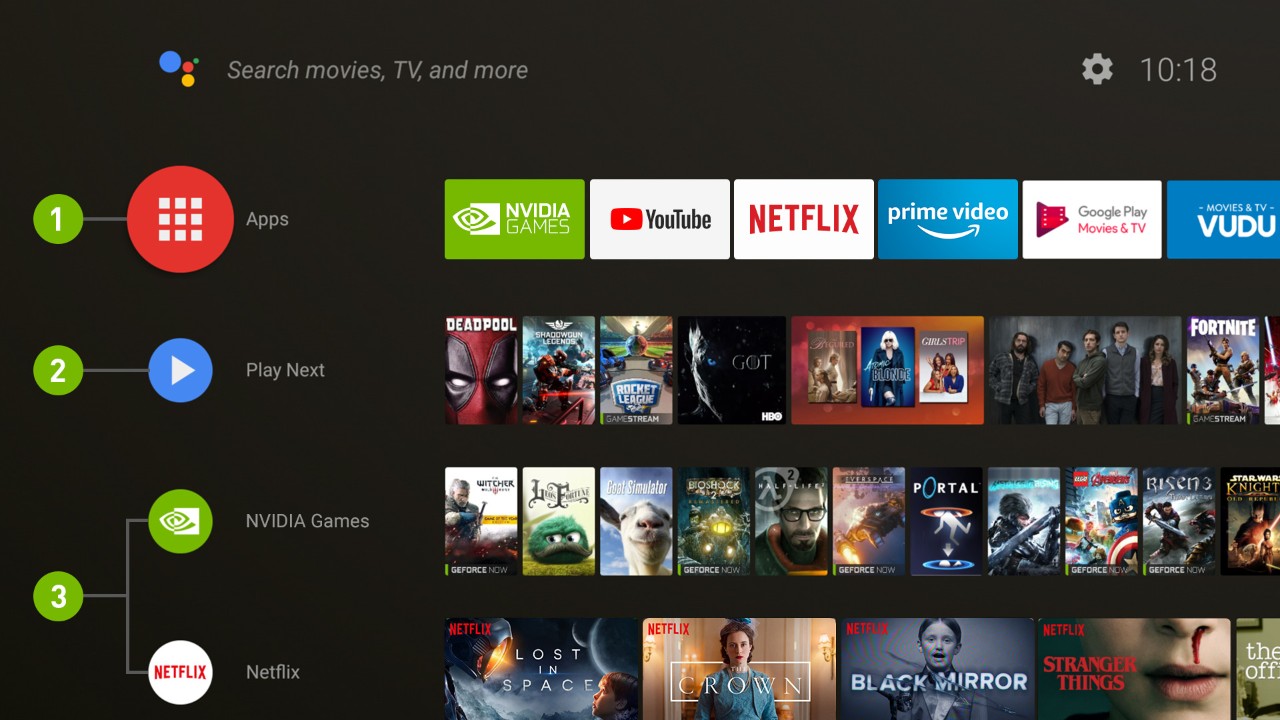
Vanaf het startscherm van Android TV heb je eenvoudig toegang tot films, tv-programma's, muziek, apps, games en instellingen. Je kunt op elk gewenst moment naar het startscherm gaan door te drukken op de homeknop op je SHIELD-afstandsbediening of SHIELD-controller.
1. Favoriete apps
Jij bepaalt de apps en de volgorde! Houd de keuzeknop ingedrukt op een app om deze te verplaatsen. Houd de homeknop ingedrukt of selecteer het rode Apps-pictogram om toegang te krijgen tot al je apps.
2. Volgende afspelen
Ga verder waar je gebleven was in tv-series, films en games. Om inhoud toe te voegen aan Volgende afspelen ga je naar de desbetreffende inhoud en houd je de keuzeknop ingedrukt.
| Opmerking: | niet alle apps ondersteunen Volgende afspelen. |
3. Kanalen
Ontdek nieuwe entertainment vanuit je favoriete apps. Jij kiest de kanalen en de volgorde. Navigeer naar links op een kanaal om het te verplaatsen of te verwijderen.
| Opmerking: | niet alle apps bieden ondersteuning voor Kanalen. |
Zoeken
Je kunt ook zoeken op Android TV door naar de bovenkant van het startscherm te navigeren en het zoekpictogram te selecteren. Ook kun je op elk gewenst moment spraakgestuurd zoeken door op de NVIDIA-knop op je SHIELD-controller of op de knop Spraakgestuurd zoeken op je SHIELD-afstandsbediening te drukken. Meer informatie over waar je op Android TV naar kan zoeken.
5. Apps en Games
Alle geïnstalleerde apps en games zijn toegankelijk door het pictogram 'Apps' op het startscherm te selecteren of door 'Home' op je SHIELD-afstandsbediening ingedrukt te houden

5.1 Download meer apps (Google Play Store)
Gebruik deze snelkoppeling om de Google Play Store te openen en de nieuwste beschikbare apps voor SHIELD TV te vinden.
5.2 App of game starten
Druk op Selecteren om de app onmiddellijk te starten.
5.3 Verplaatsen, verwijderen of toevoegen aan de rij Favoriete apps
Houd 'Selecteren' ingedrukt om toegang te krijgen tot het app-menu.
6. Snelle Instellingen
Met Snelle instellingen heb je eenvoudig toegang tot veelgebruikte instellingen. Je hoeft enkel op de knop 'Instellingen' op de SHIELD-afstandsbediening te drukken. De items onder Snelle instellingen zijn aanpasbaar. Als je items wilt toevoegen, verwijderen of de volgorde wilt wijzigen, ga je naar Instellingen > Apparaatvoorkeuren > Systeem > Snelle instellingen aanpassen

7. AI-Upscaling
SHIELD levert AI-gestuurde upscaling, die video met een lagere resolutie intelligent kan schalen naar de systeemeigen resolutie van je tv. Met deze nieuwe functie zien HD-films op Netflix of Prime Video er scherper uit op je 4K-beeldscherm.
Standaard is de upscaling 'Verbeterd' ingeschakeld op je SHIELD. Als je de upscaling 'Verbeterd met AI' wilt inschakelen, ga je naar Instellingen > AI-upscaling en selecteer je 'Verbeterd met AI'.
Detailverbetering is een exclusieve optie voor 'Verbeterd met AI' en kan naar eigen voorkeur worden aangepast. Er is een side-by-side demomodus beschikbaar om 'Basis' te vergelijken met AI-upscaling.

| Opmerking: | AAI-upscaling is niet beschikbaar voor de volgende typen inhoud:
|
8. Google Assistent Op SHIELD Tv
8.1 Google Assistent Gebruiken
Met Google Assistent op SHIELD kun je films en tv-programma's vinden, apps en games starten en je Smart Home bedienen. Het is alles wat Google Home geweldig maakt, maar dan nog beter voor in je woonkamer.
8.2 Beschikbaarheid
Google Assistent voor SHIELD is momenteel beschikbaar voor de volgende talen
- Amerikaans Engels
- Brits Engels
- Canadees Engels
- Australisch Engels
- Frans
- Duits
- Spaans
- Italiaans
Aanvullende ondersteuning voor andere landen is gepland, maar nog niet beschikbaar.
8.3 Je Google Assistent Gebruiken
Op je SHIELD-afstandsbediening:
- Druk vanuit een willekeurige app of het startscherm op de knop Spraakgestuurd zoeken

- Houd je SHIELD-afstandsbediening voor je en stel je vraag. De resultaten van je assistent worden weergegeven zodra je hebt gesproken.
| Opmerking: | Als je in een kamer bent met veel achtergrondgeluid of waar andere mensen spreken, druk na het spreken onmiddellijk op de keuzeknop van je SHIELD afstandsbediening om de spraakgestuurde zoekopdracht te verzenden.Zo voorkom je dat de spraakdetectie blijft luisteren. |
8.4 Meer Resultaten Weergeven
In de meeste gevallen kun je meer resultaten krijgen door op OMHOOG op de SHIELD-afstandsbediening te drukken. Zoekresultaten van andere apps worden in dit menu weergegeven.
8.5 'oké Google' Handsfree
Als je een SHIELD Controller 2017 hebt, kun je 'Oké Google' of 'Hey Google' zeggen om met je verzoek te beginnen.
Ga naar Instellingen > Apparaatvoorkeuren > Google Assistent > schakel 'Oké Google'-detectie in
8.6 Wat Je Met Google Assistent Op SHIELD Kunt Doen
Bekijk de voorbeelden hieronder voor meer informatie over enkele dingen die je kunt doen met Google Assistent op SHIELD TV.
8.7 Je tv en SHIELD uitschakelen (vereist ingeschakelde HDMI CEC-bediening)
- "Zet de tv uit"
8.8 Zoeken naar films of tv-programma's
- Zoeken op titel
- "Toon me Batman-films"
- "Ik wil Arrested Development kijken"
- Zoeken op regisseur of acteur
- "Toon me films geregisseerd door Steven Spielberg"
- "Toon me tv-programma's met Chris Pratt"
- Elke combinatie van zoektermen gebruiken
- "Toon me actiefilms met Tom Cruise"
- "Toon me komedies met The Rock"
8.9 Direct je favoriete series afspelen
Sommige apps, zoals Netflix, Hulu, YouTube en HBO Now, kunnen series automatisch afspelen.
- 'Kijk Stranger Things op Netflix'
- 'Speel kattenvideo's af op YouTube'
8.10 Je favoriete app starten
- 'Open NVIDIA Games'
- 'Start Netflix'
8.11 Beheer je Smart Home
Door je Smart Home-apparaten te koppelen aan Google Assistent, kun je je lampen en schakelaars met je stem bedienen.
- 'Zet de lampen aan in de woonkamer'
- 'Dim de lichten tot 50%'
8.12 Je dag plannen
- 'Wat is mijn eerste afspraak vandaag?'
- 'Wat is de reistijd naar mijn werk vandaag?'
8.13 Foto's van je Google Foto's-account weergeven
- 'Toon me mijn foto's uit 2010'
- 'Toon me mijn foto's van auto's'
8.14 En meer
8.15 Welke Apps Worden Weergegeven in Zoekresultaten
Je kunt ook zoekresultaten zien van apps die je op je Android TV hebt geïnstalleerd. Deze resultaten worden in een aparte rij weergegeven. Sommige zoekresultaten zijn in een paar verschillende apps beschikbaar.Als je de inhoud selecteert, kun je kiezen welke app je wilt gebruiken.Je kunt resultaten aanpassen door naar Instellingen > Apparaatvoorkeuren > Google Assistent > Doorzoekbare apps te gaan en de apps in te schakelen waarvan je resultaten wilt zien.
8.16 Een Spraakgestuurde Zoekopdracht Uitvoeren Binnen De App
In veel apps kun je ook spraakgestuurd zoeken.Als je een spraakzoekopdracht in een app start, krijg je alleen van die app zoekresultaten.
8.17 Aanvullende hulp en informatie
9. Nu Slapen of Opnieuw Opstarten
9.1 Nu Slapen
SHIELD TV gaat na het verstrijken van de tijdsperiode automatisch in de slaapstand:
- Selecteer op het startscherm van SHIELD TV Instellingen > Apparaatvoorkeuren > Schermbeveiliging . .
- Selecteer Wanneer beginnen..
- Selecteer een van de opties.
9.2 Opnieuw Opstarten
Opnieuw opstarten:
- Selecteer in de SHIELD TV-instellingen 'Opnieuw opstarten'
- Als dit niet lukt, kun je ook de stekker van de stroom halen, 10 seconden wachten en de stekker weer aansluiten.
10. Slaaptiming en Schermbeveiliging
Je kunt voor je SHIELD TV schermbeveiliging instellen met foto's en kleurrijke ontwerpen. Daydream maakt gebruik van een verzameling van schilderachtige foto's.
10.1 Schermbeveiliging Kiezen
- Selecteer op het startscherm van SHIELD TV Instellingen > Apparaatvoorkeuren > Schermbeveiliging.
- Selecteer opnieuw Schermbeveiliging.
- Kies uit de beschikbare opties.
10.2 Wachttijd Instellen Voor Schermbeveiliging
Je kunt kiezen hoelang het duurt voordat de schermbeveiliging begint als je je SHIELD TV niet gebruikt:
- Selecteer op het startscherm van SHIELD TV Instellingen > Apparaatvoorkeuren > Schermbeveiliging .
- Selecteer Apparaat in de slaapstand zetten..
- Selecteer een van de opties.
11. Bluetooth-Accessoires Toevoegen
Je kunt Bluetooth-accessoires met je SHIELD TV gebruiken, zoals een draadloos toetsenbord of draadloze muis of gamecontroller.
Een Bluetooth-accessoire toevoegen:
- Selecteer Instellingen op het SHIELD TV-scherm..
- Selecteer onder Afstandsbediening en accessoires Accessoire toevoegen. Je SHIELD TV zoekt vervolgens naar Bluetooth-accessoires binnen bereik.
- Zet het accessoire in de verbindingsmodus.
- Je ziet het accessoire op het tv-scherm. Selecteer het accessoire..
- Je SHIELD TV maakt verbinding met het accessoire.
Problemen met het toevoegen van Bluetooth-accessoires
12. Beeldscherm Met 4 K HDR/dolby Vision Instellen
Je SHIELD TV ondersteunt van veel apps inhoud met een resolutie van 4K Ultra HD (3840 x 2160p) met HDR10 of Dolby Vision.
Om ervoor te zorgen dat je SHIELD TV is geoptimaliseerd voor 4K-video-output, houd je je apparaat up-to-date met de nieuwste systeemsoftware.
Je hebt een 4K-beeldscherm met HDMI 2.0- en HDCP 2.2-ondersteuning nodig om 4K-inhoud van SHIELD TV te bekijken.Zorg ervoor dat SHIELD TV is aangesloten op een HDMI-ingang die HDCP 2.2 ondersteunt. Raadpleeg de gebruikershandleiding van je 4K-beeldscherm om de juiste HDMI-poort te vinden waarop je je SHIELD TV dient aan te sluiten voor het bekijken van 4K-inhoud.
Je kunt ook de HDMI-UHD-poort gebruiken voor 4K-ondersteuning. Op sommige tv's is standaard UHD-invoer uitgeschakeld in de tv-instellingen. Zorg er dus voor dat UHD voor deze ingang is ingeschakeld in de instellingen van je tv.
13. Dolby Vision/hdr10 Inschakelen Op SHIELD
Je SHIELD wordt automatisch ingesteld op een voor HDR10 geschikte displaymodus wanneer dit wordt gedetecteerd.
Als je een Dolby Vision-compatibel display met 4K-resoluties en een refresh rate van 60 Hz hebt, schakel je Dolby Vision in via Instellingen > Apparaatvoorkeuren > Display en Geluid > Dolby Vision
Als je 'Dolby Vision' niet kunt inschakelen, kunnen de HDMI-kabels het probleem zijn. Vervang ze door kabels van hogere kwaliteit en probeer het opnieuw.
Als je tv 4K Dolby Vision bij lagere refresh rates ondersteunt, kun je de displaymodus wijzigen via Instellingen > Apparaatvoorkeuren > Display en geluid > Geavanceerde displayinstellingen > Aangepaste displaymodus . Selecteer een modus met het label 'Geschikt voor Dolby Vision'.
| Waarschuwing: | als je displaymodi met lagere refresh rates kiest, worden het startscherm en de app-navigatie traag weergegeven. |
14. Dolby Vision/hdr10 Inschakelen Op Je Tv
Bij de meeste HDR-tv's is HDR-uitvoer niet standaard ingeschakeld voor HDMI.Raadpleeg de gebruikershandleiding van je tv om HDR-uitvoer vanaf SHIELD in te schakelen.Hier zijn de instellingen voor enkele populaire tv-toestellen:
- Samsung HDR-TV'S: Menu > Beeld > Beeldopties > HDMI UHD Color > Aan > Herstarten
- LG HDR-TV'S: Start > HDMI > Instellingen > Geavanceerd > Beeld > HDMI ULTRA DEEP COLOR > Aan > Herstarten
- Sony HDR-TV'S: Start > Instellingen > Externe invoer > Formaat HDMI-signaal -> HDMI [kies de SHIELD-invoer] -> Verbeterde modus (tv wordt opnieuw gestart)
15. Netflix Kijken in 4 K of HDR
Als je Netflix-programma's in 4K of HDR wilt bekijken, moet je mogelijk je Netflix-serviceaccount upgraden naar het '4-schermenabonnement'. Raadpleeg het artikel van Netflix voor de nieuwste vereisten om 4K- of HDR-content te streamen. https://help.netflix.com/en/node/42384
16. Avr / Surround Audio Instellen
SHIELD TV ondersteunt Dolby Digital (AC3), Dolby Digital Plus (E-AC3), Dolby ATMOS, Dolby TrueHD, DTS:X en DTS Core Audio Streams via HDMI.Dolby-audio kan worden gedecodeerd/geconverteerd naar het beste beschikbare formaat voor je thuisbioscoop. DTS-audio wordt niet geconverteerd en wordt rechtstreeks doorgegeven aan de HDMI-uitgang.
Dus als je surround sound wilt gebruiken, moet je een AV-ontvanger of tv gebruiken die deze audiostreams kunnen decoderen.
| Opmerking | Als je ontvanger of HDMI-tv de streams niet kan decoderen, is er mogelijk geen audio. |
| Opmerking | Zorg ervoor dat je ontvanger is bijgewerkt met de nieuwste firmware. In sommige gevallen kun je hiermee problemen met de compatibiliteit of audio-/videoproblemen oplossen. |
(I) Aanbevolen installatie: SHIELD AVR TV
- Sluit je SHIELD TV aan op een ontvanger met een HDMI-kabel.
- Plaats een andere HDMI-kabel tussen de HDMI OUT-poort van je ontvanger en de tv.

| Opmerking | Als je een 4K- of HDR-tv hebt, moet je kabels die compatibel zijn met HDMI 2.0 tussen zowel de SHIELD en de AVR en tussen de AVR en het beeldscherm plaatsen. Bovendien moet je AVR compatibel zijn met het HDMI 2.0-signaal (HDCP 2.2). |
(II) Soundbar of oude AVR: SHIELD >TV >AVR
| Waarschuwing: | deze configuratie mag alleen worden gebruikt als je soundbar of AVR geen 4K, HDR of Dolby Vision ondersteunt. Je soundbar moet Dolby Digital ondersteunen |
- Sluit je SHIELD TV aan op een tv met een HDMI-kabel.
- Sluit de tv aan op de ontvanger met behulp van Optical SPDIF of HDMI Audio Return Channel (HDMI-ARC)
- Selecteer onder Instellingen > Apparaatvoorkeuren > Display en geluid > Geavanceerde geluidsinstellingen > Beschikbare indelingen Handmatig en schakel alle Dolby-indelingen uit, behalve AC3.

Met SHIELD Je Tv/avr In- en Uitschakelen
SHIELD kan je tv/AVR met HDMI-CEC aan- en uitzetten. Ga naar Display en geluid > In- en uitschakelen om aan te passen hoe je SHIELD de tv/AVR bedient.
Als je tv/AVR HDMI-CEC niet ondersteunt, configureer je je SHIELD-afstandsbediening vanuit dit menu om IR-opdrachten naar je apparaten te verzenden.
| Opmerking | De meeste tv's hebben 'Tv uitschakelen' met HDMI-CEC uitgeschakeld in het menu met tv-instellingen. HDMI-CEC (One Touch Play en tv uit) moet zijn ingeschakeld in de instellingen van je tv. Zoek naar de naam van je tv-fabrikant en HDMI-CEC om erachter te komen hoe de fabrikant het noemt en hoe je het inschakelt. |
17. AV-SynchronisaTie
Het gebruik van een AV-ontvanger met HDMI voor video kan ertoe leiden dat audio achterloopt op de video. Probeer eerst te kalibreren met behulp van de AV-synchronisatie-instellingen van de ontvanger. Als dit niet werkt, gebruik je het hulpprogramma voor de AV-synchronisatieschuifregelaar in Instellingen > Apparaatvoorkeuren > Display en geluid > Geavanceerde instellingen > Audio-videosynchronisatie om te kalibreren voor audiovertraging. Met de AV-synchronisatieschuifregelaar kun je audio met 1 seconde (in kleine stappen van 10 ms) vooruit schuiven om de audio en video te synchroniseren.
Houd er rekening mee dat dit alleen werkt als SHIELD via HDMI op je AV-ontvanger is aangesloten (d.w.z. audio/video via HDMI); het is niet bedoeld om te worden gebruikt wanneer een headset is aangesloten op de SHIELD-controller/SHIELD-afstandsbediening of een Bluetooth-audioapparaat.
Als de video achterloopt op de audio (d.w.z. audio loopt voor op video), gebruik je de instellingen van de AV-ontvanger om de audio achteruit te schuiven.
17.1 Aanpassen Voor Overscan
Voor tv's die geen eigen overscaninstellingen bieden, gebruik je deze instelling om de afbeeldingsgrootte aan te passen aan het scherm.
Ga naar Instellingen > Apparaatvoorkeuren > Display en geluid > Geavanceerde instellingen > Aanpassen voor overscan om het formaat van de afbeelding op je tv of beeldscherm te wijzigen. Gebruik omhoog en omlaag op de D-pad van je afstandsbediening om het beeld op de tv te maximaliseren. Zorg ervoor dat de groene driehoeken volledig zichtbaar zijn om overscan te voorkomen.
18. Over Het SHIELD-Beeldscherm
Details over je SHIELD TV zijn te vinden via Instellingen > Apparaatvoorkeuren > Over.
Vanuit dit menu kun je:
- Handmatig controleren op systeemupgrades
- De naam van je SHIELD wijzigen
- Juridische informatie vinden
- Aanvullende systeeminformatie vinden, waaronder
- Serienummer
- IP-adres
- MAC-adres op netwerk
19. SHIELD Opnieuw Instellen
19.1 Fabrieksinstellingen Terugzetten
| Opmerking | Als je de fabrieksinstellingen terugzet, worden alle gegevens van je SHIELD gewist. Gegevens die aan je Google-account zijn gekoppeld, kunnen worden hersteld. Alle eventuele apparaatinstellingen worden wel verwijderd. |
19.2 Opnieuw Instellen via De Instellingen
Als je de fabrieksinstellingen van je SHIELD TV wilt terugzetten, volg je deze stappen:
- Selecteer in het startscherm Instellingen > Apparaatvoorkeuren > Opnieuw instellen..
- Selecteer Opnieuw instellen.
- Selecteer vervolgens Alles wissen om je keuze te bevestigen en je apparaat opnieuw in te stellen.
20. Opslag Op Je SHIELD Aansluiten
Je kunt extra microSD-opslag op je SHIELD aansluiten. Aangesloten opslag wordt automatisch aangesloten als 'verwisselbare opslag' en SHIELD kan direct naar het opslagapparaat lezen en schrijven. Apps en app-gegevens kunnen niet worden geïnstalleerd op 'verwisselbare opslag'. Om de opslag voor het installeren van apps te vergroten, moet verbonden opslag worden ingesteld als 'apparaatopslag'.
Als je je opslagapparaat wilt instellen voor 'apparaatopslag', selecteer je Instellingen > Apparaatvoorkeuren > Opslag > [Opslagapparaat] > Instellen als apparaatopslag. Hiermee wordt je opslagapparaat opgemaakt en versleuteld.
SHIELD TV is compatibel met de FAT32-, exFAT-, NTFS- en HFS+-bestandssystemen.
20.1 Netwerkopslag Toevoegen
Je SHIELD TV-apparaat kan NAS-apparaten (netwerktoegankelijke opslag) toevoegen. Dit kan handig zijn als je veel persoonlijke media hebt gedeeld op een netwerk dat je op je SHIELD TV wilt openen (bijv. PLEX Media Server)
Een NAS toevoegen:
- Selecteer Instellingen > Apparaatvoorkeuren > Opslag > Netwerkopslag .
- Alle schijven die door het netwerk kunnen worden gedetecteerd, staan onder 'Beschikbare netwerkopslag'.
- Als je NAS is verborgen of niet aan het uitzenden is, selecteer je 'Handmatig netwerkopslag toevoegen'.
21. Displaymodi Aanpassen (resolutie, Refresh Rate, Kleurruimte)
Als je de displaymodus wilt wijzigen, ga je naar Instellingen > Apparaatvoorkeuren > Display en geluid > Resolutie om uit een lijst met populaire displaymodi te kiezen.
Dolby Vision-compatibele modi zijn niet standaard ingeschakeld en kunnen hier worden geselecteerd.
Als je een aangepaste displaymodus wilt selecteren, ga je naar Instellingen > Apparaatvoorkeuren > Display en geluid > Geavanceerde displayinstellingen > Aangepaste displaymodus om een lijst te zien met alle modi die beschikbaar zijn voor je beeldscherm.
| Opmerking | Als je niet kiest voor een refresh rate van 60 Hz, krijg je te maken met trage prestaties in toepassingen die 60Hz ondersteunen (Android TV-startpagina, games en 60Hz-video's). |
22. Framerate Afstemmen (bèta)
Belangrijke opmerking: dit is een experimentele functie (bèta). Niet alle apps ondersteunen deze functie en sommige tv's kunnen moeite hebben met het instellen van bepaalde refresh rates. PLEX en KODI ondersteunen al automatische afstemming van refresh rate.
Als je inhoud streamt met een framerate die niet overeenkomt met de refresh rate van je beeldscherm, stemt SHIELD de inhoud automatisch af op je beeldscherm.
SHIELD bevat ook een experimentele functie om de refresh rate van je beeldscherm af te stemmen op de framerate van de inhoud. Je gebruikt deze functie als volgt:
- Start op SHIELD met het afspelen van een video.
- Druk op de knop 'Instellingen' om het instellingenmenu te openen en selecteer 'Framerate afstemmen (bèta)' in de Quest-instellingen.
Opmerking: na het afspelen wordt de refresh rate van het beeldscherm teruggezet op de oorspronkelijke instelling. Elke keer dat je de framerates wilt afstemmen, moet je deze instelling handmatig activeren.
Optioneel: pas de knop Instellingen op de afstandsbediening aan om de framerate af te stemmen. Ga naar Instellingen > Afstandsbedieningen en accessoires > Knop Instellingen aanpassen en selecteer 'Framerate afstemmen (bèta)'.
23. Inhoud Overzetten Naar SHIELD
Je kunt vanaf een pc toegang krijgen tot interne en aangesloten opslag op je SHIELD TV.
23.1 Via Lokaal Netwerk
Je SHIELD TV kan vindbaar worden als een apparaat dat door het netwerk kan worden geadresseerd.
- Schakel via Instellingen > Apparaat Voorkeuren > Opslag > Bestanden overzetten via lokaal netwerk in.
- Op de volgende pagina vind je de benodigde informatie om op je SHIELD TV in te loggen om bestanden binnen en buiten je opslag over te zetten.
24. SHIELD Met Google Home Bedienen

Meld je aan op Google Home met hetzelfde Google-account dat je voor SHIELD TV gebruikt om je tv handsfree te bedienen.
Basisopdrachten
'Zet [SHIELD] aan'
'Zet [SHIELD] uit'
'Open [naam van app] op [SHIELD]'
Afspeelfuncties
'Speel [naam van serie van Netflix, HBO NOW, CBS, Viki of Starz] af op [SHIELD]'
'Speel [naam van het nummer] af op [naam van app] op [SHIELD]'
'Kijk [naam van het kanaal] op YouTube TV op [SHIELD]'
'Speel [videotitel] af op YouTube op [SHIELD]'
'Pauzeer op [SHIELD]'
'Speel af op [SHIELD]'
Foto's en Smart Home
'Toon me mijn foto's uit Egypte op [SHIELD]'
'Toon me mijn foto's van afgelopen weekend op [SHIELD]'
'Dim de lichten'
'Stel de temperatuur in op 22 graden'
| Opmerking: | verander de naam van je [SHIELD] via Instellingen > Apparaat Voorkeuren > Over > Apparaatnaam |
25. SHIELD Met Alexa en Amazon Echo Bedienen

Koppel je SHIELD aan een Amazon Echo-apparaat om apps te starten, je SHIELD in of uit te schakelen of zelfs het afspelen te regelen.
Zoek op je mobiele apparaat de NVIDIA SHIELD TV-skill in de Alexa-app en volg de instructies.
Er zijn nog meer spraakopdrachten in ontwikkeling, maar op dit moment werken de volgende:
Aan de slag
'Alexa, zet SHIELD aan.'
'Alexa, zet SHIELD uit.'
Entertainment-apps openen
'Alexa, open Prime Video (op SHIELD).'
'Alexa, open HBO NOW (op SHIELD).'
Mediabesturingselementen gebruiken
'Alexa, pauzeer (op SHIELD).'
'Alexa, speel af (op SHIELD).'
'Alexa, volgende (op SHIELD).'
'Alexa, vorige (op SHIELD).'
'Alexa, spoel tien minuten vooruit (op SHIELD).'
Navigeren door SHIELD
'Alexa, ga naar Instellingen (op SHIELD).'
'Alexa, ga naar het startscherm (op SHIELD).'
'Alexa, ga naar de bedieningsinstellingen (op SHIELD).'
26. NVIDIA GeForce NOW for SHIELD TV
De NVIDIA GeForce NOW for SHIELD TV app maakt het gemakkelijk om alle games te vinden die je op je SHIELD TV kunt spelen.

27. App Voor SHIELD TV-Afstandsbediening

Met de NVIDIA SHIELD TV-app kun je je SHIELD TV bedienen, apps starten en nog sneller inloggen op je favoriete GeForce NOW-games op SHIELD.
Krijg via de app direct toegang tot een virtuele muis en toetsenbord, zodat je eenvoudig je gebruikersnaam en wachtwoord kunt invoeren voor gameservices.
Kenmerken
GeForce NOW-bedieningselementen
- Touchpad voor virtuele muis
- Virtueel toetsenbord (Amerikaans-Engels)
SHIELD TV-afstandsbediening
- Appstarter: tik op de app-banner om direct een app te starten op je SHIELD TV
- D-pad-navigatie (omhoog/omlaag/rechts/links) en Selecteren
- Android-knoppen (Terug, Start, Home)
- Media afspelen (afspelen, pauzeren, vooruitspoelen, terugspoelen)
- Volumeregeling
InstallaTie-InstrucTies
- Installeer de SHIELD TV-app op je Android- of iOS-apparaat
- Verbind je smartphone met hetzelfde netwerk als je SHIELD TV.
- Start de SHIELD TV-app en selecteer je SHIELD onder gedetecteerde apparaten
- Koppel je apparaat aan SHIELD TV door de 6-cijferige code in te voeren die op je tv wordt weergegeven
28. Chromecast 4K
Je SHIELD TV kan ook Chromecast-technologie gebruiken om je entertainmentmedia rechtstreeks naar het grote scherm te casten vanaf je telefoon, tablet of laptop. Zowel iOS- als Android-apparaten ondersteunen Google Cast.
28.1 Naar SHIELD Casten
- Zorg ervoor dat je castingbron (smartphone, tablet, laptop, enz.) en de SHIELD TV met hetzelfde netwerk zijn verbonden.
- Open op je bronapparaat een toepassing die Google Cast ondersteunt, zoals YouTube.
- Raak het castpictogram aan of klik erop.
- Kies de Android TV waar je naartoe wilt casten. Selecteer in dit geval 'SHIELD'.
- Druk op je telefoon of tablet op Afspelen. De inhoud moet beginnen te spelen op je Android TV en het castpictogram op je apparaat wordt ingevuld.
Ondersteunde apps verschillen per land. Ga voor meer informatie over beschikbare apps in je land naar g.co/castapps.
28.2 Scherm Spiegelen Naar SHIELD
SHIELD TV ondersteunt ook scherm spiegelen vanaf bepaalde Android-apparaten. Ga naar https://support.google.com/googlecast/answer/6104896 voor informatie over welke apparaten worden ondersteund en hoe je je scherm naar SHIELD TV spiegelt.
29. SHIELD-Probleemoplossing
Voordat je deze handleiding voor het oplossen van problemen gebruikt, moet je ervoor zorgen dat je SHIELD is bijgewerkt met de nieuwste systeemupdate. Deze is automatisch beschikbaar als je SHIELD is verbonden met het internet.
Als je je problemen niet kunt oplossen met de stappen voor probleemoplossing in deze handleiding, kun je misschien een oplossing vinden op de GeForce Experience-forums > SHIELD-sectie.
Je kunt ook handige tips en trucs vinden in onze veelgestelde vragen over SHIELD en op onze SHIELD-ondersteuningspagina.
Neem contact op met de NVIDIA-ondersteuning als het je niet lukt om de problemen op te lossen.
SHIELD TV Legal
30. Health and Safety Information
Important Safety Information
NVIDIA products are designed to operate safely when installed and used according to the product instructions and general safety practices. The guidelines included in this document explain the potential risks associated with equipment operation and provide important safety practices designed to minimize these risks. By carefully following the information contained in this document you can protect yourself from hazards and create a safer environment.
This product is designed and tested to meet IEC-60950-1, the Standard for Safety of Information Technology Equipment. This also covers the national implementation of IEC-60950-1 based safety standards around the world e.g. UL-60950-1. These standards reduce the risk of injury from the following hazards:
- Electric shock: Hazardous voltage levels contained in parts of the product
- Fire: Overload, temperature, material flammability
- Mechanical: Sharp edges, moving parts, instability
- Energy: Circuits with high energy levels (240 volt-amps) or potential as burn hazards
- Heath: Accessible parts of the product at high temperatures
- Chemical: Chemical fumes and vapors
- Radiation: Noise, ionizing, laser, ultrasonic waves
Retain and follow all product safety and operating instructions. Always refer to the documentation supplied with your equipment. Observe all warnings on the product and in the operating instructions.
| Note: | Read all safety information below and operating instructions before using the SHIELD to avoid injury. |
 WARNING: FAILURE TO FOLLOW THESE SAFETY INSTRUCTIONS COULD RESULT IN FIRE, ELECTRIC SHOCK OR OTHER INJURY OR DAMAGE.
ELECTRICAL EQUIPMENT CAN BE HAZARDOUS IF MISUSED. OPERATION OF THIS PRODUCT, OR SIMILAR PRODUCTS, MUST ALWAYS BE SUPERVISED BY AN ADULT. DO NOT ALLOW CHILDREN ACCESS TO THE INTERIOR OF ANY ELECTRICAL PRODUCT AND DO NOT PERMIT THEM TO HANDLE ANY CABLES.
To reduce the risk of bodily injury, electric shock, fire, and damage to the equipment, observe the safety labels included on the equipment.
Symbols on Equipment
This symbol in conjunction with any of the following symbols indicates the presence of a potential hazard. The potential for injury exists if warnings are not observed. Consult your documentation for specific details.
 This symbol indicates the presence of hazardous energy circuits or electric shock hazards. Refer all servicing to qualified personnel.
WARNING: To reduce the risk of injury from electric shock hazards, do not open this enclosure. Refer all maintenance, upgrades, and servicing to qualified personnel.
 This symbol indicates the presence of electric shock hazards. The area contains no user or field serviceable parts. Do not open for any reason.
General Precautions
To reduce the risk of electric shock, personal injury, or damage to the equipment, observe the following precautions:
- Follow all cautions and instructions marked on the equipment.
- Do not bend, drop, crush, puncture, incinerate, or push objects into openings of the device.
- Do not connect or disconnect any cables or perform maintenance or reconfiguration of this product during an electrical storm.
- Do not use the SHIELD TV in rain or near sink, or other wet locations. Take care not to spill any food or liquid into the device. In case the SHIELD device gets wet, unplug all cables and turn off before cleaning, and allow it to dry thoroughly before turning it on again.
- Do not expose the SHIELD TV to any gas which is not normally contained in the atmosphere. It may cause mis-operation or defects.
- Never turn on any equipment when there is evidence of fire, water, or structural damage.
- Place the product away from radiators, heat registers, stoves, amplifiers, or other appliances that produce heat.
- Never force a connector into a port. Check for obstructions on the port. If the connector and port don't join with reasonable ease, they probably don't match. Make sure that the connector matches the port and that you have positioned the connector correctly in relation to the port.
- Operate the AC adapter in a ventilated area.
- When you are using the NVIDIA SHIELD TV, it is normal for the system and/or AC power adapter to get warm.
- Do not use conductive tools that could bridge live parts.
- Do not make mechanical or electrical modifications to the equipment.
- Never attempt to reconnect the SHIELD TV yourself. This device does not contain any user-serviceable parts. Do not attempt to open, disassemble, or remove the battery. You run the risk of electric shock.
- Operate the SHIELD TV in a place where the temperature is always between 5 and 30°C (41 to 86°F).
- Store the SHIELD TV in a place where the temperature is always between 0 and 35°C (32 to 95°F) with relative humidity of 70% or lower. When taking the device from a low temperature condition, allow the device to reach room temperature before turning the power on.
- Use this product only with approved equipment and/or accessories
- If the product sustains damage requiring service, disconnect the product from the AC electrical outlet and refer servicing to an NVIDIA authorized service provider.
Proposition 65 WARNING: This product contains chemicals known to the State of California to cause cancer and birth defects or other reproductive harm. (California law requires this warning be provided to California customers.
A lire avant toute utilisation d'un jeu vidéo par vous-même ou par votre enfant.
I. - Précautions à prendre dans tous les cas pour l'utilisation d'un jeu vidéo.
Evitez de jouer si vous êtes fatigué ou si vous manquez de sommeil.
Assurez-vous que vous jouez dans une pièce bien éclairée en modérant la luminosité de votre écran.
Lorsque vous utilisez un jeu vidéo susceptible d'être connecté à un écran, jouez à bonne distance de cet écran de télévision et aussi loin que le permet le cordon de raccordement.
En cours d'utilisation, faites des pauses de dix à quinze minutes toutes les heures.
II. - Avertissement sur l'épilepsie.
Certaines personnes sont susceptibles de faire des crises d'épilepsie comportant, le cas échéant, des pertes de conscience à la vue, notamment, de certains types de stimulations lumineuses fortes: succession rapide d'images ou répétition de figures géométriques simples, d'éclairs ou d'explosions. Ces personnes s'exposent à des crises lorsqu'elles jouent à certains jeux vidéo comportant de telles stimulations, alors même qu'elles n'ont pas d'antécédent médical ou n'ont jamais été sujettes elles-mêmes à des crises d'épilepsie.
Si vous-même ou un membre de votre famille avez déjà présenté des symptômes liés à l'épilepsie (crise ou perte de conscience) en présence de stimulations lumineuses, consultez votre médecin avant toute utilisation.
Les parents se doivent également d'être particulièrement attentifs à leurs enfants lorsqu'ils jouent avec des jeux vidéo. Si vous-même ou votre enfant présentez un des symptômes suivants : vertige, trouble de la vision, contraction des yeux ou des muscles, trouble de l'orientation, mouvement involontaire ou convulsion, perte momentanée de conscience, il faut cesser immédiatement de jouer et consulter un médecin.
Power Rating
19 V DC, 2.1 A
31. SHIELD TV Compliance
The SHIELD Android TV Game Console is compliant with the regulations listed in this section.
United States
Federal Communications Commission (FCC)

FCC ID: VOB-P3430
This device complies with Part 15 of the FCC Rules. Operation is subject to the following two conditions: (1) this device may not cause harmful interference, and (2) this device must accept any interference received, including any interference that may cause undesired operation of the device.
This equipment has been tested and found to comply with the limits for a Class B digital device, pursuant to Part 15 of the FCC Rules. These limits are designed to provide reasonable protection against harmful interference in a residential installation. This equipment generates, uses and can radiate radio frequency energy and, if not installed and used in accordance with the instructions, may cause harmful interference to radio communications. However, there is no guarantee that interference will not occur in a particular installation.
If this equipment does cause harmful interference to radio or television reception, which can be determined by turning the equipment off and on, the user is encouraged to try to correct the interference by one or more of the following measures:
- Reorient or relocate the receiving antenna.
- Increase the separation between the equipment and receiver.
- Connect the equipment into an outlet on a circuit different from that to which the receiver is connected.
- Consult the dealer or an experienced radio/TV technician for help.
FCC Warning: The FCC requires that you be notified that any changes or modifications to this device not expressly approved by the manufacturer could void the user's authority to operate the equipment.
RF Radiation Exposure Statement:
SHIELD Android TV Game Console has been tested and complies with FCC RF radiation exposure limits set forth for an uncontrolled environment when used with the NVIDIA accessories supplied or designated for this product. During testing, SHIELD was placed in positions that simulate use against the body. The use of any other accessories may not ensure compliance with FCC RF exposure guidelines.
This equipment must be installed and operated in accordance with provided instructions and the antenna(s) used for this transmitter must be installed to provide a separation distance of at least 20 cm from all persons and must not be co-located or operating in conjunction with any other antenna or transmitter. End-users and installers must be provided with antenna installation instructions and consider removing the no-collocation statement.
Underwriters Laboratories (UL)

I.T.E. E204896
Canada
Innovation, Science and Economic Development Canada (ISED)
IC: 7361A-P3430
CAN ICES-3(B)/NMB-3(B)
This device contains licence-exempt transmitter(s)/receiver(s) that comply with Innovation, Science and Economic Development Canada's licence-exempt RSS(s). Operation is subject to the following two conditions: (1) this device may not cause interference, and (2) this device must accept any interference, including interference that may cause undesired operation of the device.
Le présent appareil est conforme aux CNR d'Innovation, Sciences et Développement économique Canada applicables aux appareils radio exempts de licence. L'exploitation est autorisée aux deux conditions suivantes: (1) l'appareil ne doit pas produire de brouillage, et (2) l'utilisateur de l'appareil doit accepter tout brouillage radioélectrique subi, même si le brouillage est susceptible d'en compromettre le fonctionnement.
Caution: Operation in the band 5150-5250 MHz is only for indoor use to reduce the potential for harmful interference to co-channel mobile satellite systems. Be advised that high-power radars are allocated as primary users of the bands 5250-5350 MHz and 5650-5850 MHz and that these radars could cause interference and/or damage to LE-LAN devices.
Attention: les dispositifs fonctionnant dans la bande de 5 150 à 5 250 MHz sont réservés uniquement pour une utilisation à l'intérieur afin de réduire les risques de brouillage préjudiciable aux systèmes de satellites mobiles utilisant les mêmes canaux
Être informé des radars à haute puissance sont alloués principaux utilisateurs de bandes 5250 à 5350 MHz et 5850 MHz, à 5650 et que ces radars pourraient provoquer des interférences et / ou endommager les appareils RL-EL. radars à haute puissance sont alloués utilisateurs primaires des bandes 5250 à 5350 MHz et 5850 MHz, ce à 5650 et que ces radars pourraient provoquer des interférences et / ou endommager les périphériques RL-EL.
RF Radiation Exposure Statement:
SHIELD Android TV Game Console has been tested and complies with IC RSS 102 RF radiation exposure limits set forth for an uncontrolled environment when used with the NVIDIA accessories supplied or designated for this product. During testing, SHIELD was placed in positions that simulate use against the body. The use of any other accessories may not ensure compliance with IC RSS 102 RF exposure guidelines.
This transmitter must not be co-located or operating in conjunction with any other antenna or transmitter. This equipment should be installed and operated with a minimum distance of 20 centimeters between the radiator and your body.
Déclaration d'exposition aux radiations:
SHIELD Android TV Game Console a ete testee conformemment aux normes d'exposition d'emission RF de la IC RSS 102 pour un environement non controle lors d'utilisation avec les accessoires fournis or recommendes par NVIDIA. Pendant les tests, SHIELD a ete positionnee afin de simule la presence du corps humain. L'utilisation d'accessoires autres que ceux recommendes par NVIDIA ne guarantis pas la compatibilite avec les normes d'emission RF de la IC RSS 102.
Cet émetteur ne doit pas être Co-placé ou ne fonctionnant en même temps qu'aucune autre antenne ou émetteur. Cet équipement devrait être installé et actionné avec une distance minimum de 20 centimètres entre le radiateur et votre corps.
European Union
European Conformity; Conformité Européenne (CE)


This device complies with the following Directives:
- Radio Equipment Directive 2014/53/EU
- RoHS Directive 2011/65/EU
- Energy-related Products Directive (ErP) 2009/125/EC
The full text of EU declaration of conformity is available at the following internet address: www.nvidia.com/support
A copy of the Declaration of Conformity to the essential requirements may be obtained directly from NVIDIA GmbH (Bavaria Towers – Blue Tower, Einsteinstrasse 172, D-81677 Munich, Germany).
This device operates in the following frequency bands and maximum transmitted power:
Frequency Band |
Max. EIRP(dBm) |
Max. EIRP(mW) |
2400.0 - 2483.5 MHz |
20.0 |
100 |
5150.0 - 5350.0 MHz |
23.0 |
200 |
5470.0 - 5725.0 MHz |
23.0 |
200 |
5725.0 - 5875.0 MHz |
14.0 |
25 |
Warning:
- Operation in the 5150 - 5350 MHz frequency band is restricted to Indoor Use Only.
- This equipment should be installed and operated with a minimum distance of 20 centimeters between the radiator and your body.
- Any changes or modifications to this device not expressly approved by the manufacturer could void the user's authority to operate the equipment.
A LIRE AVANT TOUTE UTILISATION D'UN JEU VIDEO PAR VOUS-MEME OU PAR VOTRE ENFANT
I. - Précautions à prendre dans tous les cas pour l'utilisation d'un jeu vidéo.
Evitez de jouer si vous êtes fatigué ou si vous manquez de sommeil.
Assurez-vous que vous jouez dans une pièce bien éclairée en modérant la luminosité de votre écran.
Lorsque vous utilisez un jeu vidéo susceptible d'être connecté à un écran, jouez à bonne distance de cet écran de télévision et aussi loin que le permet le cordon de raccordement.
En cours d'utilisation, faites des pauses de dix à quinze minutes toutes les heures.
II. - Avertissement sur l'épilepsie.
Certaines personnes sont susceptibles de faire des crises d'épilepsie comportant, le cas échéant, des pertes de conscience à la vue, notamment, de certains types de stimulations lumineuses fortes: succession rapide d'images ou répétition de figures géométriques simples, d'éclairs ou d'explosions. Ces personnes s'exposent à des crises lorsqu'elles jouent à certains jeux vidéo comportant de telles stimulations, alors même qu'elles n'ont pas d'antécédent médical ou n'ont jamais été sujettes elles-mêmes à des crises d'épilepsie. Si vous-même ou un membre de votre famille avez déjà présenté des symptômes liés à l'épilepsie (crise ou perte de conscience) en présence de stimulations lumineuses, consultez votre médecin avant toute utilisation. Les parents se doivent également d'être particulièrement attentifs à leurs enfants lorsqu'ils jouent avec des jeux vidéo. Si vous-même ou votre enfant présentez un des symptômes suivants : vertige, trouble de la vision, contraction des yeux ou des muscles, trouble de l'orientation, mouvement involontaire ou convulsion, perte momentanée de conscience, il faut cesser immédiatement de jouer et consulter un médecin.
Australia and New Zealand
Australian Communications and Media Authority

This product meets the applicable EMC requirements for Class B, I.T.E equipment and applicable radio equipment requirements.
This product meets the applicable requirements for telecommunications equipment and can legally be connected to a telecommunications network.
Japan
Voluntary Control Council for Interference (VCCI)


Radio/Telecommunications Certification
W52/ W53は屋内使用限定
Japan RoHS Material Content Declaration
日本工業規格JIS C 0950:2008により、2006年7月1日以降に販売される特定分野の電気および電子機器について、製造者による含有物質の表示が義務付けられます。 |
||||||
主な分類 |
特定化学物質記号 |
|||||
Pb |
Hg |
Cd |
Cr(VI) |
PBB |
PBDE |
|
メディアストリームコンソール |
除外項目 |
0 |
0 |
0 |
0 |
0 |
電源 |
除外項目 |
0 |
0 |
0 |
0 |
0 |
ケーブル/コネクター |
除外項目 |
0 |
0 |
0 |
0 |
0 |
プロセッサー |
除外項目 |
0 |
0 |
0 |
0 |
0 |
システムメモリ |
除外項目 |
0 |
0 |
0 |
0 |
0 |
プリント基板 |
除外項目 |
0 |
0 |
0 |
0 |
0 |
機械部品 |
除外項目 |
0 |
0 |
0 |
0 |
0 |
はんだ付け材料 |
0 |
0 |
0 |
0 |
0 |
0 |
フラックス、クリームはんだ、ラベル、その他消耗品 |
0 |
0 |
0 |
0 |
0 |
0 |
注: 1.「0」は、特定化学物質の含有率が日本工業規格JIS C 0950:2008に記載されている含有率基準値より低いことを示します。 |
||||||
A Japanese regulatory requirement, defined by specification JIS C 0950: 2008, mandates that manufacturers provide Material Content Declarations for certain categories of electronic products offered for sale after July 1, 2006. |
||||||
Major Classification |
Symbols of Specified Chemical Substance |
|||||
Pb |
Hg |
Cd |
Cr(VI) |
PBB |
PBDE |
|
Media Streaming Console |
Exempt |
0 |
0 |
0 |
0 |
0 |
Power adapter |
Exempt |
0 |
0 |
0 |
0 |
0 |
Cables/Connectors |
Exempt |
0 |
0 |
0 |
0 |
0 |
Processor |
Exempt |
0 |
0 |
0 |
0 |
0 |
System memory |
Exempt |
0 |
0 |
0 |
0 |
0 |
PCA |
Exempt |
0 |
0 |
0 |
0 |
0 |
Mechanicals |
Exempt |
0 |
0 |
0 |
0 |
0 |
Soldering material |
0 |
0 |
0 |
0 |
0 |
0 |
Flux, Solder Paste, label and other consumable materials |
0 |
0 |
0 |
0 |
0 |
0 |
Notes: 1. "0" indicates that the level of the specified chemical substance is less than the threshold level specified in the standard, JIS C 0950: 2008. |
||||||
South Korea
Radio Research Agency (RRA)
Korean Agency for Technology and Standards (KATS)

R-R-NVA-P3430
B급 기기 |
이 기기는 가정용(B급) 전자파적합기기로서 주 |
(가정용 방송 통신기자재) |
로 가정에서 사용하는 것을 목적으로 하며, 모 |
|
든 지역에서 사용할 수 있습니다. |
Korea RoHS Material Content Declaration
확인 및 평가 양식은 제품에 포함 된 유해 물질의 허용 기준의 준수에 관한 |
|||||||
문 준비 |
상호 : |
앤비디아홍콩홀딩즈리미티드( 영업소) |
법인등록번호 |
110181-0036373 |
|||
대표자성명 |
카렌테레사번즈 |
사업자등록번호: |
120-84-06711 |
||||
주소 |
서울특별시 강남구 영동대로 511, 2101호 ( 삼성동, 코엑스무역타워) |
||||||
제품 내용 |
|||||||
제품의 종류 |
해당없음 |
제품명(규격) |
해당없음 |
||||
세부모델명(번호): |
해당없음 |
제품출시일 |
해당없음 |
||||
제품의 중량 |
해당없음 |
제조, 수입업자 |
앤비디아 |
||||
엔비디아의 그래픽 카드제품은 전기 전자제품 및 자동차의 자원순환에 관한 법률 시행령 제 11조 제 1항에 의거한 법 시행행규칙 제 3조에에따른 유해물질함유 기준을 확인 및 평가한 결과, 이를 준수하였음을 공표합니다. |
|||||||
구비서류 : 없음 ① 제품의 종류는 "전기.전자제품 및 자동차의 자원순환에관한 법률 시행령" 제 8조 제 1항 및 제 2항에 따른 품목별로 구분하여 기재합니다. |
|||||||
Confirmation and Evaluation Form Concerning the Adherence to Acceptable Standards of Hazardous Materials Contained in Products |
|||||||
Statement Prepared by |
Company Name: |
Nvidia HongKong Holding Ltd.Korea branch |
Corporate Identification Number: |
110181-0036373 |
|||
Name of Company Representative: |
Karen Theresa Burns |
Business Registration Number: |
120-84-06711 |
||||
Address |
2788 San Tomas Expressway, Santa Clara, CA 95051 |
||||||
Product Information |
|||||||
Product Category: |
N/A |
Name of Product: |
N/A |
||||
Detailed Product Model Name (Number): |
N/A |
Date of first market release: |
N/A |
||||
Weight of Product: |
N/A |
Manufacturer and/or Importer: |
NVIDIA Corporation |
||||
This for is publicly certify That NVIDIA Company has undergone the confirmation and evaluation procedures for the acceptable amounts of hazardous materials contained in graphic card according to the regulations stipulated in Article 3 of the 'Status on the Recycling of Electrical and Electronic Products, and Automobiles' and that company has graphic card adhered to the Enforcement Regulations of Article 11, Item 1 of the statute. |
|||||||
Attachment: None ① Please indicate the product category according to the categories listed in Article 8, Items 1and 2 of the ' Enforcement Ordinance of the Statute on the Recycling of Electrical, Electronic and Automobile Materials' |
|||||||
Taiwan
National Communications Commission

注意!
依據 低功率電波輻射性電機管理辦法
第十二條
經型式認證合格之低功率射頻電機,非經許可,公司、商號或使用者均不得擅自變更頻率、加大功率或變更原設計之特性及功能。
第十四條
低功率射頻電機之使用不得影響飛航安全及干擾合法通信;經發現有干擾現象時,應立即停用,並改善至無干擾時方得繼續使用。
前項合法通信,指依電信法規定作業之無線電通信。
低功率射頻電機須忍受合法通信或工業、科學及醫療用電波輻射性電機設備之干擾。
應避免影響附近雷達系統之操作。
高增益指向性天線只得應用於固定式點對點系統。
Taiwan RoHS Material Content Declaration
限用物質含有情况標示聲明書 |
||||||
單元 |
限用物質及其化學符號 |
|||||
铅 |
汞 |
镉 |
六價铬 |
多溴聯苯 |
多溴二苯醚 |
|
媒體流控制台 |
- |
0 |
0 |
0 |
0 |
0 |
電源設備 |
- |
0 |
0 |
0 |
0 |
0 |
線材 |
- |
0 |
0 |
0 |
0 |
0 |
處理器 |
- |
0 |
0 |
0 |
0 |
0 |
存儲設備 |
- |
0 |
0 |
0 |
0 |
0 |
印刷電路部件 |
- |
0 |
0 |
0 |
0 |
0 |
機械部件 |
- |
0 |
0 |
0 |
0 |
0 |
焊接金屬 |
0 |
0 |
0 |
0 |
0 |
0 |
助焊劑,錫膏,標籤及耗材 |
0 |
0 |
0 |
0 |
0 |
0 |
備考1:O:系指該限用物質未超出百分比含量基準值 |
||||||
Russia/Kazakhstan/Belarus
Customs Union Technical Regulations (CU TR)

This device complies with the technical regulations of the Customs Union (CU TR)
ТЕХНИЧЕСКИЙ РЕГЛАМЕНТ ТАМОЖЕННОГО СОЮЗА О безопасности низковольтного оборудования (ТР ТС 004/2011)
ТЕХНИЧЕСКИЙ РЕГЛАМЕНТ ТАМОЖЕННОГО СОЮЗА
Электромагнитная совместимость технических средств (ТР ТС 020/2011)
Federal Agency of Communication (FAC)
This device complies with the rules set forth by Federal Agency of Communications and the Ministry of Communications and Mass Media
Federal Security Service notification has been filed.
Singapore
Infocomm Media Development Authority of Singapore (IMDA)
Bluetooth

Declaration ID: D046888
Wi-Fi Alliance®
Wi-Fi CERTIFIED™
Certification ID: WFA91178
32. SHIELD Controller 2017 Compliance
The SHIELD Controller 2017 is compliant with the regulations listed in this section.
United States
Federal Communications Commission (FCC)
FCC ID: VOB-P2920
This device complies with Part 15 of the FCC Rules. Operation is subject to the following two conditions: (1) this device may not cause harmful interference, and (2) this device must accept any interference received, including interference that may cause undesired operation.
This equipment has been tested and found to comply with the limits for a Class B digital device, pursuant to Part 15 of the FCC Rules. These limits are designed to provide reasonable protection against harmful interference in a residential installation. This equipment generates, uses and can radiate radio frequency energy and, if not installed and used in accordance with the instructions, may cause harmful interference to radio communications. However, there is no guarantee that interference will not occur in a particular installation. If this equipment does cause harmful interference to radio or television reception, which can be determined by turning the equipment off and on, the user is encouraged to try to correct the interference by one or more of the following measures:
- Reorient or relocate the receiving antenna.
- Increase the separation between the equipment and receiver.
- Connect the equipment into an outlet on a circuit different from that to which the receiver is connected.
- Consult the dealer or an experienced radio/TV technician for help.
FCC Warning: The FCC requires that you be notified that any changes or modifications to this device not expressly approved by the manufacturer could void the user’s authority to operate the equipment.
RF Radiation Exposure Statement:
NVIDIA SHIELD Controller 2017 has been tested and complies with FCC RF radiation exposure limits set forth for an uncontrolled environment when used with the NVIDIA accessories supplied or designated for this product. During testing, the SHIELD was placed in positions that simulate use against the body. The use of any other accessories may not ensure compliance with FCC RF exposure guidelines.
California Energy Commission

This product meets the applicable energy efficiency requirements for a battery charging system.
Underwriters Laboratories (UL)
I.T.E. E204896
Canada
Industry Canada (IC)
IC: 7361A-P2920
CAN ICES-3(B)/NMB-3(B)
This device complies with Industry Canada license-exempt RSS standard(s). Operation is subject to the following two conditions: (1) this device may not cause interference, and (2) this device must accept any interference, including interference that may cause undesired operation of the device.
Le présent appareil est conforme aux CNR d'Industrie Canada applicables aux appareils radio exempts de licence. L'exploitation est autorisée aux deux conditions suivantes : (1) l'appareil ne doit pas produire de brouillage, et (2) l'utilisateur de l'appareil doit accepter tout brouillage radioélectrique subi, même si le brouillage est susceptible d'en compromettre le fonctionnement.
The device meets the exemption from the routine evaluation limits in section 2.5 of RSS 102 and compliance with RSS-102 RF exposure, users can obtain Canadian information on RF exposure and compliance.
Le dispositif rencontre l'exemption des limites courantes d'évaluation dans la section 2.5 de RSS 102 et la conformité à l'exposition de RSS-102 rf, utilisateurs peut obtenir l'information canadienne sur l'exposition et la conformité de rf.
European Union
European Conformity
Conformité Européenne (CE)
This device bears the CE mark in accordance with Directive 2014/53/EU
This device complies with the following Directives:
- Radio Equipment Directive for radio equipment
- RoHS Directive for hazardous substances
The full text of EU declaration of conformity is available at the following internet address: https://images.nvidia.com/shieldwebsite/visuals/public/DoC/EN/SHIELD_Controller_P2920_DoC_EN.pdf
This device operates in the following frequency bands and maximum transmitted power:
Frequency Band |
Max. EIRP(dBm) |
Max. EIRP(mW) |
2402.0 - 2480.0 MHz |
9.84 |
9.64 |
Warning:
- Any changes or modifications to this device not expressly approved by the manufacturer could void the user’s authority to operate the equipment.
Hardware version: 699-12922-xxxx-xxx; Software version: v1.xx.
Australia and New Zealand
Australian Communications and Media Authority
This product meets the applicable EMC requirements for Class B, I.T.E equipment and applicable radio equipment requirements.
Japan
Voluntary Control Council for Interference (VCCI)
This is a Class B product based on the standard of the VCCI Council. If this is used near a radio or television receiver in a domestic environment, it may cause radio interference. Install and use the equipment according to the instruction manual.
Radio/Telecommunications Certification
South korea
Korea Certification (KC)

상호 : NVIDIA CORPORATION
기자재 명칭: SHIELD Controller
모델명: P2920
제조년월일 : 2016/07
해당무선기기는 운용중 전파혼신 가능성이 있음
Class B Equipment (For Home Use Broadcasting & Communication Equipment)
B급 기기 (가정용 방송통신기자재)
This equipment is home use (Class B) electromagnetic wave suitability equipment and to be used mainly at home and it can be used in all areas.
이 기기는 가정용(B급) 전자파적합기기로서 주 로 가정에서 사용하는 것을 목적으로 하며, 모 든 지역에서 사용할 수 있습니다.
China
State Radio Regulation of China (SRRC)
CMIIT ID: 2016DP3727
China RoHS Material Content Declaration

产品中有害物质的名称及含量 |
||||||
部件名称 |
有害物质 |
|||||
铅 |
汞 |
镉 |
六价铬 |
多溴联苯 |
多溴二苯醚 |
|
游戏手柄 Game controller |
X |
O |
O |
O |
O |
O |
印刷电路部件 PCA |
X |
O |
O |
O |
O |
O |
机械部件 Mechanicals |
O
|
O |
O |
O |
O |
O |
电池 Battery |
O
|
O |
O |
O |
O |
O |
焊接金属 Soldering material |
O |
O |
O |
O |
O |
O |
助焊剂,锡膏,标签及耗材 Flux, Solder Paste, label and other consumable materials |
O
|
O |
O |
O |
O |
O |
本表格依据SJ/T 11364-2014 的规定编制
此表中所有名称中含 “X” 的部件均符合欧盟 RoHS 立法。 |
||||||
Taiwan
National Communications Commission
注意!
依據 低功率電波輻射性電機管理辦法
第十二條
經型式認證合格之低功率射頻電機,非經許可,公司、商號或使用者均不得擅自變更頻率、加大功率或變更原設計之特性及功能。
第十四條
低功率射頻電機之使用不得影響飛航安全及干擾合法通信;經發現有干擾現象時,應立即停用,並改善至無干擾時方得繼續使用。
前項合法通信,指依電信法規定作業之無線電通信。
低功率射頻電機須忍受合法通信或工業、科學及醫療用電波輻射性電機設備之干擾。
India
Wireless Planning & Coordination Wing (WPC)
ETA CERTIFICATION NO: : NR-ETA-/4251
Russia/Kazakhstan/Belarus
EurAsian Customs Union
This device complies with the technical regulations of the Customs Union (CU TR)
This device complies with the rules set forth by Federal Agency of Communications and the Ministry of Communications and Mass Media
Federal Security Service notification has been filed.
Singapore
Infocomm Development Authority of Singapore (IDA)
Bluetooth
Bluetooth v4.1
Declaration ID: D031201
33. SHIELD Remote Compliance
The SHIELD Remote is compliant with the regulations listed in this section.
United States
Federal Communications Commission (FCC)
FCC ID: TX4-P3700
This device complies with part 15 of the FCC Rules. Operation is subject to the following two conditions: (1) this device may not cause harmful interference, and (2) this device must accept any interference received, including any interference that may cause undesired operation of the device.
This equipment has been tested and found to comply with the limits for a Class B digital device, pursuant to Part 15 of the FCC Rules. These limits are designed to provide reasonable protection against harmful interference in a residential installation. This equipment generates, uses and can radiate radio frequency energy and, if not installed and used in accordance with the instructions, may cause harmful interference to radio communications. However, there is no guarantee that interference will not occur in a particular installation.
If this equipment does cause harmful interference to radio or television reception, which can be determined by turning the equipment off and on, the user is encouraged to try to correct the interference by one or more of the following measures:
- Reorient or relocate the receiving antenna.
- Increase the separation between the equipment and receiver.
- Connect the equipment into an outlet on a circuit different from that to which the receiver is connected.
- Consult the dealer or an experienced radio/TV technician for help.
FCC Warning: The FCC requires that you be notified that any changes or modifications to this device not expressly approved by the manufacturer could void the user's authority to operate the equipment.
RF Radiation Exposure Statement:
NVIDIA SHIELD Remote has been tested and complies with FCC RF radiation exposure limits set forth for an uncontrolled environment when used with the NVIDIA accessories supplied or designated for this product. During testing, the SHIELD was placed in positions that simulate use against the body. The use of any other accessories may not ensure compliance with FCC RF exposure guidelines.
Underwriters Laboratories (UL)
I.T.E. E507112
Canada
Innovation, Science and Economic Development Canada (ISED)
IC: 11438A-P3700
CAN ICES-3(B)/NMB-3(B)
This device contains licence-exempt transmitter(s)/receiver(s) that comply with Innovation, Science and Economic Development Canada's licence-exempt RSS(s). Operation is subject to the following two conditions: (1) this device may not cause interference, and (2) this device must accept any interference, including interference that may cause undesired operation of the device.
Le présent appareil est conforme aux CNR d'Innovation, Sciences et Développement économique Canada applicables aux appareils radio exempts de licence. L'exploitation est autorisée aux deux conditions suivantes: (1) l'appareil ne doit pas produire de brouillage, et (2) l'utilisateur de l'appareil doit accepter tout brouillage radioélectrique subi, même si le brouillage est susceptible d'en compromettre le fonctionnement.
RF Radiation Exposure Statement:
SHIELD Remote has been tested and complies with IC RSS 102 RF radiation exposure limits set forth for an uncontrolled environment when used with the NVIDIA accessories supplied or designated for this product. During testing, SHIELD was placed in positions that simulate use against the body. The use of any other accessories may not ensure compliance with IC RSS 102RF exposure guidelines.
Déclaration d'exposition aux radiations:
SHIELD Remote a ete testee conformemment aux normes d'exposition d'emission RF de la IC RSS 102 pour un environement non controle lors d'utilisation avec les accessoires fournis or recommendes par NVIDIA. Pendant les tests, SHIELD a ete positionnee afin de simule la presence du corps humain. L'utilisation d'accessoires autres que ceux recommendes par NVIDIA ne guarantis pas la compatibilite avec les normes d'emission RF de la IC RSS 102.
European Union
European Conformity; Conformité Européenne (CE)

This device complies with the following Directives:
- Radio Equipment Directive 2014/53/EU
- RoHS Directive 2011/65/EU
The full text of EU declaration of conformity is available at the following internet address: www.nvidia.com/support
A copy of the Declaration of Conformity to the essential requirements may be obtained directly from NVIDIA GmbH (Bavaria Towers – Blue Tower, Einsteinstrasse 172, D-81677 Munich, Germany).
This device operates in the following frequency bands and maximum transmitted power:
Frequency Band |
Max. EIRP(dBm) |
Max. EIRP(mW) |
2402 - 2480 MHz |
10.7 |
11.75 |
Warning:
- Any changes or modifications to this device not expressly approved by the manufacturer could void the user's authority to operate the equipment.
Australia and New Zealand
Australian Communications and Media Authority
This product meets the applicable EMC requirements for Class B, I.T.E equipment and applicable radio equipment requirements.
This product meets the applicable requirements for telecommunications equipment and can legally be connected to a telecommunications network.
Japan
Voluntary Control Council for Interference (VCCI)
Radio/Telecommunications Certification
Japan RoHS Material Content Declaration
日本工業規格JIS C 0950:2008により、2006年7月1日以降に販売される特定分野の電気および電子機器について、製造者による含有物質の表示が義務付けられます。 |
||||||
主な分類 |
特定化学物質記号 |
|||||
Pb |
Hg |
Cd |
Cr(VI) |
PBB |
PBDE |
|
リモートコントロール |
除外項目 |
0 |
0 |
0 |
0 |
0 |
プリント基板 |
除外項目 |
0 |
0 |
0 |
0 |
0 |
機械部品 |
除外項目 |
0 |
0 |
0 |
0 |
0 |
電池 |
0 |
0 |
0 |
0 |
0 |
0 |
はんだ付け材料 |
0 |
0 |
0 |
0 |
0 |
0 |
フラックス、クリームはんだ、ラベル、その他消耗品 |
0 |
0 |
0 |
0 |
0 |
0 |
注: 1.「0」は、特定化学物質の含有率が日本工業規格JIS C 0950:2008に記載されている含有率基準値より低いことを示します。 |
||||||
A Japanese regulatory requirement, defined by specification JIS C 0950: 2008, mandates that manufacturers provide Material Content Declarations for certain categories of electronic products offered for sale after July 1, 2006. |
||||||
Major Classification |
Symbols of Specified Chemical Substance |
|||||
Pb |
Hg |
Cd |
Cr(VI) |
PBB |
PBDE |
|
Remote |
Exempt |
0 |
0 |
0 |
0 |
0 |
PCA |
Exempt |
0 |
0 |
0 |
0 |
0 |
Mechanical parts |
Exempt |
0 |
0 |
0 |
0 |
0 |
Battery |
0 |
0 |
0 |
0 |
0 |
0 |
Soldering material |
0 |
0 |
0 |
0 |
0 |
0 |
Flux, Solder Paste, label and other consumable materials |
0 |
0 |
0 |
0 |
0 |
0 |
Notes: 1. "0" indicates that the level of the specified chemical substance is less than the threshold level specified in the standard, JIS C 0950: 2008. |
||||||
South korea
Radio Research Agency (RRA)
Korean Agency for Technology and Standards (KATS)

R-R-RMB-P3700
B급 기기 (가정용 방송 통신기자재) |
이 기기는 가정용(B급) 전자파적합기기로서 주 로 가정에서 사용하는 것을 목적으로 하며, 모 든 지역에서 사용할 수 있습니다. |
Korea RoHS Material Content Declaration
확인 및 평가 양식은 제품에 포함 된 유해 물질의 허용 기준의 준수에 관한 |
|||||||
문 준비 |
상호 : |
앤비디아홍콩홀딩즈리미티드( 영업소) |
법인등록번호 |
110181-0036373 |
|||
대표자성명 |
카렌테레사번즈 |
사업자등록번호: |
120-84-06711 |
||||
주소 |
서울특별시 강남구 영동대로 511, 2101호 ( 삼성동, 코엑스무역타워) |
||||||
제품 내용 |
|||||||
제품의 종류 |
개인용 컴퓨터 |
제품명(규격) |
방패 |
||||
세부모델명(번호): |
해당없음 |
제품출시일 |
해당없음 |
||||
제품의 중량 |
해당없음 |
제조, 수입업자 |
앤비디아 |
||||
엔비디아의 그래픽 카드제품은 전기 전자제품 및 자동차의 자원순환에 관한 법률 시행령 제 11조 제 1항에 의거한 법 시행행규칙 제 3조에에따른 유해물질함유 기준을 확인 및 평가한 결과, 이를 준수하였음을 공표합니다. |
|||||||
구비서류 : 없음 ① 제품의 종류는 "전기.전자제품 및 자동차의 자원순환에관한 법률 시행령" 제 8조 제 1항 및 제 2항에 따른 품목별로 구분하여 기재합니다. |
|||||||
Confirmation and Evaluation Form Concerning the Adherence to Acceptable Standards of Hazardous Materials Contained in Products |
|||||||
Statement Prepared by |
Company Name: |
Nvidia HongKong Holding Ltd.Korea branch |
Corporate Identification Number: |
110181-0036373 |
|||
Name of Company Representative: |
Karen Theresa Burns |
Business Registration Number: |
120-84-06711 |
||||
Address |
2788 San Tomas Expressway, Santa Clara, CA 95051 |
||||||
Product Information |
|||||||
Product Category: |
N/A |
Name of Product: |
N/A |
||||
Detailed Product Model Name (Number): |
N/A |
Date of first market release: |
N/A |
||||
Weight of Product: |
N/A |
Manufacturer and/or Importer: |
NVIDIA Corporation |
||||
This for is publicly certify That NVIDIA Company has undergone the confirmation and evaluation procedures for the acceptable amounts of hazardous materials contained in graphic card according to the regulations stipulated in Article 3 of the 'Status on the Recycling of Electrical and Electronic Products, and Automobiles' and that company has graphic card adhered to the Enforcement Regulations of Article 11, Item 1 of the statute. |
|||||||
Attachment: None ① Please indicate the product category according to the categories listed in Article 8, Items 1and 2 of the ' Enforcement Ordinance of the Statute on the Recycling of Electrical, Electronic and Automobile Materials' |
|||||||
Taiwan
National Communications Commission
注意!
依據 低功率電波輻射性電機管理辦法
第十二條
經型式認證合格之低功率射頻電機,非經許可,公司、商號或使用者均不得擅自變更頻率、加大功率或變更原設計之特性及功能。
第十四條
低功率射頻電機之使用不得影響飛航安全及干擾合法通信;經發現有干擾現象時,應立即停用,並改善至無干擾時方得繼續使用。
前項合法通信,指依電信法規定作業之無線電通信。
低功率射頻電機須忍受合法通信或工業、科學及醫療用電波輻射性電機設備之干擾。
Taiwan RoHS Material Content Declaration
限用物質含有情况標示聲明書 |
||||||
單元 |
限用物質及其化學符號 |
|||||
铅 |
汞 |
镉 |
六價铬 |
多溴聯苯 |
多溴二苯醚 |
|
遙控器 |
- |
0 |
0 |
0 |
0 |
0 |
印刷電路部件 |
- |
0 |
0 |
0 |
0 |
0 |
機械部件 |
- |
0 |
0 |
0 |
0 |
0 |
電池 |
0 |
0 |
0 |
0 |
0 |
0 |
焊接金屬 |
0 |
0 |
0 |
0 |
0 |
0 |
助焊劑,錫膏,標籤及耗材 |
0 |
0 |
0 |
0 |
0 |
0 |
備考1:O:系指該限用物質未超出百分比含量基準值 |
||||||
Russia/Kazakhstan/Belarus
Customs Union Technical Regulations (CU TR)
This device complies with the technical regulations of the Customs Union (CU TR)
ТЕХНИЧЕСКИЙ РЕГЛАМЕНТ ТАМОЖЕННОГО СОЮЗА О безопасности низковольтного оборудования (ТР ТС 004/2011)
ТЕХНИЧЕСКИЙ РЕГЛАМЕНТ ТАМОЖЕННОГО СОЮЗА
Электромагнитная совместимость технических средств (ТР ТС 020/2011)
Federal Agency of Communication (FAC)
This device complies with the rules set forth by Federal Agency of Communications and the Ministry of Communications and Mass Media
Federal Security Service notification has been filed.
Singapore
Infocomm Media Development Authority of Singapore (IMDA)
Bluetooth
Declaration ID: D046995
34. Notices and Trademarks
The information provided in this document is believed to be accurate and reliable as of the date provided. However, NVIDIA Corporation (“NVIDIA”) does not give any representations or warranties, expressed or implied, as to the accuracy or completeness of such information. NVIDIA shall have no liability for the consequences or use of such information or for any infringement of patents or other rights of third parties that may result from its use. This publication supersedes and replaces all other specifications for the product that may have been previously supplied.
NVIDIA reserves the right to make corrections, modifications, enhancements, improvements, and other changes to this specification, at any time and/or to discontinue any product or service without notice. Customer should obtain the latest relevant specification before placing orders and should verify that such information is current and complete.
NVIDIA products are sold subject to the NVIDIA standard terms and conditions of sale supplied at the time of order acknowledgment, unless otherwise agreed in an individual sales agreement signed by authorized representatives of NVIDIA and customer. NVIDIA hereby expressly objects to applying any customer general terms and conditions with regard to the purchase of the NVIDIA product referenced in this specification.
NVIDIA products are not designed, authorized or warranted to be suitable for use in medical, military, aircraft, space or life support equipment, nor in applications where failure or malfunction of the NVIDIA product can reasonably be expected to result in personal injury, death or property or environmental damage. NVIDIA accepts no liability for inclusion and/or use of NVIDIA products in such equipment or applications and therefore such inclusion and/or use is at customer’s own risk.
NVIDIA makes no representation or warranty that products based on these specifications will be suitable for any specified use without further testing or modification. Testing of all parameters of each product is not necessarily performed by NVIDIA. It is customer’s sole responsibility to ensure the product is suitable and fit for the application planned by customer and to do the necessary testing for the application in order to avoid a default of the application or the product. Weaknesses in customer’s product designs may affect the quality and reliability of the NVIDIA product and may result in additional or different conditions and/or requirements beyond those contained in this specification. NVIDIA does not accept any liability related to any default, damage, costs or problem which may be based on or attributable to: (i) the use of the NVIDIA product in any manner that is contrary to this specification, or (ii) customer product designs.
No license, either expressed or implied, is granted under any NVIDIA patent right, copyright, or other NVIDIA intellectual property right under this specification. Information published by NVIDIA regarding third-party products or services does not constitute a license from NVIDIA to use such products or services or a warranty or endorsement thereof. Use of such information may require a license from a third party under the patents or other intellectual property rights of the third party, or a license from NVIDIA under the patents or other intellectual property rights of NVIDIA. Reproduction of information in this specification is permissible only if reproduction is approved by NVIDIA in writing, is reproduced without alteration, and is accompanied by all associated conditions, limitations, and notices.
ALL NVIDIA DESIGN SPECIFICATIONS, REFERENCE BOARDS, FILES, DRAWINGS, DIAGNOSTICS, LISTS, AND OTHER DOCUMENTS (TOGETHER AND SEPARATELY, “MATERIALS”) ARE BEING PROVIDED “AS IS.” NVIDIA MAKES NO WARRANTIES, EXPRESSED, IMPLIED, STATUTORY, OR OTHERWISE WITH RESPECT TO THE MATERIALS, AND EXPRESSLY DISCLAIMS ALL IMPLIED WARRANTIES OF NONINFRINGEMENT, MERCHANTABILITY, AND FITNESS FOR A PARTICULAR PURPOSE. Notwithstanding any damages that customer might incur for any reason whatsoever, NVIDIA’s aggregate and cumulative liability towards customer for the products described herein shall be limited in accordance with the NVIDIA terms and conditions of sale for the product.
HDMI
HDMI, the HDMI logo, and High-Definition Multimedia Interface are trademarks or registered trademarks of HDMI Licensing LLC.
Dolby
For Products Containing Dolby Vision and Dolby Audio Dolby, Dolby Vision, Dolby Audio, and the double-D symbol are trademarks of Dolby Laboratories. Manufactured under license from Dolby Laboratories. Confidential unpublished works. Copyright © 1992-2015 Dolby Laboratories. All rights reserved.
ARM
ARM, AMBA and ARM Powered are registered trademarks of ARM Limited. Cortex, MPCore and Mali are trademarks of ARM Limited. All other brands or product names are the property of their respective holders. ʺARMʺ is used to represent ARM Holdings plc; its operating company ARM Limited; and the regional subsidiaries ARM Inc.; ARM KK; ARM Korea Limited.; ARM Taiwan Limited; ARM France SAS; ARM Consulting (Shanghai) Co. Ltd.; ARM Germany GmbH; ARM Embedded Technologies Pvt. Ltd.; ARM Norway, AS and ARM Sweden AB.
OpenCL
OpenCL is a trademark of Apple Inc. used under license to the Khronos Group Inc.
Trademarks
NVIDIA, the NVIDIA logo, GeForce, and SHIELD TV are trademarks and/or registered trademarks of NVIDIA Corporation in the U.S. and other countries. Other company and product names may be trademarks of the respective companies with which they are associated.
Google, Android, and Gmail are trademarks and/or registered trademarks of Google Inc.
The Bluetooth® word, mark, and logos are registered trademarks owned by Bluetooth SIG, Inc. and any use of such marks is under license.
Wi-Fi CERTIFIED and Wi-Fi CERTIFIED Miracast are registered marks of the Wi-Fi Alliance.
Steam is a trademark of Valve.
Other trademarks and trade names are those of their respective owners.
Copyright
© 2019 NVIDIA Corporation. All rights reserved.
35. Conformiteitsverklaringen


