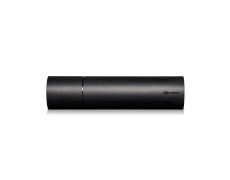
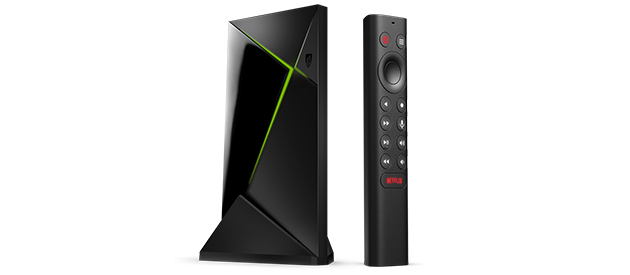
Informazioni Su SHIELD TV
Grazie per aver scelto NVIDIA SHIELD TV. Questa guida per l'utente ti aiuterà a iniziare e ti fornirà suggerimenti per ottenere il massimo dal tuo dispositivo SHIELD.
1. Nella Confezione
SHIELD TV viene fornita con quanto segue:
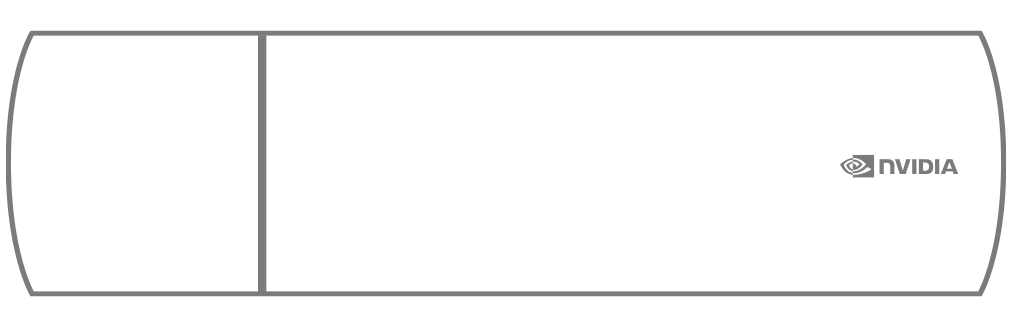
SHIELD TV body

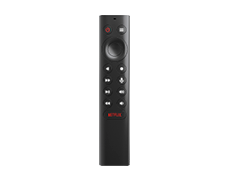
SHIELD Remote
Cavo di alimentazione
Una guida rapida e un opuscolo di supporto.
2. Inizia Subito
2.1 Cosa Ti Serve
Ecco di cosa avrai bisogno per iniziare a usare la tua SHIELD TV Pro:
- TV o monitor con porta HDMI (compatibile con HDCP)
- Cavo HDMI 2.0 ad alta velocità
- Connessione a Internet Wi-Fi o Ethernet
- Un account Google
2.2 Configurazione
Ecco come collegare SHIELD TV Pro all'alimentazione e come collegare il telecomando:
- Collega SHIELD TV a una TV con un cavo HDMI 2.0 ad alta velocità.
- Assicurati che la TV o il monitor siano spenti e collega un'estremità del cavo HDMI alla porta HDMI sul lato posteriore di SHIELD TV. Quindi collega l'altra estremità del cavo alla porta HDMI della TV o del decoder.
- Collega SHIELD TV all'alimentazione, con l'apposito cavo.
- Collega un'estremità del cavo di alimentazione sul retro di SHIELD TV, quindi inserisci l'altra estremità in una presa di corrente. SHIELD TV si accende automaticamente quando è collegata e la spia verde si illumina. Quando non viene utilizzato, il dispositivo va in sospensione automatica.
- FACOLTATIVO: collega SHIELD TV a Ethernet. Se non utilizzi una connessione Ethernet, puoi collegare la rete Wi-Fi in seguito.
- Accendi la TV e seleziona l'ingresso HDMI a cui è collegato SHIELD TV.
- Verifica l'etichetta sulla porta HDMI della TV o del monitor.
- Segui le istruzioni sullo schermo per accedere al tuo account Google e collegarti alla rete Wi-Fi (se necessario)
2.3 Assistenza Per La Connessione Al Wi-fi
Se la rete in uso richiede l'autenticazione web (captive portal), SHIELD TV mostra la pagina web di autenticazione e consente di accedere.
Prova questi passaggi se il dispositivo non riesce a connettersi al Wi-Fi, fai clic qui.
2.4 Configurazione Di SHIELD Remote Per Il Controllo Del Volume
SHIELD Remote consente di controllare la TV/AVR tramite IR. Per configurare il controllo del volume tramite IR o CEC, accedi a Impostazioni > Dispositivo Preferenze > Schermo e suono > Controllo del volume.
Le opzioni per il controllo del volume sono:
- HDMI-CEC (consigliata se la TV o il ricevitore la supporta)
- IR (richiede di puntare il telecomando verso la TV o il ricevitore)
3. Impara a Conoscere La Tua SHIELD TV
3.1 SHIELD TV

Ethernet
Alimentazione
Localizzatore del telecomando
HDMI
Slot microSD
3.2 SHIELD Remote
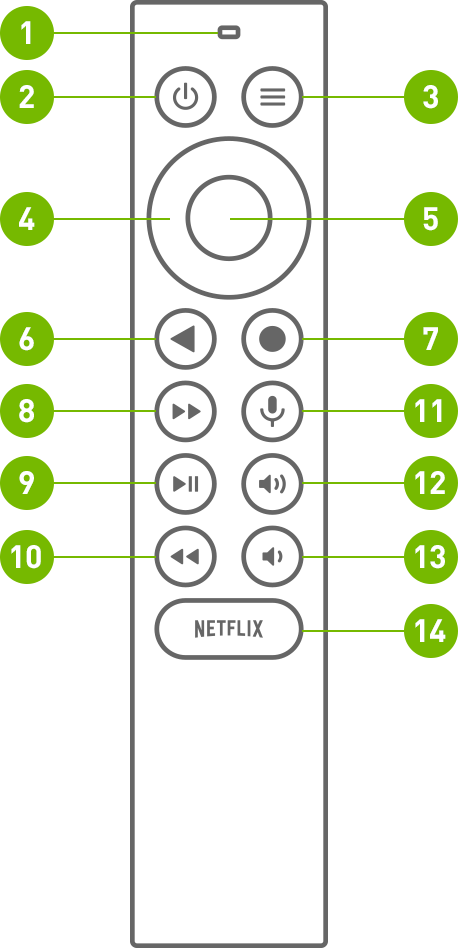
SHIELD REMOTE è dotato di 1 microfono integrato e di 13 pulsanti.
MICROFONO INTEGRATO, nella parte superiore di SHIELD REMOTE
Pulsante POWER, il pulsante a sinistra nella prima fila
Pulsante SETTINGS, il pulsante a destra sulla prima fila. Si può anche personalizzare il pulsante delle impostazioni inserendo il percorso riportato di seguito
(personalizzabile in Impostazioni > Dispositivo e accessori > Personalizza pulsante Impostazioni)
Pulsante NAVIGATION RING, il pulsante dell'anello esterno sulla seconda fila
Pulsante SELECT, il pulsante circolare interno
Pulsante BACK, il pulsante a sinistra sulla terza fila
Pulsante HOME, il pulsante a destro sulla terza fila
Pulsante FAST-FORWARD, il pulsante a sinistra sulla quarta fila
Pulsante PLAY/PAUSE, il pulsante a sinistro sulla quinta fila
Pulsante REWIND, il pulsante a sinistra sulla sesta fila
Pulsante VOICE SEARCH, il pulsante a destra sulla quarta fila
Pulsante INCREASE VOLUME, il pulsante a destra sulla quinta fila
Pulsante DECREASE VOLUME, il pulsante a destra sulla sesta fila
Pulsante OPEN NETFLIX, pulsante ovale sull'ultima fila
3.3 Come Utilizzare SHIELD Remote
3.3.1 Navigare
Usa la rotella di navigazione (Su, Giù, Sinistra, Destra)
3.3.2 Selezionare un oggetto
Premi il tasto di selezione
3.3.3 Tornare alla schermata precedente
Premi il tasto Indietro
3.3.4 Visualizzare la schermata Home
Premi il tasto Home
3.3.5 Accedere alle app recenti
Premi due volte il tasto Home
3.3.6 Accedere a tutte le app
Tieni premuto il tasto Home
3.3.7 Trasmettere e registrare giochi
Tieni premuto il tasto Home (NVIDIA Share deve essere abilitato)
3.3.8 Accedere alle impostazioni
Premi il tasto Impostazioni o tieni premuto il tasto INDIETRO (dalla schermata Home)
3.3.9 Sospendere SHIELD
Premi il tasto di accensione (la TV si spegne se il controllo alimentazione tramite HDMI-CEC o IR è abilitato)
3.3.10 Effettuare una ricerca vocale con l'Assistente Google
Premere e rilasciare il tasto Ricerca vocale, quindi pronunciare il comando. Prova con "Riproduci Stranger Things" o "Com'è il tempo oggi?"
3.3.11 Regolare il volume
Premi i tasti Su e Giù del volume
3.3.12 Andare avanti
Premi il tasto Avanti
3.3.13 Tornare indietro
Premi il tasto Indietro
3.3.14 Riprodurre o mettere in pausa
Premi il tasto Riproduci/pausa
3.3.15 Play or Pause
Press the play/pause button
3.3.16 Attivare la modalità di associazione del telecomando
Tieni premuti i tasti Home + Indietro finché non lampeggiano
3.4 Come collegare il telecomando
SHIELD Remote è automaticamente associato a SHIELD TV appena estratto dalla confezione. È sufficiente premere il pulsante Select per attivarlo.
Assicurati di visualizzare la schermata principale di SHIELD sulla TV.
Tieni SHIELD Remote a una distanza di circa 30 cm dalla SHIELD TV.
Se intendi collegare un nuovo telecomando, tieni premuto il pulsante Select sul telecomando fino a quando la luce non lampeggia e viene emesso il prompt vocale. Se il telecomando è stato collegato a un dispositivo SHIELD differente, tieni premuti i pulsanti Home e Back fino a quando la luce non lampeggia e viene emesso il prompt vocale.
SHIELD Remote dovrebbe collegarsi dopo pochi secondi. Una volta effettuata l'operazione di associazione, udirai un prompt vocale.
Per collegare un nuovo telecomando a SHIELD, segui le istruzioni qui.
| Nota: | SHIELD Remote si accende e spegne automaticamente. Se il telecomando non risponde, potrebbe essere necessario sostituire le batterie. Il livello delle batterie può essere verificato nell'app SHIELD Accessories. |
3.5 Tasto Impostazioni Personalizzabile
Il tasto Impostazioni apre le impostazioni per configurazione predefinita, ma può essere personalizzato per eseguire qualsiasi operazione. Per modificare l'operazione del pulsante Impostazioni, accedi a Impostazioni > Telecomando e accessori > Personalizza pulsante Impostazioni.
3.6 Trovare SHIELD Remote Se Smarrito
SHIELD Remote è dotato di una funzionalità di localizzazione. Se attivata, SHIELD Remote riproduce un suono. Suono di ricerca si interrompe dopo 10 secondi. Esistono vari modi per attivare questa funzione:
Pulsante del localizzatore del telecomando su SHIELD
- Individua il pulsante del localizzatore del telecomando sull'estremità di SHIELD (sopra la porta HDMI) e premilo per iniziare a cercarlo.
App mobile SHIELD TV (iOS/Android)
- Scarica l'app SHIELD TV per il tuo dispositivo se non l'hai già fatto.
- Tocca "altre opzioni" nell'app (tre punti nell'angolo in alto a destra).
- Tocca "cerca il mio telecomando"
Google Home
- Nota importante: la Google Home deve trovarsi sulla stessa rete di SHIELD e devi utilizzare lo stesso account Google Account usato per accedere a SHIELD.
- Su un dispositivo Google Home, pronuncia: “OK Google, avvia il localizzatore di SHIELD Remote"
Dispositivi Amazon Echo
- Nota importante: devi aver già associato il dispositivo Echo a SHIELD utilizzando Amazon Alexa.
- Sul dispositivo Echo, pronuncia: "Alexa, chiedi a SHIELD di trovare il mio telecomando".
Nota: il localizzatore del telecomando funziona solo se SHIELD Remote è collegato a SHIELD. Cause frequenti del mancato funzionamento del localizzatore:
- SHIELD non è connesso all'alimentazione (controlla la connessione del cavo).
- Livello basso o batteria esaurita sul telecomando.
- Associazione tra telecomando e SHIELD persa.
Customize Remote Name
- SHIELD Remote utilizza (2) batterie AAA per l'alimentazione. Per sostituire le batterie, segui queste istruzioni.
Battery Replacement
SHIELD Remote utilizza (2) batterie AAA per l'alimentazione. Per sostituire le batterie, segui queste istruzioni.
- Togli la cover dal retro di SHIELD Remote.
- Individua la freccia verso il basso sul retro di SHIELD Remote.
- Con il pollice, premi verso il basso per togliere la cover.
- Sostituisci le batterie, posizionando il terminale con l'icona "+" rivolto verso il basso.
- Riposiziona il vassoio sullo SHIELD Remote fino ad avvertire un leggero clic.
3.7 Abilitare Gli Aggiornamenti Di Sistema Automatici
Il dispositivo SHIELD può scaricare e installare automaticamente gli aggiornamenti di sistema. Per abilitare questa funzione, accedi a Impostazioni > Preferenze dispositivo > Info > Aggiornamento del sistema e attiva "Aggiornamento automatico". Puoi anche specificare un orario per l'applicazione degli aggiornamenti a SHIELD.
3.8 Verificare La Presenza Di Aggiornamenti Di Sistema
Gli aggiornamenti di sistema vengono inviati sulla SHIELD TV direttamente da NVIDIA. Un banner di notifica viene mostrato in alto nella schermata iniziale di SHIELD TV ogni volta che è disponibile un aggiornamento. Seleziona "Dettagli" su questa notifica e SHIELD TV scaricherà e applicherà automaticamente l'aggiornamento. È anche possibile verificare manualmente la presenza di aggiornamenti in Impostazioni > Preferenze dispositivo > Info > aggiornamento del sistema.
3.9 Accessibilità - Funzione Talkback
Per attivare la funzione Talkback:
- Tieni premuti i pulsanti BACK+DOWN per 3 secondi fino a quando viene attivato il prompt vocale.
- Premi di nuovo i pulsanti BACK+DOWN per 3 secondi per attivare Talkback.
Per disattivare la funzione Talkback:
- Premi di nuovo i pulsanti BACK+DOWN per 3 secondi per disattivare Talkback.
4. Introduzione Ad Android TV
4.1 Layout E Navigazione
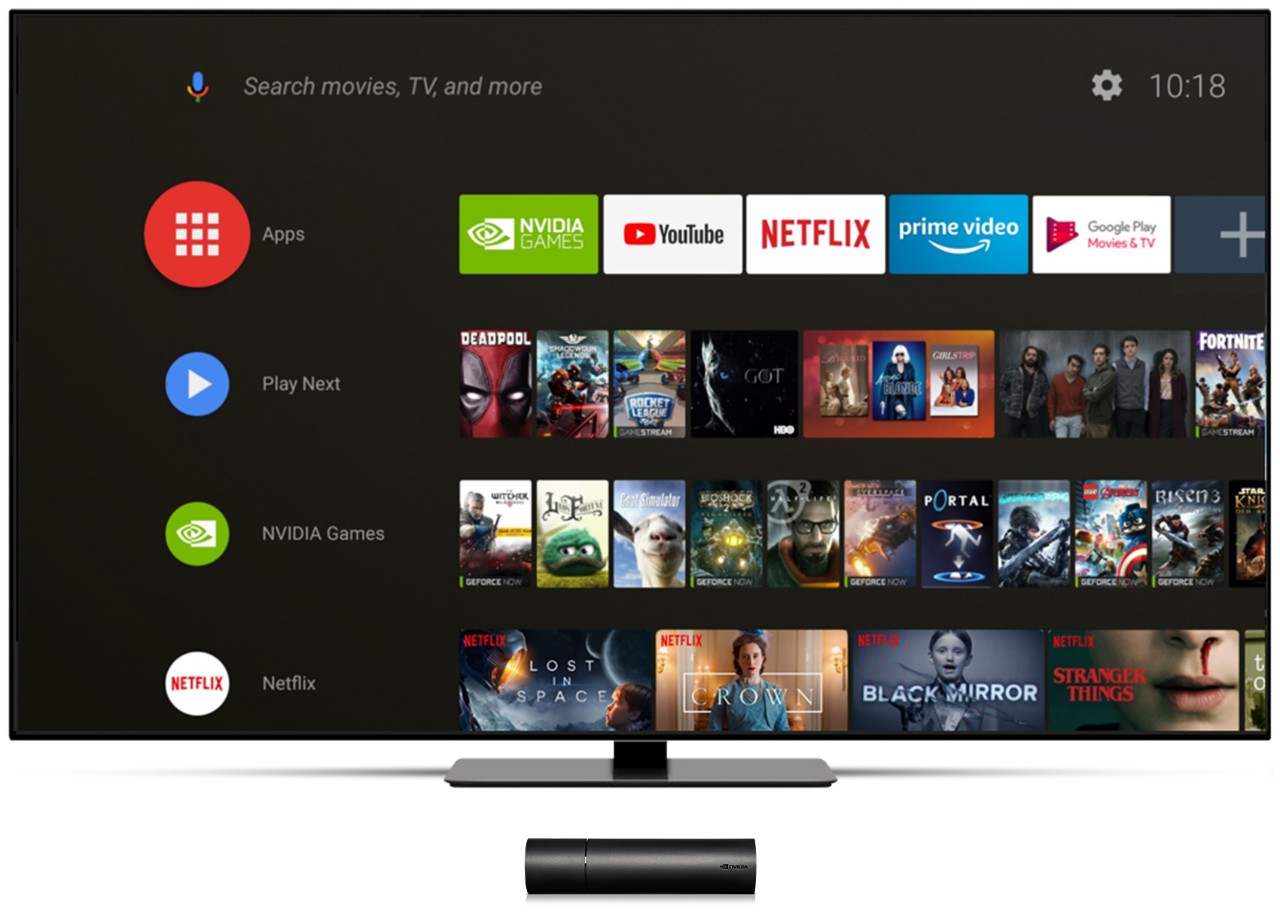
Dalla schermata iniziale di Android TV, è possibile accedere facilmente a film, serie TV, musica, app, giochi e impostazioni. Per accedere alla schermata Home in qualsiasi momento, premi il tasto Home su SHIELD remote o SHIELD controller.

1. App preferite
Puoi scegliere le app da includere e disporle nell'ordine che preferisci. Tieni premuto il tasto di selezione su un app per spostarla. Per accedere alle tue app, tieni premuto il pulsante Home o seleziona l'icona rossa App.
2. Continua a guardare
Continua la riproduzione di serie TV, film e giochi dal punto in cui l'avevi interrotta. Per aggiungere contenuti a Continua a guardare, vai al contenuto e tieni premuto il pulsante di selezione.
| Nota: | non tutte le app supportano la funzione Continua a guarda |
3. Canali
Scopri nuovi contenuti di intrattenimento dalle tue app preferite. Sei tu a scegliere canali e ordine. Spostati a sinistra di un canale per sposarlo o rimuoverlo.
| Nota: | non tutte le app supportano canali |
Cerca
Puoi anche cercare su Android TV in alto nella schermata iniziale e selezionando l'icona di ricerca. In alternativa, puoi fare una ricerca vocale in qualsiasi momento, premendo il tasto NVIDIA su SHIELD Controller o il tasto Ricerca vocale su SHIELD Remote. Scopri di più su cosa puoi cercare su Android TV.
5. App E Giochi
È possibile accedere a tutte le app e i giochi installati, selezionando l'icona "App" nella schermata iniziale o tenendo premuto il tasto Home a lungo su SHIELD Remote.
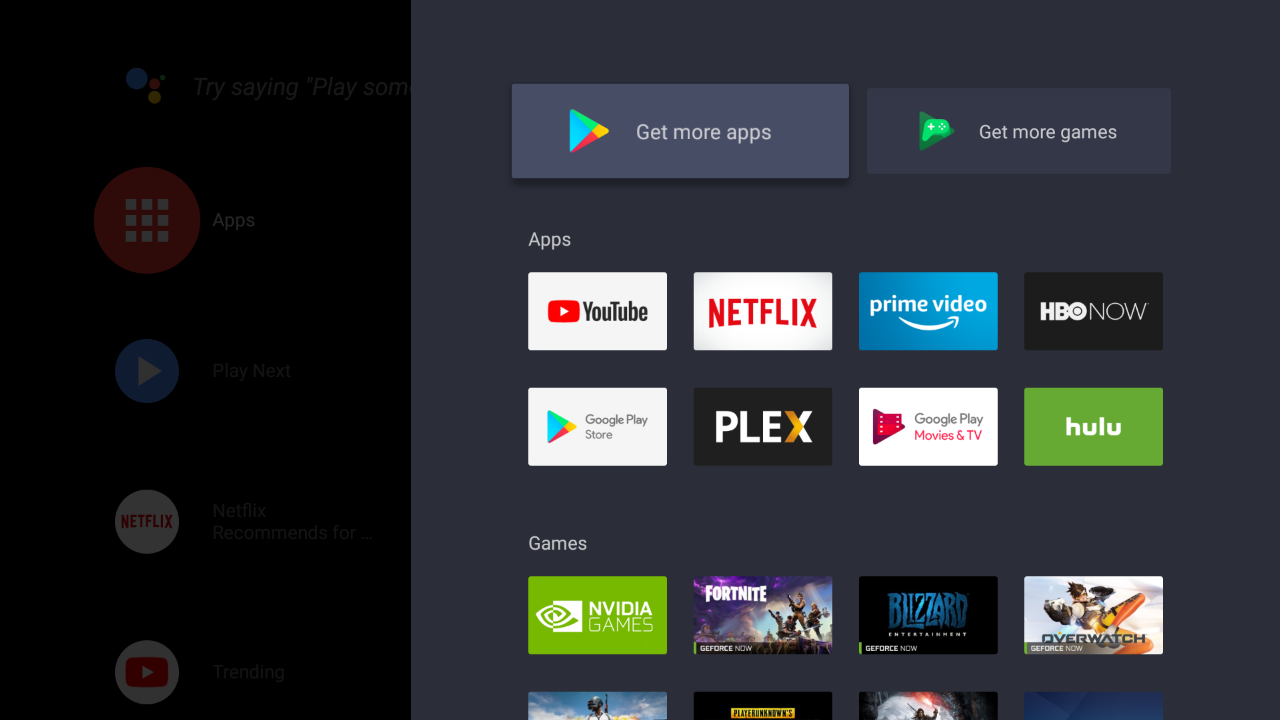
5.1 Scaricare altre app (Google Play Store)
Usa questo collegamento rapido per accedere a Google Play Store e trovare le ultime app disponibili per SHIELD TV.
5.2 Avviare un'app o un gioco
Premi il tasto di selezione per avviare immediatamente l'app.
5.3 Sposta, disinstalla o aggiunti alla riga delle app preferite.
Tieni premuto il tasto di selezione a lungo per accedere al menu dell'app.
6. Impostazioni Rapide
Le impostazioni rapide permettono di accedere velocemente alle impostazioni più utilizzate. Per accedervi, premi il tasto Impostazioni su SHIELD Remote. Le voci delle impostazioni rapide sono personalizzabili. Per aggiungere, rimuovere o cambiare l'ordine delle voci, vai a Impostazioni > Preferenze dispositivo > Sistema > Personalizza impostazioni rapide

7. Il Massimo Con L'IA
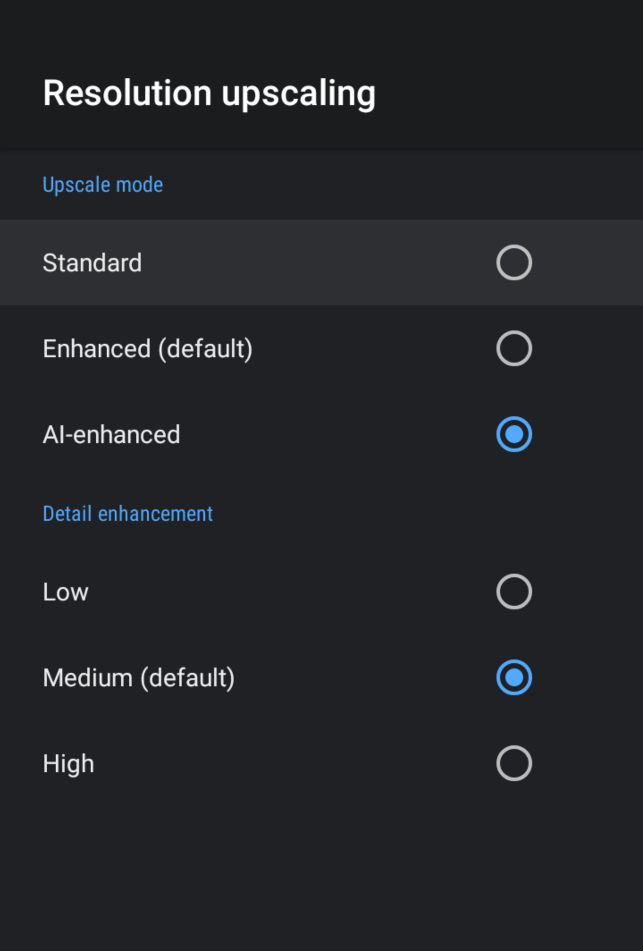
SHIELD offre funzionalità basate su IA in grado di ridimensionare in modo intelligente la risoluzione in base a quella della TV. Con questa nuova funzione, i film in HD su Netflix o Prime Video avranno un aspetto più nitido sul display 4K.
Per impostazione predefinita, il ridimensionamento "avanzato" è già abilitato su SHIELD. Per abilitare il ridimensionamento avanzato con IA, vai a Impostazioni > Ridimensionamento IA e seleziona "Avanzato IA".
Il potenziamento dei dettagli è un'opzione attivabile solo con IA avanzata e può essere personalizzato in base alle tue preferenze. È disponibile una demo affiancata che mostra le differenze tra ridimensionamento di base e con IA.
Demo mode will let the user see the difference SHIELD's new scaling technology makes in real time.
- Press the Settings button on the SHIELD remote to quickly switch between AI upscaling and Basic upscaling
- Hold the Settings button to toggle the slider viewer
| Nota: | il ridimensionamento con IA non è disponibile per i seguenti tipi di contenuti:
|
8. Assistente Google Su SHIELD TV
8.1 Come Usare L'assistente Google
Con l'Assistente Google su SHIELD puoi cercare film e serie TV, avviare app e giochi e controllare la tua smart home. Offre tutte le funzionalità che ami di Google Home, ma potenziate per il tuo salotto.
8.2 Disponibilità
L'Assistente Google per SHIELD è al momento disponibile nelle seguente lingue
- Inglese (USA)
- Inglese (Regno Unito)
- Inglese (Canada)
- Inglese (Australia)
- Francese
- Tedesco
- Spagnolo
- Italiano
Il supporto per altre lingue è stato pianificato ma non è ancora disponibile.
8.3 Come Usare L'assistente Google
Su SHIELD Remote:
- Da qualsiasi app o dalla schermata iniziale premi e rilascia il pulsante di ricerca vocale

- Tieni SHIELD Remote davanti a te e pronuncia la tua domanda. I risultati dell'assistente verranno mostrati appena finisci di parlare.
| Nota: | se ti trovi in una camera con molto rumore di sottofondo o con altre persone che parlano, quando hai finito di pronunciare la domanda premi subito il tasto di selezione su SHIELD Remote per inviare la ricerca vocale. Questo interromperà il rilevamento vocale. |
8.4 Visualizzare Più Risultati
Nella maggior parte dei casi, puoi ottenere più risultati premendo SU sullo SHIELD Remote. I risultati di ricerca di altre app vengono mostrati in questo menu.
8.5 "Ok Google" Senza Mani
Se hai uno SHIELD Controller 2017, puoi dire "OK Google" o "Hey Google" per iniziare la ricerca.
Per abilitare questa funzione, vai a Impostazioni > Preferenze dispositivo > Assistente Google > Abilita rilevamento "OK Google"
8.6 Cosa Puoi Fare Con L'assistente Google Su SHIELD
Guarda gli esempi sotto per scoprire cosa puoi fare con l'Assistente Google su SHIELD TV.
8.7 Spegnere La TV E SHIELD (Richiede Il Controllo HDMI CEC Abilitato)
- "Spegni la TV"
8.8 Cercare film o serie TV
- Ricerca per titolo
- "Mostra i film di Batman"
- "Voglio guardare Arrested Development"
- Ricerca per regista o attore
- "Mostra i film diretti da Steven Spielberg"
- "Mostra le serie TV con Chris Pratt"
- Usare qualsiasi combinazione di termini di ricerca
- "Mostra film di azione con Tom Cruise"
- "Mostra commedie con The Rock"
8.9 Riprodurre subito i tuoi programmi preferiti
Alcune app come Netflix, Hulu, YouTube e HBO Now avviano la riproduzione automaticamente.
- "Guarda Stranger Things su Netflix"
- "Riproduci video di gatti su YouTube"
8.10 Aprire la tua app preferita
- "Apri NVIDIA Games"
- "Avvia Netflix"
8.11 Controllare la tua Smart Home
Collegando i dispositivi Smart Home all'Assistente Google, puoi controllare le luci e gli interruttori con la tua voce.
- "Accendi le luci in salotto"
- "Riduci le luci al 50%"
8.12 Pianificare la giornata
- "Qual è il primo appuntamento di oggi?"
- "Quando durerà il tragitto stamattina"
8.13 Visualizzare le foto dall'account Google Foto
- "Mostrami le foto del 2010"
- "Mostrami le foto delle auto"
8.14 e altro ancora
8.15 App Mostrate Nei Risultati Di Ricerca
Puoi visualizzare i risultati di ricerca delle app installate su Android TV. I risultati vengono mostrati in righe separate. Alcuni risultati sono disponibili per varie app. Quando selezioni il contenuto, puoi scegliere l'app da utilizzare. Puoi personalizzare i risultati in Impostazioni > Preferenze dispositivo > Assistente Google > App ricercabili e abilitare le app per cui desideri ottenere risultati.
8.16 Eseguire Una Ricerca Vocale Nell'app
È possibile utilizzare la ricerca vocale anche all'interno di varie app. Se avvii una ricerca vocale da un'app, otterrai i risultati di ricerca specifici per quell'app.
8.17 Aiuto e informazioni aggiuntive
9. Sospensione O Riavvio
9.1 Sospensione
SHIELD TV va automaticamente in sospensione dopo un determinato periodo di tempo:
- Nella schermata Home di SHIELD TV, seleziona Impostazioni > Preferenze dispositivo > Salvaschermo .
- Seleziona quando iniziare.
- Scegli una delle opzioni.
9.2 Riavvio
Per riavviare:
- Nelle impostazioni di SHIELD TV, seleziona "Riavvia"
- Se l'operazione non va a buon fine, scollega il cavo di alimentazione, attendi 10 secondi, quindi collegalo di nuovo.
10. Timer E Salvaschermo
Puoi impostare un salvaschermo per la SHIELD TV che mostra foto e disegni colorati. Daydream utilizza una raccolta di foto panoramiche.
10.1 Scegliere Il Salvaschermo
- Nella schermata Home di SHIELD TV, seleziona Impostazioni > Preferenze dispositivo > Salvaschermo.
- Seleziona di nuovo Salvaschermo.
- Scegli una delle opzioni disponibili.
10.2 Impostare I Tempi Del Salvaschermo
Puoi stabilire dopo quanto tempo attivare il salvaschermo quando non usi SHIELD TV:
- Nella schermata Home di SHIELD TV, seleziona Impostazioni > Preferenze dispositivo > Salvaschermo.
- Seleziona Sospendi dispositivo.
- Scegli una delle opzioni.
11. Aggiungere Accessori Bluetooth
Puoi utilizzare gli accessori Bluetooth come una tastiera wireless, un mouse o un controller di gioco con SHIELD TV.
Per aggiungere un accessorio Bluetooth:
- Sullo schermo di SHIELD TV, seleziona Impostazioni .
- In Telecomando e accessori, seleziona Aggiungi accessorio . SHIELD TV cercherà gli accessori Bluetooth disponibili.
- Attiva la modalità di connessione dell'accessorio..
- L'accessorio verrà mostrato sullo schermo della TV. Seleziona l'accessorio.
- HIELD TV si collegherà all'accessorio.
Problemi con l'aggiunta dell'accessorio Bluetooth
12. Configurazione Schermo 4K HDR/Dolby Vision
SHIELD TV supporta la risoluzione 4K Ultra HD (3840 x 2160p) con HDR10 o Dolby Vision, da diverse app.
Per assicurarti che SHIELD TV sia ottimizzata per l'output video in 4K, tieni il dispositivo aggiornato con il software di sistema più recente.
La visione di contenuti in 4K da SHIELD TV richiede uno schermo 4K con supporto HDMI 2.0 e HDCP 2.2. Assicurati che SHIELD TV sia collegato all'input HDMI che supporta HDCP 2.2. Consulta la guida per l'utente dello schermo 4K per trovare la porta HDMI corretta a cui collegare SHIELD TV per guardare contenuti in 4K.
Valuta di utilizzare la porta HDMI-UHD per il supporto 4K. Alcune TV, per impostazione predefinita, hanno l'input UHD disabilitato nelle impostazioni, quindi verifica che UHD sia abilitato nelle impostazioni della tua TV.
13. Abilitare Dolby Vision/HDR10 Su SHIELD
SHIELD imposta automaticamente la modalità di supporto HDR10 quando viene rilevata.
Se hai uno schermo compatibile con Dolby Vision con risoluzione 4K e refresh rate di 60 Hz, abilita Dolby Vision selezionando Impostazioni > Preferenze dispositivo > Schermo e suono > Dolby Vision
Se non riesci ad abilitare "Dolby Vision", il problema potrebbero essere cavi HDMI. Prova a sostituirli con cavi di qualità più elevata e riprova.
Se la TV supporta la risoluzione 4K Dolby Vision a refresh rate inferiori, puoi modificare la modalità del display in Impostazioni > Preferenze dispositivo > Schermo e suono > Impostazioni schermo avanzate > Personalizza modalità schermo e seleziona qualsiasi modalità "Dolby Vision Ready".
| Avviso: | la selezione di modalità display con refresh rate inferiori causa un rallentamento della navigazione sullo schermo e nelle app. |
14. Abilitare Dolby Vision/HDR10 Sulla TV
Alcune TV HDR non hanno l'uscita HDR abilitata per impostazione predefinita per i collegamenti HDMI. Per abilitare l'uscita HDR da SHIELD, consulta il manuale della TV. Ecco le impostazioni usate da alcune delle TV più diffuse:
- TV Samsung HDR: Menu > Immagine > Opzioni immagini > HDMI UHD Color > Attiva > Riavvia
- TV LG HDR: Home > HDMI > Impostazioni > Avanzate > Immagine > HDMI ULTRA DEEP COLOR > Attiva > Riavvia
- TV Sony HDR: Home > Impostazioni > Ingressi esterni > Formato segnale HDMI > HDMI [seleziona l'ingresso SHIELD] > Formato avanzato (la TV viene riavviata)
15. Guardare Netflix in 4K O HDR
Per guardare i programmi Netflix in 4K o HDR, potrebbe essere necessario passare al piano 4 schermi di Netflix. Consulta l'articolo di Netflix per conoscere i requisiti attuali per lo streaming di contenuti in 4K o HDR. http://help.netflix.com/en/node/42384
16. Impostare AVR/Audio Surround
SHIELD TV supporta Dolby Digital (AC3), Dolby Digital Plus (E-AC3), Dolby ATMOS, Dolby TrueHD, DTS:X e DTS Core Audio Streams su HDMI. L'audio Dolby può essere decodificato/convertito nel miglior formato disponibile per il tuo impianto home theater. L'audio DTS non viene convertito e viene passato direttamente all'uscita HDMI.
Per ottenere l'audio surround, usa un ricevitore AV o una TV in grado di decodificare i flussi audio.
| Nota | se il ricevitore o la TV HDMI non è in grado di decodificare i flussi, potresti non sentire alcun audio. |
| Nota | assicurati che il ricevitore sia stato aggiornato con il firmware più recente. In alcuni casi, questo risolve i problemi di compatibilità o audio/video. |
(I) Configurazione raccomandata: SHIELD > AVR > TV
- Collega SHIELD TV a un decoder con un cavo HDMI.
- Collega un altro cavo HDMI dall'uscita HDMI del decoder alla TV.

| Nota | se hai una TV 4K o HDR, devi utilizzare cavi compatibili con HDMI 2.0 per collegare il dispositivo SHIELD e l'AVR e l'AVR e il display. Il decoder AV deve essere compatibile con il segnale HDMI 2.0 (HDCP 2.2). |
(II) Soundbar o AVR di generazione precedente: SHIELD > TV > AVR
| Avviso: | questa configurazione dovrebbe essere impiegata solo se la soundbar o l'AVR non supporta risoluzioni 4K, HDR o Dolby Vision. La soundbar deve supportare Dolby Digital. |
- Collega SHIELD TV a una TV con un cavo HDMI.
- Collega la TV al ricevitore utilizzando Optical SPDIF o HDMI Audio Return Channel (HDMI-ARC)
- In Impostazioni > Preferenze dispositivo > Schermo e suono > Impostazioni audio avanzate > Formati disponibili seleziona Manuale e disattiva tutti i formati Dolby tranne AC3.

Abilitare SHIELD per Accendere E Spegnere Il Sistema TV/AVR
SHIELD può controllare l'accensione di TV o AVR utilizzando HDMI-CEC. Vai a Schermo e suono > Controllo alimentazione per personalizzare il modo in cui SHIELD controlla TV/AVR.
Se il sistema TV/AVR non supporta HDMI-CEC, puoi configurare SHIELD Remote in modo che invii comandi IR ai dispositivi da questo menu.
| Nota | sulla maggior parte delle TV il controllo HDMI-CEC è disabilitato nelle impostazioni. HDMI-CEC (One Touch Play e TV off) deve essere abilitato nelle impostazioni della TV. Cerca il nome del produttore della TV e HDMI-CEC per individuare il nome dell'impostazione e abilitarla. |
17. Sincronizzazione AV
L'uso di un ricevitore AV con HDMI per video potrebbe dare luogo a un ritardo dell'audio. Per prima cosa, prova a utilizzare la sincronizzazione AV del ricevitore per calibrarlo. Se non funziona, usa la barra di scorrimento della sincronizzazione AV in Impostazioni > Preferenze dispositivo > Schermo e suono > Impostazioni avanzate > Sincronizzazione audio video per calibrare il ritardo audio. La barra di scorrimento della sincronizzazione AV consente di avanzare l'audio di 1 secondo (in piccoli incrementi da 10 ms) per sincronizzare audio e video.
Questo strumento è efficace solo quando SHIELD è collegato al ricevitore AV su HDMI (ovvero audio/video su HDMI); non è indicato per l'uso con cuffie collegate a SHIELD Controller/SHIELD Remote o dispositivo audio Bluetooth.
Se il video è in ritardo rispetto all'audio, usa le impostazioni del ricevitore AV per ritardare l'audio.
17.1 Regolazione Sovrascansione
Per le TV non dotate di impostazioni di sovrascansione, usa questa impostazione per regolare le dimensioni dell'immagine e adattarle allo schermo.
Vai a Impostazioni > Preferenze dispositivo > Schermo e suono > Impostazioni avanzate > Regola per sovrascansione per ridimensionare l'immagine sulla TV o display. Usa i tasti d-pad SU e GIÙ del telecomando per regolare le dimensioni dell'immagine sulla TV. Assicurati che i triangoli verdi siano completamente visibili per evitare problemi di sovrascansione.
18. Informazioni Sullo Schermo Di SHIELD
I dettagli su SHIELD TV sono disponibili in Impostazioni > Preferenze dispositivo > Info.
Il menu consente di:
- Verificare manualmente gli aggiornamenti di sistema
- Modificare il nome di SHIELD
- Visualizzare le informative legali
- Trovare ulteriori informazioni sul sistema tra cui:
- numero di serie
- indirizzo IP
- indirizzo di rete MAC
19. Ripristino Di SHIELD
19.1 Ripristinare Le Impostazioni Predefinite
| Nota | effettuando il ripristino dei dati predefiniti, tutti i dati verranno cancellati da SHIELD. I dati associati all'account Google possono essere recuperati. Tutte le impostazioni del dispositivo vengono rimosse. |
19.2 Ripristino Tramite Le Impostazioni
Per ripristinare le impostazioni predefinite di SHIELD TV, segui questa procedura:
- Dalla schermata Home, seleziona Impostazioni > Preferenze dispositivo > Ripristina.
- Seleziona Ripristina.
- Seleziona Cancella tutto per confermare e reimpostare il dispositivo.
20. Collegamento Della Memoria A SHIELD
È possibile collegare una memoria aggiuntiva microSD a SHIELD. il collegamento della memoria è automatico, poiché la memoria rimovibile e SHIELD sono in grado di leggere e scrivere direttamente sul dispositivo di archiviazione. Le app e i dati delle app non possono essere installati come memoria rimovibile. Per aumentare lo spazio per l'installazione di app, la memoria collegata deve essere formattata come dispositivo di archiviazione.
Per formattare il dispositivo di archiviazione, seleziona Impostazioni > Preferenze dispositivo > Archiviazione > [Dispositivo di archiviazione] > Imposta come dispositivo di archiviazione. Il dispositivo di archiviazione verrà formattato e crittografato.
SHIELD TV è compatibile con FAT32, exFAT, NTFS e HFS+ e file system.
20.1 Come Aggiungere L'archiviazione Di Rete
Il dispositivo SHIELD TV può essere collegato a dispositivi NAS (Network Addressable Storage). Tale impostazione è utile se hai un numero elevato di contenuti multimediali personali condivisi su una rete a cui desideri accedere con SHIELD TV (ad esempio, PLEX Media Server)
Per aggiungere un dispositivo NAS:
- Seleziona Impostazioni > Preferenze dispositivo > Archiviazione > Archiviazione di rete ."
- Eventuali unità di rete rilevabili verranno individuate in "Archiviazione di rete disponibile".
- Se il dispositivo NAS è nascosto o non trasmette, puoi selezionare l'opzione di aggiunta manuale dell'archiviazione di rete.
21. Regolare Le Modalità Display (risoluzione, Refresh Rate, Spazio Dei Colori)
Per modificare la modalità del display, vai a Impostazioni > Preferenze dispositivo > Schermo e suono > Risoluzione per selezionare da un elenco di modalità più utilizzate.
Le modalità compatibili con Dolby Vision non sono abilitate per impostazione predefinite e possono essere selezionate qui.
Per selezionare una modalità personalizzata, vai a Impostazioni > Preferenze dispositivo > Schermo e suono > Impostazioni schermo avanzate > Personalizza modalità schermo per vedere un elenco di tutte le modalità disponibili per il tuo display.
| Nota | se scegli un refresh rate diverso da 60 Hz, le prestazioni potrebbero rallentare nelle applicazioni che supportano 60 Hz (pagina iniziale Android TV, giochi e video a 60 Hz). |
22. Dopasuj częstotliwość klatek (Beta)
Nota importante: questa è una funzionalità sperimentale (beta). Non tutte le app supportano questa funzionalità e alcune TV potrebbero avere difficoltà ad adattarsi ad alcuni refresh rate. PLEX e KODI supportano già la corrispondenza automatica del refresh rate.
Se esegui lo streaming di contenuti a un frame rate che non corrisponde al refresh rate del display, SHIELD converte automaticamente il contenuto in modo che corrisponda al display.
SHIELD include inoltre una funzionalità sperimentale che adegua il refresh rate del display al frame rate del contenuto. Per utilizzare questa funzionalità:
- Inizia a riprodurre un video su SHIELD.
- Premi il pulsante "Impostazioni" per visualizzare il menu e seleziona "Corrispondenza frame rate (beta)".
Nota: una volta interrotta la riproduzione, il refresh rate del display tornerà all'impostazione originale. Sarà necessario attivare manualmente questa impostazione ogni volta per adattare il frame rate.
Facoltativo: personalizza il pulsante Impostazioni del telecomando per adattare il frame rate. Vai a Impostazioni > Telecomandi e accessori > Personalizza pulsante Impostazioni e seleziona "Corrispondenza frame rate (beta)".
23. Come Trasferire Contenuti A SHIELD
Da un PC, puoi accedere a una memoria interna e collegata a SHIELD TV.
23.1 Su Rete Locale
SHIELD TV può essere rilevabile come dispositivo NAS
- Abilita Impostazioni > Preferenze dispositivo > Archiviazione > Trasferisci file su rete locale
- La pagina che segue mostra le informazioni necessarie per accedere a SHIELD TV e trasferire file da e verso il dispositivo di archiviazione.
24. Controllare SHIELD Con Google Home
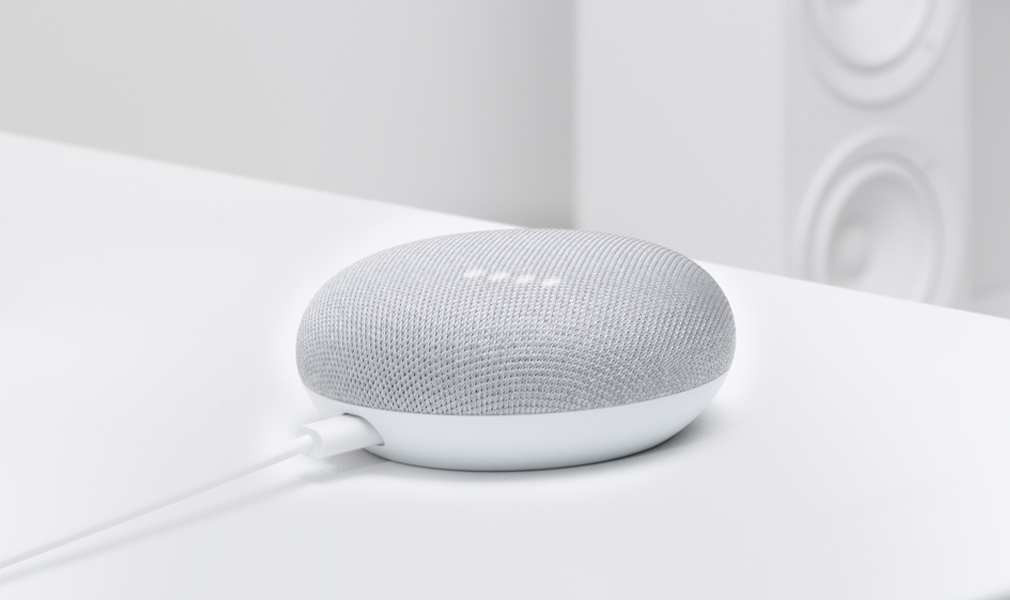
Accedi allo stesso account Google su Google Home esattamente come fai con SHIELD TV per controllare la TV senza usare le mani.
Comandi di base
"Accendi [SHIELD]"
"Spegni [SHIELD]"
"Apri [nome dell'app] su [SHIELD]"
Funzioni di riproduzione
"Riproduci [nome contenuto Netflix, HBO NOW, CBS, Viki o Starz] su [SHIELD]"
"Riproduci [nome del brano] su [nome dell'app] su [SHIELD]"
"Guarda [canale] su YouTube TV su [SHIELD]"
"Riproduci [titolo video] su YouTube su [SHIELD]"
"Metti in pausa [SHIELD]"
"Continua riproduzione su [SHIELD]"
Foto e Smart Home
"Mostrami le foto dell'Egitto su [SHIELD]"
"Mostrami le foto dello scorso weekend su [SHIELD]"
"Spegni le luci"
"Imposta la temperatura a 20 gradi"
| Nota | per modificare il nome di [SHIELD] vai a Impostazioni > Preferenze dispositivo > Info > Nome dispositivo |
25. Controllare SHIELD Con Alexa E Amazon Echo
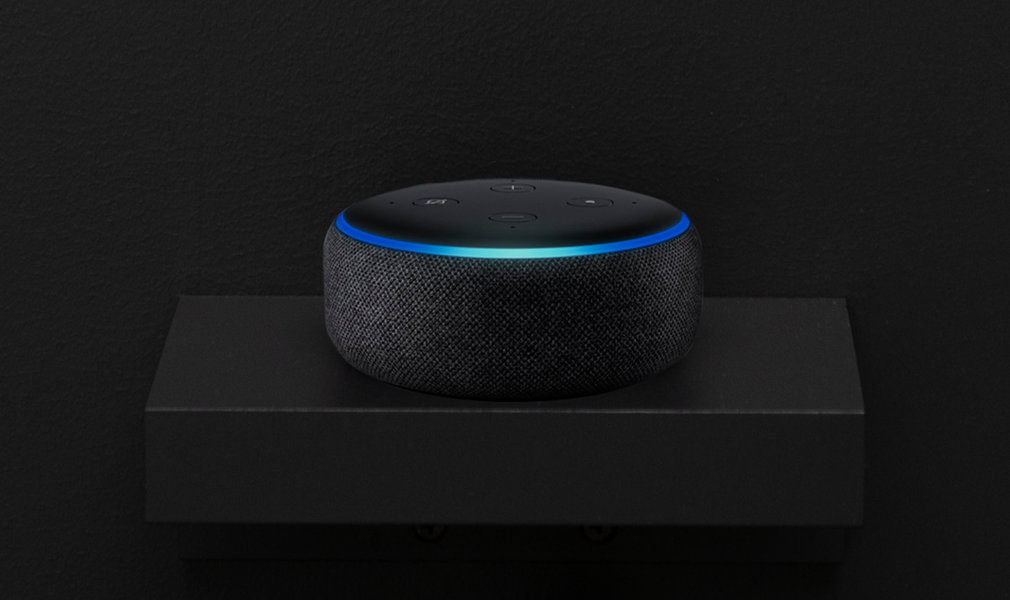
Associa SHIELD a un dispositivo Amazon Echo per avviare app, accendere o spegnere SHIELD e controllare la riproduzione.
Individua NVIDIA SHIELD TV sull'app Alexa sul tuo dispositivo mobile e segui le istruzioni.
I comandi vocali che funzionano al momento sono:
Per iniziare
"Alexa, accendi SHIELD".
"Alexa, spegni SHIELD".
Aprire app di intrattenimento
"Alexa, apri Prime Video (su SHIELD)".
"Alexa, apri HBO NOW (su SHIELD)".
Usare i controlli multimediali
"Alexa, metti in pausa (su SHIELD)".
"Alexa, riproduci (su SHIELD)".
"Alexa, vai avanti (su SHIELD)".
"Alexa, vai indietro (su SHIELD)".
"Alexa, vai avanti di dieci minuti (su SHIELD)".
Navigare su SHIELD
"Alexa, vai alle impostazioni (su SHIELD)".
"Alexa, vai alla home (su SHIELD)".
"Alexa, vai alle impostazioni di controllo (su SHIELD)".
26. NVIDIA GeForce NOW for SHIELD TV
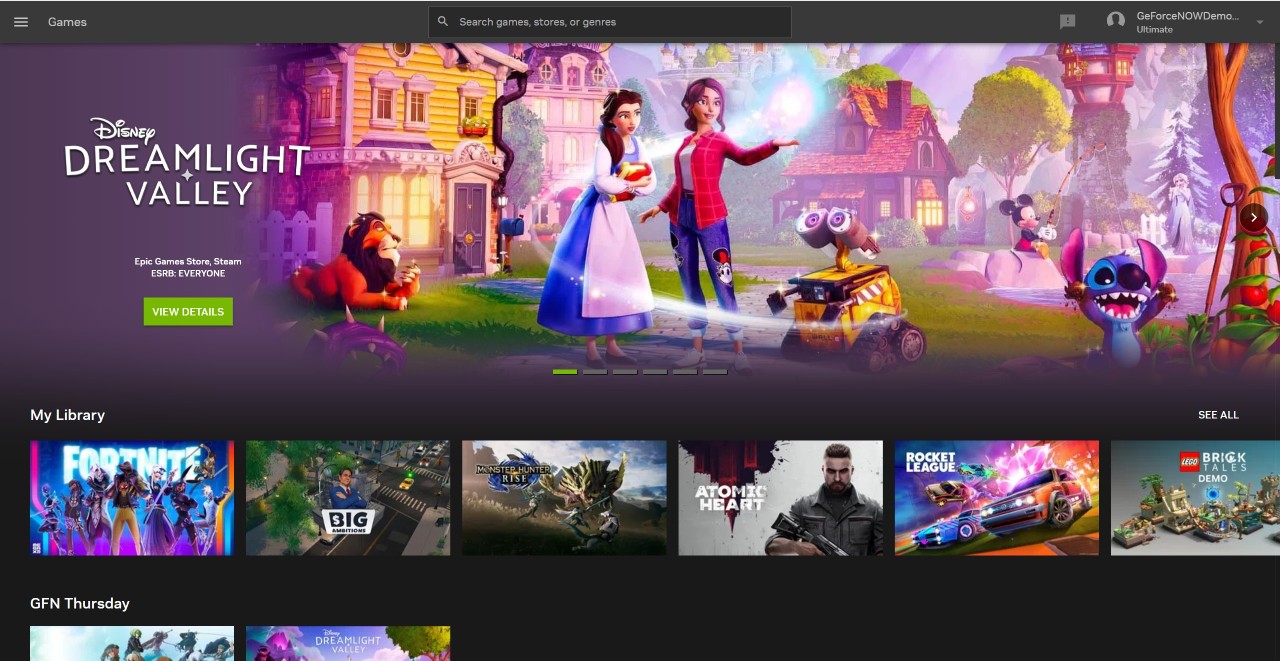
L'app NVIDIA GeForce NOW for SHIELD TV consente di trovare con facilità tutti i giochi a cui si può giocare su SHIELD TV.
27. App SHIELD TV Remota
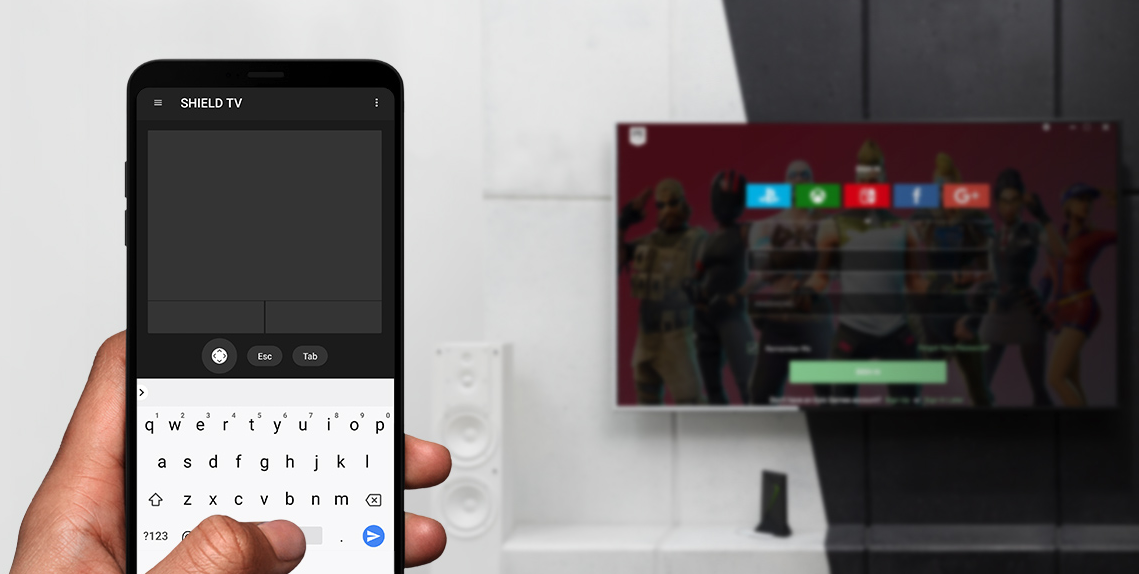
L'app NVIDIA SHIELD TV consente di controllare il dispositivo SHIELD TV, aprire app e accedere ai tuoi giochi GeForce NOW preferiti su SHIELD ancora più velocemente.
L'app offre accesso istantaneo a mouse e tastiera virtuale, rendendo ancora più semplice l'inserimento di nome utente e password per i servizi di gaming.
CaratterisTiche
Controlli di GeForce NOW
- Touchpad mouse virtuale
- Tastiera virtuale (inglese)
Controlli di SHIELD TV Remote
- Avvio di app: tocca il banner dell'app per aprirla immediatamente su SHIELD TV
- Navigazione con D-pad (su/giù/destra/sinistra) e tasto di selezione
- Pulsanti Android (Indietro, Inizio, Home)
- Riproduzione contenuti (Riproduci, Pausa, Avanti, Indietro)
- Comando volume
Istruzioni Di Configurazione
- Installa l'app SHIELD TV sul tuo dispositivo Android o iOS.
- Collega il dispositivo alla stessa rete a cui è collegato SHIELD TV.
- Avvia l'app SHIELD TV e seleziona il tuo dispositivo SHIELD nell'elenco dei dispositivi rilevati.
- Associa il dispositivo a SHIELD TV inserendo il codice di 6 cifre mostrato sulla TV.
28. Chromecast 4K
SHIELD TV è anche in grado di utilizzare la tecnologia Chromecast per trasmettere i contenuti di intrattenimento da cellulare, tablet o laptop direttamente sul grande schermo. I dispositivi iOS e Android supportano Google Cast.
28.1 Trasmissione Su SHIELD
- Assicurati che sia l'origine della trasmissione (smartphone, tablet, laptop, ecc.) e il dispositivo SHIELD TV siano collegati alla stessa rete.
- Sul dispositivo di origine, apri un'applicazione compatibile con Google Cast, come YouTube.
- Tocca o fai clic sull'icona di trasmissione
- Scegli la TV Android su cui trasmettere. In questo caso, seleziona "SHIELD".
- Premi il pulsante di riproduzione sul cellulare o tablet. Dovrebbe partire quindi la riproduzione del contenuto su Android TV, e l'icona di trasmissione sul dispositivo risulterà attiva.
Le app supportate variano da paese a paese. Per maggiori informazioni, sulle app disponibili nel tuo paese, visita g.co/castapps.
28.2 Trasmissione in Mirroring Su SHIELD
SHIELD TV supporta anche la trasmissione in mirroring da alcuni dispositivi Android. Per conoscere i dispositivi supportati e per le istruzioni su come eseguire il mirroring dello schermo su SHIELD TV, visita https://support.google.com/googlecast/answer/6104896.
29. Risoluzione Dei Problemi Con SHIELD
Prima di utilizzare questa guida alla risoluzione di problemi, assicurati che il dispositivo SHIELD sia aggiornato con l'ultimo aggiornamento di sistema, disponibile automaticamente se SHIELD è collegato a Internet.
Se non riesci a risolvere i problemi riscontrati con le procedure disponibili in questa guida, potresti trovare una soluzione nei forum di GeForce Experience > sezione SHIELD.
Altri consigli utili sono inoltre disponibili nelle FAQ su SHIELD e nella pagina di assistenza di SHIELD.
Se i problemi persistono, contatta il supporto NVIDIA.
SHIELD TV Legal
30. Health and Safety Information
Important Safety Information
NVIDIA products are designed to operate safely when installed and used according to the product instructions and general safety practices. The guidelines included in this document explain the potential risks associated with equipment operation and provide important safety practices designed to minimize these risks. By carefully following the information contained in this document you can protect yourself from hazards and create a safer environment.
This product is designed and tested to meet IEC-60950-1, the Standard for Safety of Information Technology Equipment. This also covers the national implementation of IEC-60950-1 based safety standards around the world e.g. UL-60950-1. These standards reduce the risk of injury from the following hazards:
- Electric shock: Hazardous voltage levels contained in parts of the product
- Fire: Overload, temperature, material flammability
- Mechanical: Sharp edges, moving parts, instability
- Energy: Circuits with high energy levels (240 volt-amps) or potential as burn hazards
- Heath: Accessible parts of the product at high temperatures
- Chemical: Chemical fumes and vapors
- Radiation: Noise, ionizing, laser, ultrasonic waves
Retain and follow all product safety and operating instructions. Always refer to the documentation supplied with your equipment. Observe all warnings on the product and in the operating instructions.
| Note: | Read all safety information below and operating instructions before using the SHIELD to avoid injury. |
 WARNING: FAILURE TO FOLLOW THESE SAFETY INSTRUCTIONS COULD RESULT IN FIRE, ELECTRIC SHOCK OR OTHER INJURY OR DAMAGE.
ELECTRICAL EQUIPMENT CAN BE HAZARDOUS IF MISUSED. OPERATION OF THIS PRODUCT, OR SIMILAR PRODUCTS, MUST ALWAYS BE SUPERVISED BY AN ADULT. DO NOT ALLOW CHILDREN ACCESS TO THE INTERIOR OF ANY ELECTRICAL PRODUCT AND DO NOT PERMIT THEM TO HANDLE ANY CABLES.
To reduce the risk of bodily injury, electric shock, fire, and damage to the equipment, observe the safety labels included on the equipment.
Symbols on Equipment
This symbol in conjunction with any of the following symbols indicates the presence of a potential hazard. The potential for injury exists if warnings are not observed. Consult your documentation for specific details.
 This symbol indicates the presence of hazardous energy circuits or electric shock hazards. Refer all servicing to qualified personnel.
WARNING: To reduce the risk of injury from electric shock hazards, do not open this enclosure. Refer all maintenance, upgrades, and servicing to qualified personnel.
 This symbol indicates the presence of electric shock hazards. The area contains no user or field serviceable parts. Do not open for any reason.
General Precautions
To reduce the risk of electric shock, personal injury, or damage to the equipment, observe the following precautions:
- Follow all cautions and instructions marked on the equipment.
- Do not bend, drop, crush, puncture, incinerate, or push objects into openings of the device.
- Do not connect or disconnect any cables or perform maintenance or reconfiguration of this product during an electrical storm.
- Do not use the SHIELD TV in rain or near sink, or other wet locations. Take care not to spill any food or liquid into the device. In case the SHIELD device gets wet, unplug all cables and turn off before cleaning, and allow it to dry thoroughly before turning it on again.
- Do not expose the SHIELD TV to any gas which is not normally contained in the atmosphere. It may cause mis-operation or defects.
- Never turn on any equipment when there is evidence of fire, water, or structural damage.
- Place the product away from radiators, heat registers, stoves, amplifiers, or other appliances that produce heat.
- Never force a connector into a port. Check for obstructions on the port. If the connector and port don't join with reasonable ease, they probably don't match. Make sure that the connector matches the port and that you have positioned the connector correctly in relation to the port.
- Operate the AC adapter in a ventilated area.
- When you are using the NVIDIA SHIELD TV, it is normal for the system and/or AC power adapter to get warm.
- Do not use conductive tools that could bridge live parts.
- Do not make mechanical or electrical modifications to the equipment.
- Never attempt to reconnect the SHIELD TV yourself. This device does not contain any user-serviceable parts. Do not attempt to open, disassemble, or remove the battery. You run the risk of electric shock.
- Operate the SHIELD TV in a place where the temperature is always between 5 and 30°C (41 to 86°F).
- Store the SHIELD TV in a place where the temperature is always between 0 and 35°C (32 to 95°F) with relative humidity of 70% or lower. When taking the device from a low temperature condition, allow the device to reach room temperature before turning the power on.
- Use this product only with approved equipment and/or accessories
- If the product sustains damage requiring service, disconnect the product from the AC electrical outlet and refer servicing to an NVIDIA authorized service provider.
Proposition 65 WARNING: This product contains chemicals known to the State of California to cause cancer and birth defects or other reproductive harm. (California law requires this warning be provided to California customers.
A lire avant toute utilisation d'un jeu vidéo par vous-même ou par votre enfant.
I. - Précautions à prendre dans tous les cas pour l'utilisation d'un jeu vidéo.
Evitez de jouer si vous êtes fatigué ou si vous manquez de sommeil.
Assurez-vous que vous jouez dans une pièce bien éclairée en modérant la luminosité de votre écran.
Lorsque vous utilisez un jeu vidéo susceptible d'être connecté à un écran, jouez à bonne distance de cet écran de télévision et aussi loin que le permet le cordon de raccordement.
En cours d'utilisation, faites des pauses de dix à quinze minutes toutes les heures.
II. - Avertissement sur l'épilepsie.
Certaines personnes sont susceptibles de faire des crises d'épilepsie comportant, le cas échéant, des pertes de conscience à la vue, notamment, de certains types de stimulations lumineuses fortes: succession rapide d'images ou répétition de figures géométriques simples, d'éclairs ou d'explosions. Ces personnes s'exposent à des crises lorsqu'elles jouent à certains jeux vidéo comportant de telles stimulations, alors même qu'elles n'ont pas d'antécédent médical ou n'ont jamais été sujettes elles-mêmes à des crises d'épilepsie.
Si vous-même ou un membre de votre famille avez déjà présenté des symptômes liés à l'épilepsie (crise ou perte de conscience) en présence de stimulations lumineuses, consultez votre médecin avant toute utilisation.
Les parents se doivent également d'être particulièrement attentifs à leurs enfants lorsqu'ils jouent avec des jeux vidéo. Si vous-même ou votre enfant présentez un des symptômes suivants : vertige, trouble de la vision, contraction des yeux ou des muscles, trouble de l'orientation, mouvement involontaire ou convulsion, perte momentanée de conscience, il faut cesser immédiatement de jouer et consulter un médecin.
Power Rating
19 V DC, 2.1 A
31. SHIELD TV Compliance
The SHIELD Android TV Game Console is compliant with the regulations listed in this section.
United States
Federal Communications Commission (FCC)

FCC ID: VOB-P3430
This device complies with Part 15 of the FCC Rules. Operation is subject to the following two conditions: (1) this device may not cause harmful interference, and (2) this device must accept any interference received, including any interference that may cause undesired operation of the device.
This equipment has been tested and found to comply with the limits for a Class B digital device, pursuant to Part 15 of the FCC Rules. These limits are designed to provide reasonable protection against harmful interference in a residential installation. This equipment generates, uses and can radiate radio frequency energy and, if not installed and used in accordance with the instructions, may cause harmful interference to radio communications. However, there is no guarantee that interference will not occur in a particular installation.
If this equipment does cause harmful interference to radio or television reception, which can be determined by turning the equipment off and on, the user is encouraged to try to correct the interference by one or more of the following measures:
- Reorient or relocate the receiving antenna.
- Increase the separation between the equipment and receiver.
- Connect the equipment into an outlet on a circuit different from that to which the receiver is connected.
- Consult the dealer or an experienced radio/TV technician for help.
FCC Warning: The FCC requires that you be notified that any changes or modifications to this device not expressly approved by the manufacturer could void the user's authority to operate the equipment.
RF Radiation Exposure Statement:
SHIELD Android TV Game Console has been tested and complies with FCC RF radiation exposure limits set forth for an uncontrolled environment when used with the NVIDIA accessories supplied or designated for this product. During testing, SHIELD was placed in positions that simulate use against the body. The use of any other accessories may not ensure compliance with FCC RF exposure guidelines.
This equipment must be installed and operated in accordance with provided instructions and the antenna(s) used for this transmitter must be installed to provide a separation distance of at least 20 cm from all persons and must not be co-located or operating in conjunction with any other antenna or transmitter. End-users and installers must be provided with antenna installation instructions and consider removing the no-collocation statement.
Underwriters Laboratories (UL)

I.T.E. E204896
Canada
Innovation, Science and Economic Development Canada (ISED)
IC: 7361A-P3430
CAN ICES-3(B)/NMB-3(B)
This device contains licence-exempt transmitter(s)/receiver(s) that comply with Innovation, Science and Economic Development Canada's licence-exempt RSS(s). Operation is subject to the following two conditions: (1) this device may not cause interference, and (2) this device must accept any interference, including interference that may cause undesired operation of the device.
Le présent appareil est conforme aux CNR d'Innovation, Sciences et Développement économique Canada applicables aux appareils radio exempts de licence. L'exploitation est autorisée aux deux conditions suivantes: (1) l'appareil ne doit pas produire de brouillage, et (2) l'utilisateur de l'appareil doit accepter tout brouillage radioélectrique subi, même si le brouillage est susceptible d'en compromettre le fonctionnement.
Caution: Operation in the band 5150-5250 MHz is only for indoor use to reduce the potential for harmful interference to co-channel mobile satellite systems. Be advised that high-power radars are allocated as primary users of the bands 5250-5350 MHz and 5650-5850 MHz and that these radars could cause interference and/or damage to LE-LAN devices.
Attention: les dispositifs fonctionnant dans la bande de 5 150 à 5 250 MHz sont réservés uniquement pour une utilisation à l'intérieur afin de réduire les risques de brouillage préjudiciable aux systèmes de satellites mobiles utilisant les mêmes canaux
Être informé des radars à haute puissance sont alloués principaux utilisateurs de bandes 5250 à 5350 MHz et 5850 MHz, à 5650 et que ces radars pourraient provoquer des interférences et / ou endommager les appareils RL-EL. radars à haute puissance sont alloués utilisateurs primaires des bandes 5250 à 5350 MHz et 5850 MHz, ce à 5650 et que ces radars pourraient provoquer des interférences et / ou endommager les périphériques RL-EL.
RF Radiation Exposure Statement:
SHIELD Android TV Game Console has been tested and complies with IC RSS 102 RF radiation exposure limits set forth for an uncontrolled environment when used with the NVIDIA accessories supplied or designated for this product. During testing, SHIELD was placed in positions that simulate use against the body. The use of any other accessories may not ensure compliance with IC RSS 102 RF exposure guidelines.
This transmitter must not be co-located or operating in conjunction with any other antenna or transmitter. This equipment should be installed and operated with a minimum distance of 20 centimeters between the radiator and your body.
Déclaration d'exposition aux radiations:
SHIELD Android TV Game Console a ete testee conformemment aux normes d'exposition d'emission RF de la IC RSS 102 pour un environement non controle lors d'utilisation avec les accessoires fournis or recommendes par NVIDIA. Pendant les tests, SHIELD a ete positionnee afin de simule la presence du corps humain. L'utilisation d'accessoires autres que ceux recommendes par NVIDIA ne guarantis pas la compatibilite avec les normes d'emission RF de la IC RSS 102.
Cet émetteur ne doit pas être Co-placé ou ne fonctionnant en même temps qu'aucune autre antenne ou émetteur. Cet équipement devrait être installé et actionné avec une distance minimum de 20 centimètres entre le radiateur et votre corps.
European Union
European Conformity; Conformité Européenne (CE)


This device complies with the following Directives:
- Radio Equipment Directive 2014/53/EU
- RoHS Directive 2011/65/EU
- Energy-related Products Directive (ErP) 2009/125/EC
The full text of EU declaration of conformity is available at the following internet address: www.nvidia.com/support
A copy of the Declaration of Conformity to the essential requirements may be obtained directly from NVIDIA GmbH (Bavaria Towers – Blue Tower, Einsteinstrasse 172, D-81677 Munich, Germany).
This device operates in the following frequency bands and maximum transmitted power:
Frequency Band |
Max. EIRP(dBm) |
Max. EIRP(mW) |
2400.0 - 2483.5 MHz |
20.0 |
100 |
5150.0 - 5350.0 MHz |
23.0 |
200 |
5470.0 - 5725.0 MHz |
23.0 |
200 |
5725.0 - 5875.0 MHz |
14.0 |
25 |
Warning:
- Operation in the 5150 - 5350 MHz frequency band is restricted to Indoor Use Only.
- This equipment should be installed and operated with a minimum distance of 20 centimeters between the radiator and your body.
- Any changes or modifications to this device not expressly approved by the manufacturer could void the user's authority to operate the equipment.
A LIRE AVANT TOUTE UTILISATION D'UN JEU VIDEO PAR VOUS-MEME OU PAR VOTRE ENFANT
I. - Précautions à prendre dans tous les cas pour l'utilisation d'un jeu vidéo.
Evitez de jouer si vous êtes fatigué ou si vous manquez de sommeil.
Assurez-vous que vous jouez dans une pièce bien éclairée en modérant la luminosité de votre écran.
Lorsque vous utilisez un jeu vidéo susceptible d'être connecté à un écran, jouez à bonne distance de cet écran de télévision et aussi loin que le permet le cordon de raccordement.
En cours d'utilisation, faites des pauses de dix à quinze minutes toutes les heures.
II. - Avertissement sur l'épilepsie.
Certaines personnes sont susceptibles de faire des crises d'épilepsie comportant, le cas échéant, des pertes de conscience à la vue, notamment, de certains types de stimulations lumineuses fortes: succession rapide d'images ou répétition de figures géométriques simples, d'éclairs ou d'explosions. Ces personnes s'exposent à des crises lorsqu'elles jouent à certains jeux vidéo comportant de telles stimulations, alors même qu'elles n'ont pas d'antécédent médical ou n'ont jamais été sujettes elles-mêmes à des crises d'épilepsie. Si vous-même ou un membre de votre famille avez déjà présenté des symptômes liés à l'épilepsie (crise ou perte de conscience) en présence de stimulations lumineuses, consultez votre médecin avant toute utilisation. Les parents se doivent également d'être particulièrement attentifs à leurs enfants lorsqu'ils jouent avec des jeux vidéo. Si vous-même ou votre enfant présentez un des symptômes suivants : vertige, trouble de la vision, contraction des yeux ou des muscles, trouble de l'orientation, mouvement involontaire ou convulsion, perte momentanée de conscience, il faut cesser immédiatement de jouer et consulter un médecin.
Australia and New Zealand
Australian Communications and Media Authority

This product meets the applicable EMC requirements for Class B, I.T.E equipment and applicable radio equipment requirements.
This product meets the applicable requirements for telecommunications equipment and can legally be connected to a telecommunications network.
Japan
Voluntary Control Council for Interference (VCCI)


Radio/Telecommunications Certification
W52/ W53は屋内使用限定
Japan RoHS Material Content Declaration
日本工業規格JIS C 0950:2008により、2006年7月1日以降に販売される特定分野の電気および電子機器について、製造者による含有物質の表示が義務付けられます。 |
||||||
主な分類 |
特定化学物質記号 |
|||||
Pb |
Hg |
Cd |
Cr(VI) |
PBB |
PBDE |
|
メディアストリームコンソール |
除外項目 |
0 |
0 |
0 |
0 |
0 |
電源 |
除外項目 |
0 |
0 |
0 |
0 |
0 |
ケーブル/コネクター |
除外項目 |
0 |
0 |
0 |
0 |
0 |
プロセッサー |
除外項目 |
0 |
0 |
0 |
0 |
0 |
システムメモリ |
除外項目 |
0 |
0 |
0 |
0 |
0 |
プリント基板 |
除外項目 |
0 |
0 |
0 |
0 |
0 |
機械部品 |
除外項目 |
0 |
0 |
0 |
0 |
0 |
はんだ付け材料 |
0 |
0 |
0 |
0 |
0 |
0 |
フラックス、クリームはんだ、ラベル、その他消耗品 |
0 |
0 |
0 |
0 |
0 |
0 |
注: 1.「0」は、特定化学物質の含有率が日本工業規格JIS C 0950:2008に記載されている含有率基準値より低いことを示します。 |
||||||
A Japanese regulatory requirement, defined by specification JIS C 0950: 2008, mandates that manufacturers provide Material Content Declarations for certain categories of electronic products offered for sale after July 1, 2006. |
||||||
Major Classification |
Symbols of Specified Chemical Substance |
|||||
Pb |
Hg |
Cd |
Cr(VI) |
PBB |
PBDE |
|
Media Streaming Console |
Exempt |
0 |
0 |
0 |
0 |
0 |
Power adapter |
Exempt |
0 |
0 |
0 |
0 |
0 |
Cables/Connectors |
Exempt |
0 |
0 |
0 |
0 |
0 |
Processor |
Exempt |
0 |
0 |
0 |
0 |
0 |
System memory |
Exempt |
0 |
0 |
0 |
0 |
0 |
PCA |
Exempt |
0 |
0 |
0 |
0 |
0 |
Mechanicals |
Exempt |
0 |
0 |
0 |
0 |
0 |
Soldering material |
0 |
0 |
0 |
0 |
0 |
0 |
Flux, Solder Paste, label and other consumable materials |
0 |
0 |
0 |
0 |
0 |
0 |
Notes: 1. "0" indicates that the level of the specified chemical substance is less than the threshold level specified in the standard, JIS C 0950: 2008. |
||||||
South Korea
Radio Research Agency (RRA)
Korean Agency for Technology and Standards (KATS)

R-R-NVA-P3430
B급 기기 |
이 기기는 가정용(B급) 전자파적합기기로서 주 |
(가정용 방송 통신기자재) |
로 가정에서 사용하는 것을 목적으로 하며, 모 |
|
든 지역에서 사용할 수 있습니다. |
Korea RoHS Material Content Declaration
확인 및 평가 양식은 제품에 포함 된 유해 물질의 허용 기준의 준수에 관한 |
|||||||
문 준비 |
상호 : |
앤비디아홍콩홀딩즈리미티드( 영업소) |
법인등록번호 |
110181-0036373 |
|||
대표자성명 |
카렌테레사번즈 |
사업자등록번호: |
120-84-06711 |
||||
주소 |
서울특별시 강남구 영동대로 511, 2101호 ( 삼성동, 코엑스무역타워) |
||||||
제품 내용 |
|||||||
제품의 종류 |
해당없음 |
제품명(규격) |
해당없음 |
||||
세부모델명(번호): |
해당없음 |
제품출시일 |
해당없음 |
||||
제품의 중량 |
해당없음 |
제조, 수입업자 |
앤비디아 |
||||
엔비디아의 그래픽 카드제품은 전기 전자제품 및 자동차의 자원순환에 관한 법률 시행령 제 11조 제 1항에 의거한 법 시행행규칙 제 3조에에따른 유해물질함유 기준을 확인 및 평가한 결과, 이를 준수하였음을 공표합니다. |
|||||||
구비서류 : 없음 ① 제품의 종류는 "전기.전자제품 및 자동차의 자원순환에관한 법률 시행령" 제 8조 제 1항 및 제 2항에 따른 품목별로 구분하여 기재합니다. |
|||||||
Confirmation and Evaluation Form Concerning the Adherence to Acceptable Standards of Hazardous Materials Contained in Products |
|||||||
Statement Prepared by |
Company Name: |
Nvidia HongKong Holding Ltd.Korea branch |
Corporate Identification Number: |
110181-0036373 |
|||
Name of Company Representative: |
Karen Theresa Burns |
Business Registration Number: |
120-84-06711 |
||||
Address |
2788 San Tomas Expressway, Santa Clara, CA 95051 |
||||||
Product Information |
|||||||
Product Category: |
N/A |
Name of Product: |
N/A |
||||
Detailed Product Model Name (Number): |
N/A |
Date of first market release: |
N/A |
||||
Weight of Product: |
N/A |
Manufacturer and/or Importer: |
NVIDIA Corporation |
||||
This for is publicly certify That NVIDIA Company has undergone the confirmation and evaluation procedures for the acceptable amounts of hazardous materials contained in graphic card according to the regulations stipulated in Article 3 of the 'Status on the Recycling of Electrical and Electronic Products, and Automobiles' and that company has graphic card adhered to the Enforcement Regulations of Article 11, Item 1 of the statute. |
|||||||
Attachment: None ① Please indicate the product category according to the categories listed in Article 8, Items 1and 2 of the ' Enforcement Ordinance of the Statute on the Recycling of Electrical, Electronic and Automobile Materials' |
|||||||
Taiwan
National Communications Commission

注意!
依據 低功率電波輻射性電機管理辦法
第十二條
經型式認證合格之低功率射頻電機,非經許可,公司、商號或使用者均不得擅自變更頻率、加大功率或變更原設計之特性及功能。
第十四條
低功率射頻電機之使用不得影響飛航安全及干擾合法通信;經發現有干擾現象時,應立即停用,並改善至無干擾時方得繼續使用。
前項合法通信,指依電信法規定作業之無線電通信。
低功率射頻電機須忍受合法通信或工業、科學及醫療用電波輻射性電機設備之干擾。
應避免影響附近雷達系統之操作。
高增益指向性天線只得應用於固定式點對點系統。
Taiwan RoHS Material Content Declaration
限用物質含有情况標示聲明書 |
||||||
單元 |
限用物質及其化學符號 |
|||||
铅 |
汞 |
镉 |
六價铬 |
多溴聯苯 |
多溴二苯醚 |
|
媒體流控制台 |
- |
0 |
0 |
0 |
0 |
0 |
電源設備 |
- |
0 |
0 |
0 |
0 |
0 |
線材 |
- |
0 |
0 |
0 |
0 |
0 |
處理器 |
- |
0 |
0 |
0 |
0 |
0 |
存儲設備 |
- |
0 |
0 |
0 |
0 |
0 |
印刷電路部件 |
- |
0 |
0 |
0 |
0 |
0 |
機械部件 |
- |
0 |
0 |
0 |
0 |
0 |
焊接金屬 |
0 |
0 |
0 |
0 |
0 |
0 |
助焊劑,錫膏,標籤及耗材 |
0 |
0 |
0 |
0 |
0 |
0 |
備考1:O:系指該限用物質未超出百分比含量基準值 |
||||||
Russia/Kazakhstan/Belarus
Customs Union Technical Regulations (CU TR)

This device complies with the technical regulations of the Customs Union (CU TR)
ТЕХНИЧЕСКИЙ РЕГЛАМЕНТ ТАМОЖЕННОГО СОЮЗА О безопасности низковольтного оборудования (ТР ТС 004/2011)
ТЕХНИЧЕСКИЙ РЕГЛАМЕНТ ТАМОЖЕННОГО СОЮЗА
Электромагнитная совместимость технических средств (ТР ТС 020/2011)
Federal Agency of Communication (FAC)
This device complies with the rules set forth by Federal Agency of Communications and the Ministry of Communications and Mass Media
Federal Security Service notification has been filed.
Singapore
Infocomm Media Development Authority of Singapore (IMDA)
Bluetooth

Declaration ID: D046888
Wi-Fi Alliance®
Wi-Fi CERTIFIED™
Certification ID: WFA91178
32. SHIELD Controller 2017 Compliance
The SHIELD Controller 2017 is compliant with the regulations listed in this section.
United States
Federal Communications Commission (FCC)
FCC ID: VOB-P2920
This device complies with Part 15 of the FCC Rules. Operation is subject to the following two conditions: (1) this device may not cause harmful interference, and (2) this device must accept any interference received, including interference that may cause undesired operation.
This equipment has been tested and found to comply with the limits for a Class B digital device, pursuant to Part 15 of the FCC Rules. These limits are designed to provide reasonable protection against harmful interference in a residential installation. This equipment generates, uses and can radiate radio frequency energy and, if not installed and used in accordance with the instructions, may cause harmful interference to radio communications. However, there is no guarantee that interference will not occur in a particular installation. If this equipment does cause harmful interference to radio or television reception, which can be determined by turning the equipment off and on, the user is encouraged to try to correct the interference by one or more of the following measures:
- Reorient or relocate the receiving antenna.
- Increase the separation between the equipment and receiver.
- Connect the equipment into an outlet on a circuit different from that to which the receiver is connected.
- Consult the dealer or an experienced radio/TV technician for help.
FCC Warning: The FCC requires that you be notified that any changes or modifications to this device not expressly approved by the manufacturer could void the user’s authority to operate the equipment.
RF Radiation Exposure Statement:
NVIDIA SHIELD Controller 2017 has been tested and complies with FCC RF radiation exposure limits set forth for an uncontrolled environment when used with the NVIDIA accessories supplied or designated for this product. During testing, the SHIELD was placed in positions that simulate use against the body. The use of any other accessories may not ensure compliance with FCC RF exposure guidelines.
California Energy Commission

This product meets the applicable energy efficiency requirements for a battery charging system.
Underwriters Laboratories (UL)
I.T.E. E204896
Canada
Industry Canada (IC)
IC: 7361A-P2920
CAN ICES-3(B)/NMB-3(B)
This device complies with Industry Canada license-exempt RSS standard(s). Operation is subject to the following two conditions: (1) this device may not cause interference, and (2) this device must accept any interference, including interference that may cause undesired operation of the device.
Le présent appareil est conforme aux CNR d'Industrie Canada applicables aux appareils radio exempts de licence. L'exploitation est autorisée aux deux conditions suivantes : (1) l'appareil ne doit pas produire de brouillage, et (2) l'utilisateur de l'appareil doit accepter tout brouillage radioélectrique subi, même si le brouillage est susceptible d'en compromettre le fonctionnement.
The device meets the exemption from the routine evaluation limits in section 2.5 of RSS 102 and compliance with RSS-102 RF exposure, users can obtain Canadian information on RF exposure and compliance.
Le dispositif rencontre l'exemption des limites courantes d'évaluation dans la section 2.5 de RSS 102 et la conformité à l'exposition de RSS-102 rf, utilisateurs peut obtenir l'information canadienne sur l'exposition et la conformité de rf.
European Union
European Conformity
Conformité Européenne (CE)
This device bears the CE mark in accordance with Directive 2014/53/EU
This device complies with the following Directives:
- Radio Equipment Directive for radio equipment
- RoHS Directive for hazardous substances
The full text of EU declaration of conformity is available at the following internet address: https://images.nvidia.com/shieldwebsite/visuals/public/DoC/EN/SHIELD_Controller_P2920_DoC_EN.pdf
This device operates in the following frequency bands and maximum transmitted power:
Frequency Band |
Max. EIRP(dBm) |
Max. EIRP(mW) |
2402.0 - 2480.0 MHz |
9.84 |
9.64 |
Warning:
- Any changes or modifications to this device not expressly approved by the manufacturer could void the user’s authority to operate the equipment.
Hardware version: 699-12922-xxxx-xxx; Software version: v1.xx.
Australia and New Zealand
Australian Communications and Media Authority
This product meets the applicable EMC requirements for Class B, I.T.E equipment and applicable radio equipment requirements.
Japan
Voluntary Control Council for Interference (VCCI)
This is a Class B product based on the standard of the VCCI Council. If this is used near a radio or television receiver in a domestic environment, it may cause radio interference. Install and use the equipment according to the instruction manual.
Radio/Telecommunications Certification
South korea
Korea Certification (KC)

상호 : NVIDIA CORPORATION
기자재 명칭: SHIELD Controller
모델명: P2920
제조년월일 : 2016/07
해당무선기기는 운용중 전파혼신 가능성이 있음
Class B Equipment (For Home Use Broadcasting & Communication Equipment)
B급 기기 (가정용 방송통신기자재)
This equipment is home use (Class B) electromagnetic wave suitability equipment and to be used mainly at home and it can be used in all areas.
이 기기는 가정용(B급) 전자파적합기기로서 주 로 가정에서 사용하는 것을 목적으로 하며, 모 든 지역에서 사용할 수 있습니다.
China
State Radio Regulation of China (SRRC)
CMIIT ID: 2016DP3727
China RoHS Material Content Declaration

产品中有害物质的名称及含量 |
||||||
部件名称 |
有害物质 |
|||||
铅 |
汞 |
镉 |
六价铬 |
多溴联苯 |
多溴二苯醚 |
|
游戏手柄 Game controller |
X |
O |
O |
O |
O |
O |
印刷电路部件 PCA |
X |
O |
O |
O |
O |
O |
机械部件 Mechanicals |
O
|
O |
O |
O |
O |
O |
电池 Battery |
O
|
O |
O |
O |
O |
O |
焊接金属 Soldering material |
O |
O |
O |
O |
O |
O |
助焊剂,锡膏,标签及耗材 Flux, Solder Paste, label and other consumable materials |
O
|
O |
O |
O |
O |
O |
本表格依据SJ/T 11364-2014 的规定编制
此表中所有名称中含 “X” 的部件均符合欧盟 RoHS 立法。 |
||||||
Taiwan
National Communications Commission
注意!
依據 低功率電波輻射性電機管理辦法
第十二條
經型式認證合格之低功率射頻電機,非經許可,公司、商號或使用者均不得擅自變更頻率、加大功率或變更原設計之特性及功能。
第十四條
低功率射頻電機之使用不得影響飛航安全及干擾合法通信;經發現有干擾現象時,應立即停用,並改善至無干擾時方得繼續使用。
前項合法通信,指依電信法規定作業之無線電通信。
低功率射頻電機須忍受合法通信或工業、科學及醫療用電波輻射性電機設備之干擾。
India
Wireless Planning & Coordination Wing (WPC)
ETA CERTIFICATION NO: : NR-ETA-/4251
Russia/Kazakhstan/Belarus
EurAsian Customs Union
This device complies with the technical regulations of the Customs Union (CU TR)
This device complies with the rules set forth by Federal Agency of Communications and the Ministry of Communications and Mass Media
Federal Security Service notification has been filed.
Singapore
Infocomm Development Authority of Singapore (IDA)
Bluetooth
Bluetooth v4.1
Declaration ID: D031201
33. SHIELD Remote Compliance
The SHIELD Remote is compliant with the regulations listed in this section.
United States
Federal Communications Commission (FCC)
FCC ID: TX4-P3700
This device complies with part 15 of the FCC Rules. Operation is subject to the following two conditions: (1) this device may not cause harmful interference, and (2) this device must accept any interference received, including any interference that may cause undesired operation of the device.
This equipment has been tested and found to comply with the limits for a Class B digital device, pursuant to Part 15 of the FCC Rules. These limits are designed to provide reasonable protection against harmful interference in a residential installation. This equipment generates, uses and can radiate radio frequency energy and, if not installed and used in accordance with the instructions, may cause harmful interference to radio communications. However, there is no guarantee that interference will not occur in a particular installation.
If this equipment does cause harmful interference to radio or television reception, which can be determined by turning the equipment off and on, the user is encouraged to try to correct the interference by one or more of the following measures:
- Reorient or relocate the receiving antenna.
- Increase the separation between the equipment and receiver.
- Connect the equipment into an outlet on a circuit different from that to which the receiver is connected.
- Consult the dealer or an experienced radio/TV technician for help.
FCC Warning: The FCC requires that you be notified that any changes or modifications to this device not expressly approved by the manufacturer could void the user's authority to operate the equipment.
RF Radiation Exposure Statement:
NVIDIA SHIELD Remote has been tested and complies with FCC RF radiation exposure limits set forth for an uncontrolled environment when used with the NVIDIA accessories supplied or designated for this product. During testing, the SHIELD was placed in positions that simulate use against the body. The use of any other accessories may not ensure compliance with FCC RF exposure guidelines.
Underwriters Laboratories (UL)
I.T.E. E507112
Canada
Innovation, Science and Economic Development Canada (ISED)
IC: 11438A-P3700
CAN ICES-3(B)/NMB-3(B)
This device contains licence-exempt transmitter(s)/receiver(s) that comply with Innovation, Science and Economic Development Canada's licence-exempt RSS(s). Operation is subject to the following two conditions: (1) this device may not cause interference, and (2) this device must accept any interference, including interference that may cause undesired operation of the device.
Le présent appareil est conforme aux CNR d'Innovation, Sciences et Développement économique Canada applicables aux appareils radio exempts de licence. L'exploitation est autorisée aux deux conditions suivantes: (1) l'appareil ne doit pas produire de brouillage, et (2) l'utilisateur de l'appareil doit accepter tout brouillage radioélectrique subi, même si le brouillage est susceptible d'en compromettre le fonctionnement.
RF Radiation Exposure Statement:
SHIELD Remote has been tested and complies with IC RSS 102 RF radiation exposure limits set forth for an uncontrolled environment when used with the NVIDIA accessories supplied or designated for this product. During testing, SHIELD was placed in positions that simulate use against the body. The use of any other accessories may not ensure compliance with IC RSS 102RF exposure guidelines.
Déclaration d'exposition aux radiations:
SHIELD Remote a ete testee conformemment aux normes d'exposition d'emission RF de la IC RSS 102 pour un environement non controle lors d'utilisation avec les accessoires fournis or recommendes par NVIDIA. Pendant les tests, SHIELD a ete positionnee afin de simule la presence du corps humain. L'utilisation d'accessoires autres que ceux recommendes par NVIDIA ne guarantis pas la compatibilite avec les normes d'emission RF de la IC RSS 102.
European Union
European Conformity; Conformité Européenne (CE)

This device complies with the following Directives:
- Radio Equipment Directive 2014/53/EU
- RoHS Directive 2011/65/EU
The full text of EU declaration of conformity is available at the following internet address: www.nvidia.com/support
A copy of the Declaration of Conformity to the essential requirements may be obtained directly from NVIDIA GmbH (Bavaria Towers – Blue Tower, Einsteinstrasse 172, D-81677 Munich, Germany).
This device operates in the following frequency bands and maximum transmitted power:
Frequency Band |
Max. EIRP(dBm) |
Max. EIRP(mW) |
2402 - 2480 MHz |
10.7 |
11.75 |
Warning:
- Any changes or modifications to this device not expressly approved by the manufacturer could void the user's authority to operate the equipment.
Australia and New Zealand
Australian Communications and Media Authority
This product meets the applicable EMC requirements for Class B, I.T.E equipment and applicable radio equipment requirements.
This product meets the applicable requirements for telecommunications equipment and can legally be connected to a telecommunications network.
Japan
Voluntary Control Council for Interference (VCCI)
Radio/Telecommunications Certification
Japan RoHS Material Content Declaration
日本工業規格JIS C 0950:2008により、2006年7月1日以降に販売される特定分野の電気および電子機器について、製造者による含有物質の表示が義務付けられます。 |
||||||
主な分類 |
特定化学物質記号 |
|||||
Pb |
Hg |
Cd |
Cr(VI) |
PBB |
PBDE |
|
リモートコントロール |
除外項目 |
0 |
0 |
0 |
0 |
0 |
プリント基板 |
除外項目 |
0 |
0 |
0 |
0 |
0 |
機械部品 |
除外項目 |
0 |
0 |
0 |
0 |
0 |
電池 |
0 |
0 |
0 |
0 |
0 |
0 |
はんだ付け材料 |
0 |
0 |
0 |
0 |
0 |
0 |
フラックス、クリームはんだ、ラベル、その他消耗品 |
0 |
0 |
0 |
0 |
0 |
0 |
注: 1.「0」は、特定化学物質の含有率が日本工業規格JIS C 0950:2008に記載されている含有率基準値より低いことを示します。 |
||||||
A Japanese regulatory requirement, defined by specification JIS C 0950: 2008, mandates that manufacturers provide Material Content Declarations for certain categories of electronic products offered for sale after July 1, 2006. |
||||||
Major Classification |
Symbols of Specified Chemical Substance |
|||||
Pb |
Hg |
Cd |
Cr(VI) |
PBB |
PBDE |
|
Remote |
Exempt |
0 |
0 |
0 |
0 |
0 |
PCA |
Exempt |
0 |
0 |
0 |
0 |
0 |
Mechanical parts |
Exempt |
0 |
0 |
0 |
0 |
0 |
Battery |
0 |
0 |
0 |
0 |
0 |
0 |
Soldering material |
0 |
0 |
0 |
0 |
0 |
0 |
Flux, Solder Paste, label and other consumable materials |
0 |
0 |
0 |
0 |
0 |
0 |
Notes: 1. "0" indicates that the level of the specified chemical substance is less than the threshold level specified in the standard, JIS C 0950: 2008. |
||||||
South korea
Radio Research Agency (RRA)
Korean Agency for Technology and Standards (KATS)

R-R-RMB-P3700
B급 기기 (가정용 방송 통신기자재) |
이 기기는 가정용(B급) 전자파적합기기로서 주 로 가정에서 사용하는 것을 목적으로 하며, 모 든 지역에서 사용할 수 있습니다. |
Korea RoHS Material Content Declaration
확인 및 평가 양식은 제품에 포함 된 유해 물질의 허용 기준의 준수에 관한 |
|||||||
문 준비 |
상호 : |
앤비디아홍콩홀딩즈리미티드( 영업소) |
법인등록번호 |
110181-0036373 |
|||
대표자성명 |
카렌테레사번즈 |
사업자등록번호: |
120-84-06711 |
||||
주소 |
서울특별시 강남구 영동대로 511, 2101호 ( 삼성동, 코엑스무역타워) |
||||||
제품 내용 |
|||||||
제품의 종류 |
개인용 컴퓨터 |
제품명(규격) |
방패 |
||||
세부모델명(번호): |
해당없음 |
제품출시일 |
해당없음 |
||||
제품의 중량 |
해당없음 |
제조, 수입업자 |
앤비디아 |
||||
엔비디아의 그래픽 카드제품은 전기 전자제품 및 자동차의 자원순환에 관한 법률 시행령 제 11조 제 1항에 의거한 법 시행행규칙 제 3조에에따른 유해물질함유 기준을 확인 및 평가한 결과, 이를 준수하였음을 공표합니다. |
|||||||
구비서류 : 없음 ① 제품의 종류는 "전기.전자제품 및 자동차의 자원순환에관한 법률 시행령" 제 8조 제 1항 및 제 2항에 따른 품목별로 구분하여 기재합니다. |
|||||||
Confirmation and Evaluation Form Concerning the Adherence to Acceptable Standards of Hazardous Materials Contained in Products |
|||||||
Statement Prepared by |
Company Name: |
Nvidia HongKong Holding Ltd.Korea branch |
Corporate Identification Number: |
110181-0036373 |
|||
Name of Company Representative: |
Karen Theresa Burns |
Business Registration Number: |
120-84-06711 |
||||
Address |
2788 San Tomas Expressway, Santa Clara, CA 95051 |
||||||
Product Information |
|||||||
Product Category: |
N/A |
Name of Product: |
N/A |
||||
Detailed Product Model Name (Number): |
N/A |
Date of first market release: |
N/A |
||||
Weight of Product: |
N/A |
Manufacturer and/or Importer: |
NVIDIA Corporation |
||||
This for is publicly certify That NVIDIA Company has undergone the confirmation and evaluation procedures for the acceptable amounts of hazardous materials contained in graphic card according to the regulations stipulated in Article 3 of the 'Status on the Recycling of Electrical and Electronic Products, and Automobiles' and that company has graphic card adhered to the Enforcement Regulations of Article 11, Item 1 of the statute. |
|||||||
Attachment: None ① Please indicate the product category according to the categories listed in Article 8, Items 1and 2 of the ' Enforcement Ordinance of the Statute on the Recycling of Electrical, Electronic and Automobile Materials' |
|||||||
Taiwan
National Communications Commission
注意!
依據 低功率電波輻射性電機管理辦法
第十二條
經型式認證合格之低功率射頻電機,非經許可,公司、商號或使用者均不得擅自變更頻率、加大功率或變更原設計之特性及功能。
第十四條
低功率射頻電機之使用不得影響飛航安全及干擾合法通信;經發現有干擾現象時,應立即停用,並改善至無干擾時方得繼續使用。
前項合法通信,指依電信法規定作業之無線電通信。
低功率射頻電機須忍受合法通信或工業、科學及醫療用電波輻射性電機設備之干擾。
Taiwan RoHS Material Content Declaration
限用物質含有情况標示聲明書 |
||||||
單元 |
限用物質及其化學符號 |
|||||
铅 |
汞 |
镉 |
六價铬 |
多溴聯苯 |
多溴二苯醚 |
|
遙控器 |
- |
0 |
0 |
0 |
0 |
0 |
印刷電路部件 |
- |
0 |
0 |
0 |
0 |
0 |
機械部件 |
- |
0 |
0 |
0 |
0 |
0 |
電池 |
0 |
0 |
0 |
0 |
0 |
0 |
焊接金屬 |
0 |
0 |
0 |
0 |
0 |
0 |
助焊劑,錫膏,標籤及耗材 |
0 |
0 |
0 |
0 |
0 |
0 |
備考1:O:系指該限用物質未超出百分比含量基準值 |
||||||
Russia/Kazakhstan/Belarus
Customs Union Technical Regulations (CU TR)
This device complies with the technical regulations of the Customs Union (CU TR)
ТЕХНИЧЕСКИЙ РЕГЛАМЕНТ ТАМОЖЕННОГО СОЮЗА О безопасности низковольтного оборудования (ТР ТС 004/2011)
ТЕХНИЧЕСКИЙ РЕГЛАМЕНТ ТАМОЖЕННОГО СОЮЗА
Электромагнитная совместимость технических средств (ТР ТС 020/2011)
Federal Agency of Communication (FAC)
This device complies with the rules set forth by Federal Agency of Communications and the Ministry of Communications and Mass Media
Federal Security Service notification has been filed.
Singapore
Infocomm Media Development Authority of Singapore (IMDA)
Bluetooth
Declaration ID: D046995
34. Notices and Trademarks
The information provided in this document is believed to be accurate and reliable as of the date provided. However, NVIDIA Corporation (“NVIDIA”) does not give any representations or warranties, expressed or implied, as to the accuracy or completeness of such information. NVIDIA shall have no liability for the consequences or use of such information or for any infringement of patents or other rights of third parties that may result from its use. This publication supersedes and replaces all other specifications for the product that may have been previously supplied.
NVIDIA reserves the right to make corrections, modifications, enhancements, improvements, and other changes to this specification, at any time and/or to discontinue any product or service without notice. Customer should obtain the latest relevant specification before placing orders and should verify that such information is current and complete.
NVIDIA products are sold subject to the NVIDIA standard terms and conditions of sale supplied at the time of order acknowledgment, unless otherwise agreed in an individual sales agreement signed by authorized representatives of NVIDIA and customer. NVIDIA hereby expressly objects to applying any customer general terms and conditions with regard to the purchase of the NVIDIA product referenced in this specification.
NVIDIA products are not designed, authorized or warranted to be suitable for use in medical, military, aircraft, space or life support equipment, nor in applications where failure or malfunction of the NVIDIA product can reasonably be expected to result in personal injury, death or property or environmental damage. NVIDIA accepts no liability for inclusion and/or use of NVIDIA products in such equipment or applications and therefore such inclusion and/or use is at customer’s own risk.
NVIDIA makes no representation or warranty that products based on these specifications will be suitable for any specified use without further testing or modification. Testing of all parameters of each product is not necessarily performed by NVIDIA. It is customer’s sole responsibility to ensure the product is suitable and fit for the application planned by customer and to do the necessary testing for the application in order to avoid a default of the application or the product. Weaknesses in customer’s product designs may affect the quality and reliability of the NVIDIA product and may result in additional or different conditions and/or requirements beyond those contained in this specification. NVIDIA does not accept any liability related to any default, damage, costs or problem which may be based on or attributable to: (i) the use of the NVIDIA product in any manner that is contrary to this specification, or (ii) customer product designs.
No license, either expressed or implied, is granted under any NVIDIA patent right, copyright, or other NVIDIA intellectual property right under this specification. Information published by NVIDIA regarding third-party products or services does not constitute a license from NVIDIA to use such products or services or a warranty or endorsement thereof. Use of such information may require a license from a third party under the patents or other intellectual property rights of the third party, or a license from NVIDIA under the patents or other intellectual property rights of NVIDIA. Reproduction of information in this specification is permissible only if reproduction is approved by NVIDIA in writing, is reproduced without alteration, and is accompanied by all associated conditions, limitations, and notices.
ALL NVIDIA DESIGN SPECIFICATIONS, REFERENCE BOARDS, FILES, DRAWINGS, DIAGNOSTICS, LISTS, AND OTHER DOCUMENTS (TOGETHER AND SEPARATELY, “MATERIALS”) ARE BEING PROVIDED “AS IS.” NVIDIA MAKES NO WARRANTIES, EXPRESSED, IMPLIED, STATUTORY, OR OTHERWISE WITH RESPECT TO THE MATERIALS, AND EXPRESSLY DISCLAIMS ALL IMPLIED WARRANTIES OF NONINFRINGEMENT, MERCHANTABILITY, AND FITNESS FOR A PARTICULAR PURPOSE. Notwithstanding any damages that customer might incur for any reason whatsoever, NVIDIA’s aggregate and cumulative liability towards customer for the products described herein shall be limited in accordance with the NVIDIA terms and conditions of sale for the product.
HDMI
HDMI, the HDMI logo, and High-Definition Multimedia Interface are trademarks or registered trademarks of HDMI Licensing LLC.
Dolby
For Products Containing Dolby Vision and Dolby Audio Dolby, Dolby Vision, Dolby Audio, and the double-D symbol are trademarks of Dolby Laboratories. Manufactured under license from Dolby Laboratories. Confidential unpublished works. Copyright © 1992-2015 Dolby Laboratories. All rights reserved.
ARM
ARM, AMBA and ARM Powered are registered trademarks of ARM Limited. Cortex, MPCore and Mali are trademarks of ARM Limited. All other brands or product names are the property of their respective holders. ʺARMʺ is used to represent ARM Holdings plc; its operating company ARM Limited; and the regional subsidiaries ARM Inc.; ARM KK; ARM Korea Limited.; ARM Taiwan Limited; ARM France SAS; ARM Consulting (Shanghai) Co. Ltd.; ARM Germany GmbH; ARM Embedded Technologies Pvt. Ltd.; ARM Norway, AS and ARM Sweden AB.
OpenCL
OpenCL is a trademark of Apple Inc. used under license to the Khronos Group Inc.
Trademarks
NVIDIA, the NVIDIA logo, GeForce, and SHIELD TV are trademarks and/or registered trademarks of NVIDIA Corporation in the U.S. and other countries. Other company and product names may be trademarks of the respective companies with which they are associated.
Google, Android, and Gmail are trademarks and/or registered trademarks of Google Inc.
The Bluetooth® word, mark, and logos are registered trademarks owned by Bluetooth SIG, Inc. and any use of such marks is under license.
Wi-Fi CERTIFIED and Wi-Fi CERTIFIED Miracast are registered marks of the Wi-Fi Alliance.
Steam is a trademark of Valve.
Other trademarks and trade names are those of their respective owners.
Copyright
© 2019 NVIDIA Corporation. All rights reserved.
35. Dichiarazioni di conformità