3. Know Your SHIELD TV
3.1 SHIELD TV

Ethernet
Power in
Remote Locator
HDMI
microSD Slot
3.2 SHIELD Remote
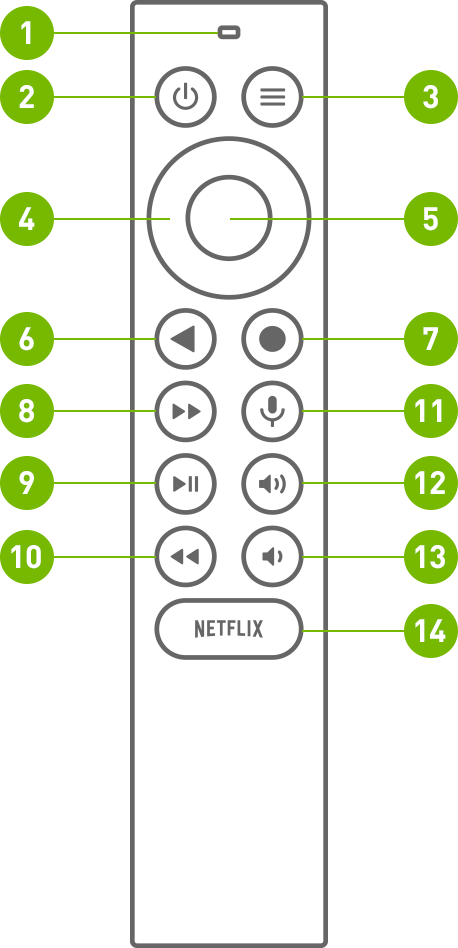
There are 1 built-in microphone and 13 buttons on SHIELD Remote.
Built-in Microphone, on the top the SHIELD Remote
Power button, the left button on the first row
Settings button, the right button on the first row, you can also customize settings button by entering below path
(customizable in Settings > Devices & Accessories > Customize Settings button)
Navigation Ring button, the outer ring button on the second row
Select button, the inner circular button
Back button, the left button on the third row
Home button, the right button on the third row
Fast-Forward button, the left button on the fourth row
Play/Pause button, the left button on the fifth row
Rewind button, the left button on the sixth row
Voice Search button, the right button on the fourth row
Increase Volume button, the right button on the fifth row
Decrease Volume button, the right button on the sixth row
Open NETFLIX button, oval button on the last row
3.3 How to Use SHIELD Remote
3.3.1 Navigate
Use the navigation ring (Up, Down, Left or Right)
3.3.2 Select an item
Press Select button
3.3.3 Go to the previous screen
Press Back button
3.3.4 Go to Home screen
Press Home button
3.3.5 Access recent apps
Double press Home button
3.3.6 Access all apps
Press and hold Home button
3.3.7 Broadcast and record games
Press and hold Home button (NVIDIA Share must be enabled)
3.3.8 Access Settings
Press Settings button or hold the BACK button (from the home screen)
3.3.9 Sleep SHIELD
Press Power Button (TV will power off if HDMI-CEC or IR power control are enabled)
3.3.10 Voice search with Google Assistant
Press and release the Voice Search button and then say your command. Try "Play Stranger Things" or “What’s the weather?”
3.3.11 Adjust volume
Press the volume up or volume down buttons
3.3.12 Mute
Press +Vol and -Vol together
3.3.13 Fast-forward
Press the fast-forward button
3.3.14 Rewind
Press the rewind button
3.3.15 Play or Pause
Press the play/pause button
3.3.16 Put remote in pairing mode
Press and hold the Home + Back button until the buttons flash
3.4 How to Connect Your Remote
SHIELD Remote comes automatically paired with your SHIELD TV out of the box. Simply press the Select button to turn it on.
Make sure the SHIELD home screen is visible on your TV.
Hold the SHIELD remote within 1 foot of your SHIELD TV.
If you are pairing a new remote, press and hold the Select button on your remote until the remote light flashes and voice prompt.If your remote has been paired to a different SHIELD, press and hold Home and Back until the remote light flashes and voice promp.
The remote should connect after a few moments. When pairing is successful, you will hear a voice prompt.
To connect a new remote to SHIELD, follow the instructions here.
| Note: | SHIELD remote turns on and off automatically. If the remote does not respond, you may need to replace the batteries in your remote. The battery level can be checked in the SHIELD accessories app. |
3.5 Customizable Settings Button
The Settings button opens Settings by default but can be customized to perform your favorite activities. To change the Settings button behavior, go to Settings > Remotes & Accessories > Customize Settings button.
3.6 Locate Lost SHIELD Remote
Your SHIELD Remote has a locator feature. When activated, your SHIELD remote will play an audible tune. This audio finder will stop playing after 10 seconds. There are several ways to activate this feature:
Remote locator button on SHIELD
- Locate the remote locator button on one end of your SHIELD (above the HDMI port) and press to start locating your SHIELD.
SHIELD TV mobile app (iOS/Android)
- Download the SHIELD TV app for your device is you have not already done so.
- Tap “more options” in the app (three dots in the upper right-hand corner).
- Tap “Find my remote”
Google Home
- Important note: Your Google Home must be on the same network as your SHIELD and use the same Google Account you have signed into your SHIELD with.
- On a Google Home device, say “OK Google, start SHIELD remote locator”
Amazon Echo devices
- Important note: You must have already paired your Echo device to SHIELD using the Amazon Alexa skill.
- On your Echo device, say “Alexa, Ask SHIELD to find my remote”
Note: The remote locator will only work if your SHIELD remote is connected to your SHIELD. Common reasons the locator feature may not work include:
- Power is lost to your SHIELD (check power cable connection).
- Critically low/empty battery levels on your remote.
- Pairing between remote and SHIELD are lost.
Customize Remote Name
- Your SHIELD Remote can be given a custom name. To rename your SHIELD Remote, go to Remotes & Accessories > SHIELD Accessories > Active controller > Accessory name.
Battery Replacement
Your SHIELD Remote uses (2) AAA batteries to power the remote. To replace the batteries, follow these instructions.
- Slide cover off the back of the SHIELD remote.
- Locate the downward arrow on the back of the SHIELD remote.
- With your thumb, press in and down to slide the back cover off.
- Replace the batteries with the "+" terminal facing down.
- Slide the battery tray back into your SHIELD Remote until a soft click is heard.
3.7 Enable Automatic System Upgrades
Your SHIELD can automatically download and install system upgrades. To enable this feature, go to Settings > Device Preferences > About > System upgrade and turn on “Auto-upgrade”. You can also specify a time for SHIELD to apply the upgrade.
3.8 Check for System Upgrade
System upgrades are pushed to your SHIELD TV directly from NVIDIA. A notification banner will appear at the top of the SHIELD TV home screen when an upgrade is available. Select “Details” on this notification and your SHIELD TV will automatically download and apply the update. You can also manually check for updates by going to Settings > Device Preferences > About > System upgrade.
3.9 Accessibility - Talkback function
To turn on Talkback function:
- Press and hold BACK+DOWN for 3 seconds until voice prompt.
- Press and hold BACK+DOWN for 3 seconds again to turn on Talkback.
To turn off Talkback function:
- Press and hold BACK+DOWN for 3 seconds again to turn off Talkback.