Run OpenClaw For Free On NVIDIA RTX GPUs & DGX Spark
OpenClaw (formerly Clawdbot and Moltbot) is a "local-first" AI Agent that lives on your computer. It’s going viral for how it combines different capabilities to be a useful assistant, remembering your conversations and adjusting itself accordingly, running continuously on your local machine, using context from your files and apps, and leveraging new ‘skills’ to expand its capabilities.
Here are some popular use cases:
- Personal Secretary: With access to your inbox, calendar and files, OpenClaw can help you manage your schedule autonomously. It drafts replies to emails using context from your files and previous mails, sends reminders you have asked for, before time, arranges meetings finding open slots on your calendar.
- Proactive Project Management: OpenClaw can check up regularly on the status of a project over the email or messaging channels you use, send you status checks, and follow up / send reminders as needed
- Research Agent: With personalized context from your apps, OpenClaw can create reports combining search from the internet and your files
OpenClaw is powered by Large Language Models (LLMs) that can be run locally or on cloud. Cloud LLMs can incur significant costs due to the always-on nature of OpenClaw. And they require you to upload your personal data.
In this guide, we’ll show you how you can run OpenClaw and the LLMs completely locally on NVIDIA RTX GPUs and DGX Spark to save money and ensure your data stays private.
NVIDIA RTX GPUs provide the best performance for this kind of workflow thanks to the Tensor Cores in the GPU, which accelerate AI operations, and the CUDA accelerations for all the tools required to run OpenClaw - including Ollama and Llama.cpp. DGX Spark is a particularly good option as it’s built to be always on, and has 128GB of memory, allowing you to run larger local models which will provide the best accuracy and results.

Important Notice Before You Begin
You should be aware of the risks of AI Agents and exercise caution to minimize them. Check out OpenClaw’s website for more information.
These are the 2 main risks in this kind of agent:
- Your personal information or files may be leaked or stolen.
- The agent on its own, or the tools you connect to the bot, may expose you to malicious code or cyber attacks.
There’s no way to completely protect against all risk, so proceed at your own risk. These are some of the measures we took when testing OpenClaw:
- Run OpenClaw on a separate, clean PC with no personal data, or a virtual machine. Then copy the data you want the agent to have access to.
- Don’t give it access to your accounts. Instead, create dedicated accounts for the agent and share specific information or access with it.
- Be careful with what skills you enable, ideally limiting testing to those that have been vetted by the community.
- Ensure any channels you use to access your OpenClaw assistant, like the web UI or messaging channels, are not accessible without authorization over local networks or the internet.
- If possible for your use case, limit internet access.
Getting Started Guide
To install OpenClaw on Windows, we’ll use Windows Subsystem for Linux (or WSL for short). Native installation in Powershell is possible, but it’s discouraged by the developer as it’s unstable.
If you’re using a DGX Spark, you can skip to section 2.
1. Windows Subsystem for Linux Installation
If you have WSL installed, you can skip to the next OpenClaw Installation section. To install WSL (Link for reference):
1.1. Press the Windows Key, type PowerShell, right-click the result, and select Run as Administrator.
1.2. Paste the following command and press Enter:
wsl --install
1.3. Run the following command to check whether WSL is installed correctly. You should see output similar to the following screenshot:
wsl --version

1.4. Open WSL by searching Powershell from the Windows Search Bar, selecting “run as admin”, and typing in:
wsl
2. OpenClaw Installation
2.1. Run the following command in your WSL window:
curl -fsSL https://openclaw.ai/install.sh | bash
This will install OpenClaw and all required dependencies onto your machine. After some necessary packages have been downloaded, OpenClaw will prompt you with a security warning:
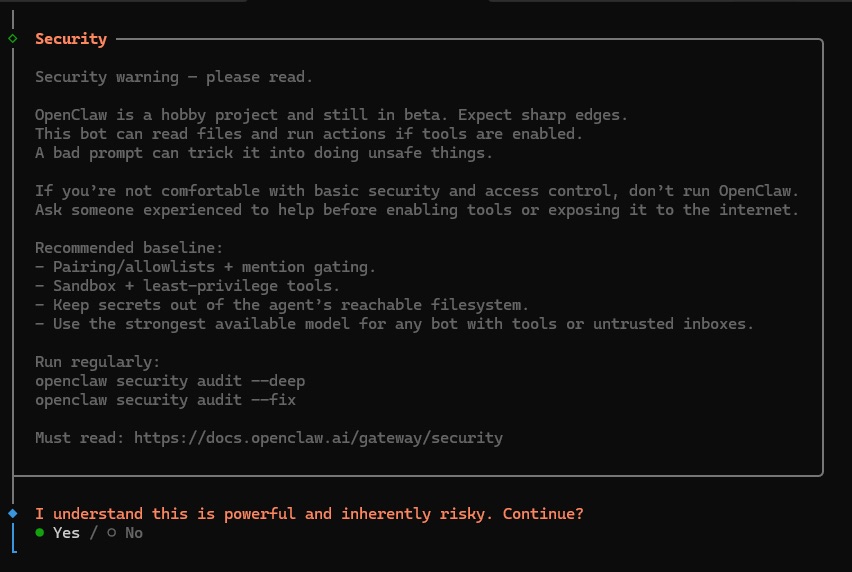
2.2. Please read the security risks. If you are ok to continue, navigate with the arrow keys to ‘Yes’ and press enter.
2.3. You’ll be prompted to choose the Quickstart or Manual onboarding mode. Choose Quickstart.

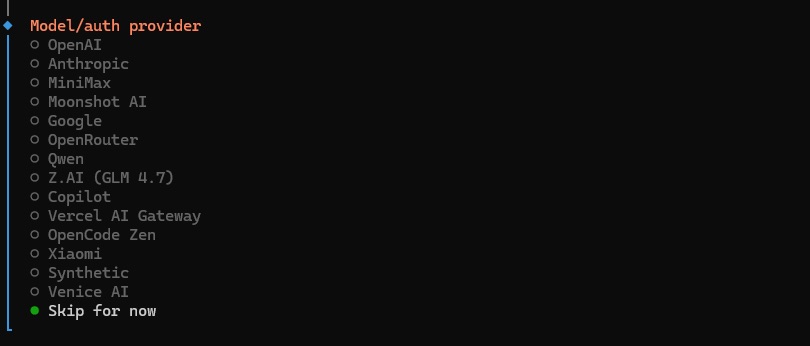
2.4. A list will appear for configuring the model provider. If you want to run a local model, Navigate to the very bottom of the list and select “Skip for now” as we’ll configure it later. If you want to connect a cloud model you can select one and follow the instructions.
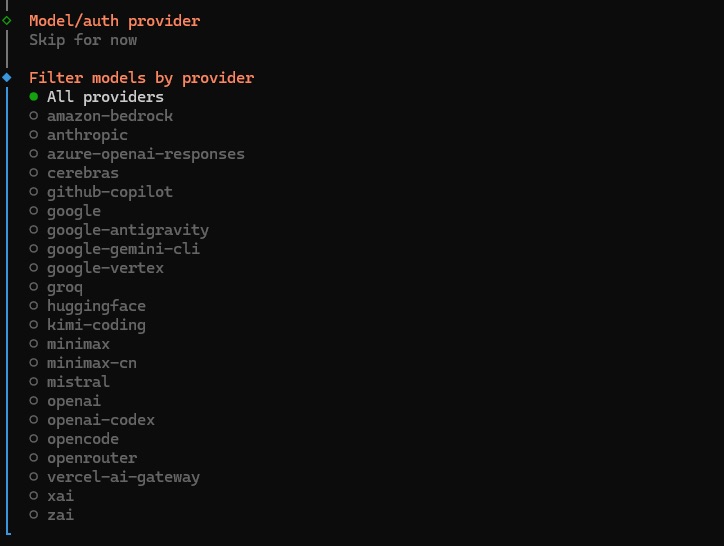
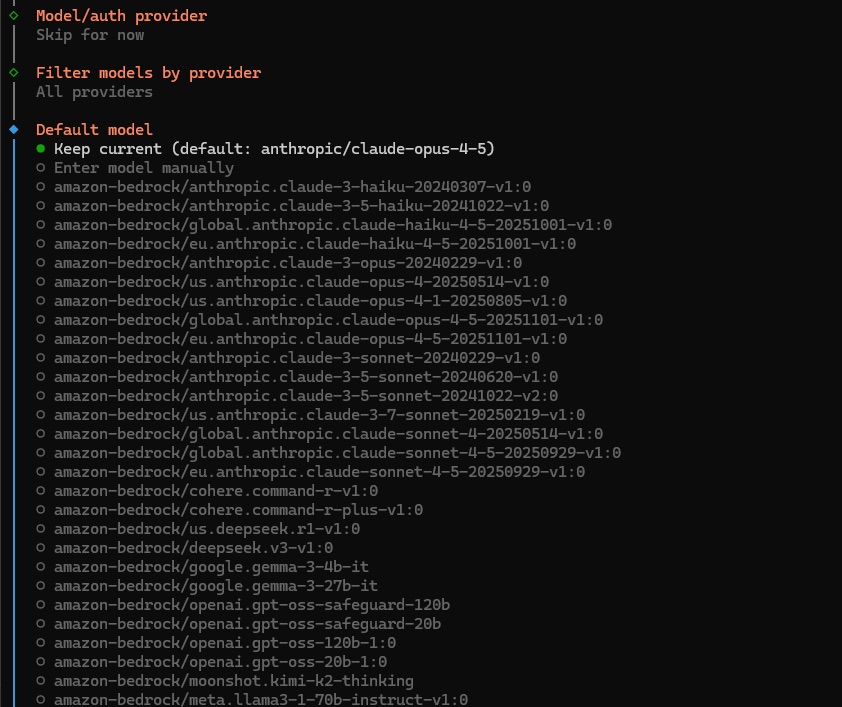
2.5. Another list prompt will appear for Filtering models by provider. Select “All Providers”. On the following prompt for picking your default model, choose “Keep Current”.
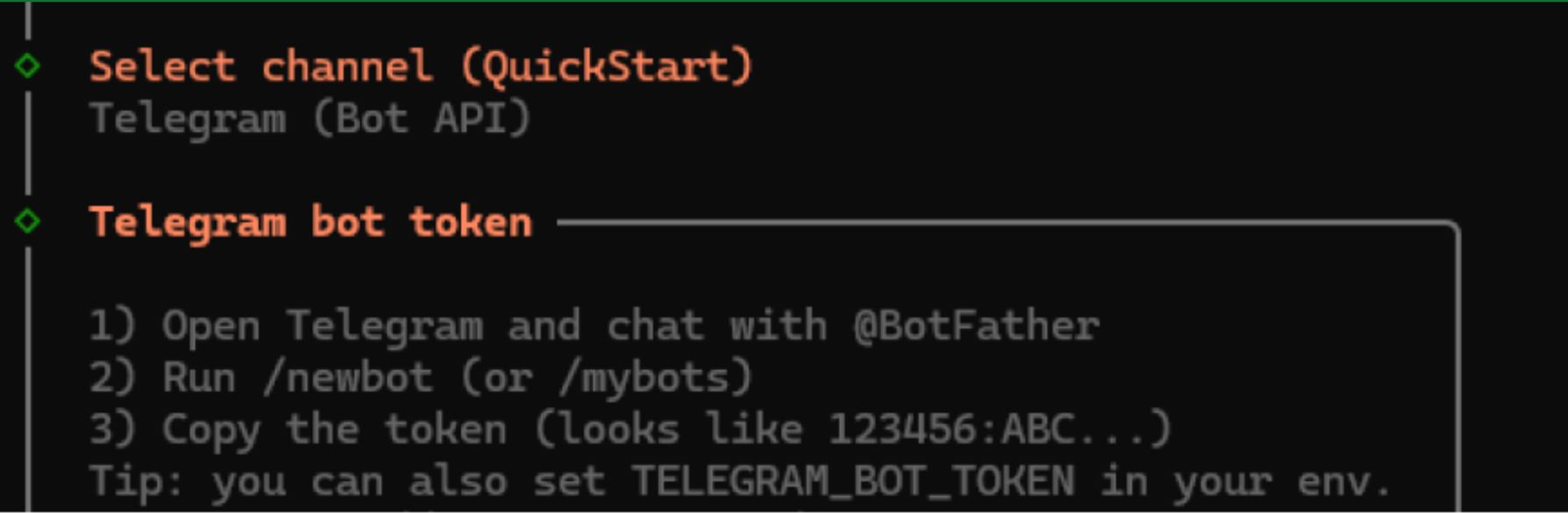
2.6. You will be offered to connect a communication channel to interact with your bot while you are away from the PC. You can select one here and follow the steps in the wizard to configure it, or select “Skip for Now” and set it up later.
■ For example, if you select Telegram you will need to create a Telegram bot, give OpenClaw an access token, and finally, give OpenClaw a pairing code from your Telegram chat
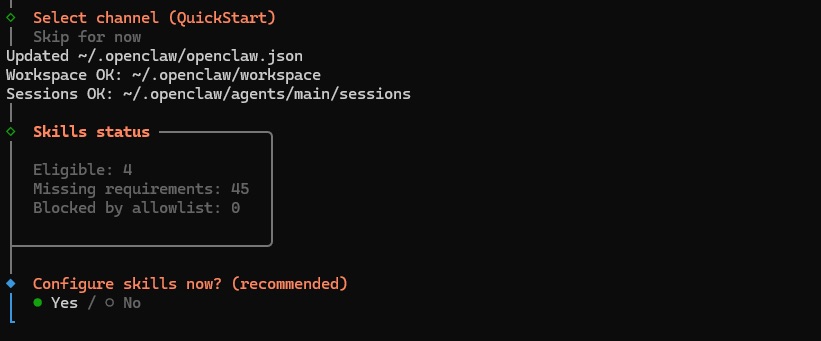
2.7. Next you’ll be prompted with the skills configuration - these are the abilities that the bot will have. We recommend selecting “No” for now to proceed with the setup. You can always add skills later once you experiment with it and identify the skills you need for your use-case.
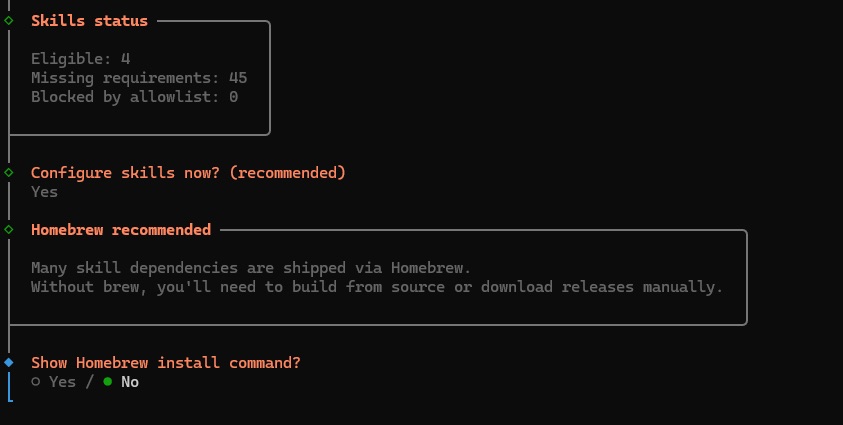
2.8. Next, OpenClaw will prompt you to install the homebrew package - select “No”, this is needed for Mac setups but not for Windows.
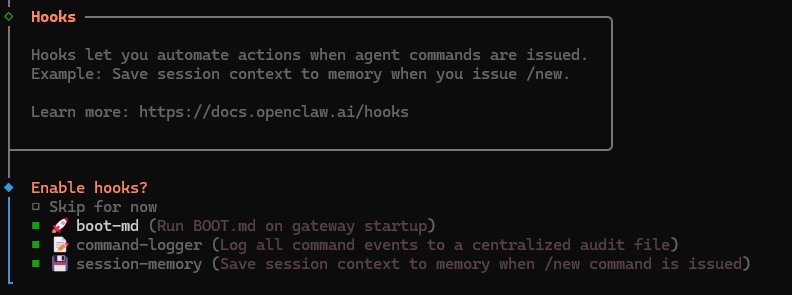
2.9. The next prompt will be to install Hooks. We recommend selecting all 3 for a better experience. But consider if you are comfortable with having your data logged locally.
2.10. The resulting terminal output will present a URL for accessing your OpenClaw dashboard. Save this address as you’ll need it to load the UI.
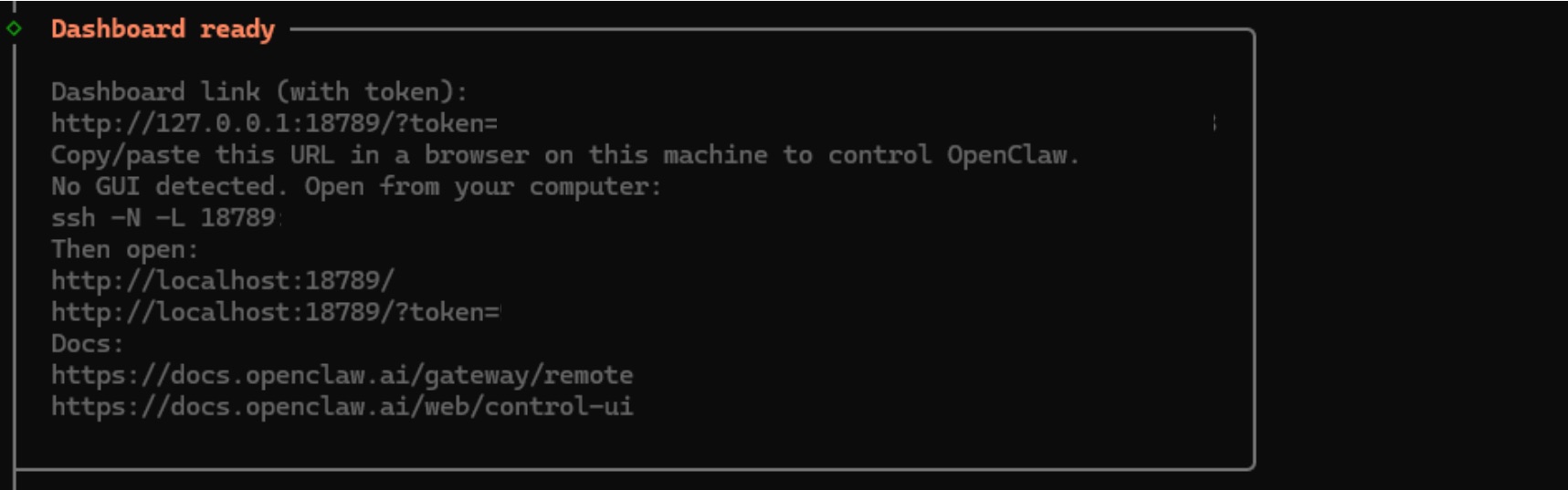
2.11. Finally, select “Yes” on the last prompt to complete the OpenClaw installation.

2.12. You can now access OpenClaw via the dashboard link provided with the access token.
3. Local Model Configuration
You can power OpenClaw with an LLM running locally on your RTX GPU, or with a cloud LLM. In this section we’ll show you how to configure OpenClaw to run locally with LM Studio or Ollama.
The quality of answers depends on the size and quality of the LLM. You’ll want to make sure that you free up as much VRAM and as possible (e.g. don’t run other workloads on the GPU, only load the skills you need to minimize context, etc.) so we can use a large LLM that has access to the majority of your GPU.
3.1. Select the backend of your choice:
■ LM Studio is the recommended backend for raw performance, as they use Llama.cpp to run the LLM.
■ Ollama offers additional developer tools to facilitate deployment.
3.2. If you are in Windows, open another WSL window by searching Powershell from the Windows Search Bar, selecting “run as admin”, and typing in. (skip this step on DGX Spark)
wsl
3.3. Download and install LM Studio or Ollama:
| LM Studio | Ollama |
curl -fsSL https://lmstudio.ai/install.sh | bash
|
curl -fsSL https://ollama.com/install.sh | sh
|
3.4. Select the LLM of your choice: We recommend the following models depending on your GPU:
- 6-8GB GPUs: Nemotron 3 Nano 4B / Qwen3.5 4B
- 12-16GB GPUs: Qwen 3.5 9B / gpt-oss 20b
- 24-48GB GPUs: Qwen 3.5 27B
- 96-128GB GPUs: Nemotron 3 Super / Qwen 3.5 122B
3.5. Download the model:
| LM Studio | Ollama |
lms get openai/gpt-oss-20b
|
ollama pull gpt-oss:20b
|
3.6. Run the model, and set the context window to 32K tokens or more so it can run well with OpenClaw.
| LM Studio | Ollama |
lms load openai/gpt-oss-20b --context-length 32768
|
ollama run gpt-oss:20b /set parameter num_ctx 32768
|
3.7. Configure OpenClaw to use LM Studio or Ollama, and start gateway:
| LM Studio | Ollama |
Navigate to the OpenClaw config file by running:
.explorer
"models": {
|
ollama launch openclaw #If the gateway is already running, it will auto-reload the configuration #You can add "--config" to configure without launching the openclaw gateway yet
|
And you are good to go! To check if everything is set up correctly, open a browser window and paste the OpenClaw URL with the access token. Click on new, and try typing in something. If you get a response back, you’re all set up! You can also ask OpenClaw what model it’s using and can even switch between models by typing /model MODEL_NAME in the gateway chat UI.
To learn more about how to use OpenClaw, visit the OpenClaw website.
You should also check out the NVIDIA NemoClaw plugin for OpenClaw, which enables NVIDIA optimized plugins for OpenClaw. Learn more about it on the NemoClaw site.
One thing you may want to look into is adding new skills. Remember that these introduce additional risk, so be careful with which ones you add. To add a new skill:
- Ask OpenClaw to configure itself with a skill
- Use the sidebar in the webUI to enable skills
- Find community-built skills on Clawhub
Enjoy the lobster!