NVIDIA App Update Adds DLSS 4.5 Dynamic Multi Frame Generation, Intelligently Balancing Frame Rates, Image Quality & Responsiveness
NVIDIA app is the essential companion for users with NVIDIA GPUs in their PCs and laptops. Whether you're a gaming enthusiast or a content creator, NVIDIA app simplifies the process of keeping your PC updated with the latest GeForce Game Ready and NVIDIA Studio Drivers, enables quick discovery and installation of NVIDIA applications, and enables you to enhance hundreds of games and apps with DLSS overrides, accelerating performance and improving image quality.
Our newest NVIDIA app beta update is available now, introducing DLSS 4.5 Dynamic Multi Frame Generation. This GeForce RTX 50 Series DLSS override dynamically adjusts the number of generated frames during gameplay to reach a target frame rate, automatically balancing FPS, image quality and responsiveness, optimizing your experience.
Additionally, DLSS 4.5 Multi Frame Generation is now available at up to 6X, enabling even higher levels of performance. And DLSS 4.5 Multi Frame Generation and Frame Generation users can activate a new and improved AI model in select titles.

Our new NVIDIA app update also introduces a beta preview of Auto Shader Compilation, a new feature that rebuilds DirectX 12 game shaders after a driver update while your system is idle, or on demand, accelerating game load times.
Download the app update today by opting into beta and experimental features in Settings > About. Please note, GeForce Game Ready Driver 595.97 WHQL, or newer, is required to use all features.
For further details about each addition, read on.
NVIDIA DLSS 4.5 Dynamic Multi Frame Generation Override
In January, we launched our DLSS 4.5 Super Resolution override, enabling you to further enhance image quality in games and apps.
Today, DLSS 4.5’s feature set expands with the launch of Dynamic Multi Frame Generation, an intelligent system that functions like an automatic transmission for your GPU. Instead of sticking to a fixed multiplier, it automatically shifts between different frame multipliers to strike the perfect balance between frame rate, image quality and responsiveness.
In other words, it only generates the frames needed to maximize your target frame rate, or the refresh rate of your display, be that 120Hz, 144Hz, 240Hz, or higher.

By continuously monitoring the gap between your GPU’s performance and your display’s maximum refresh rate, the system adapts in real-time. In graphically intense scenarios, it ‘upshifts’ and increases frame generation to bridge performance dips, ensuring your high-refresh display remains buttery smooth. Conversely, as the workload lightens, it seamlessly shifts the multiplier down to only compute what’s needed.
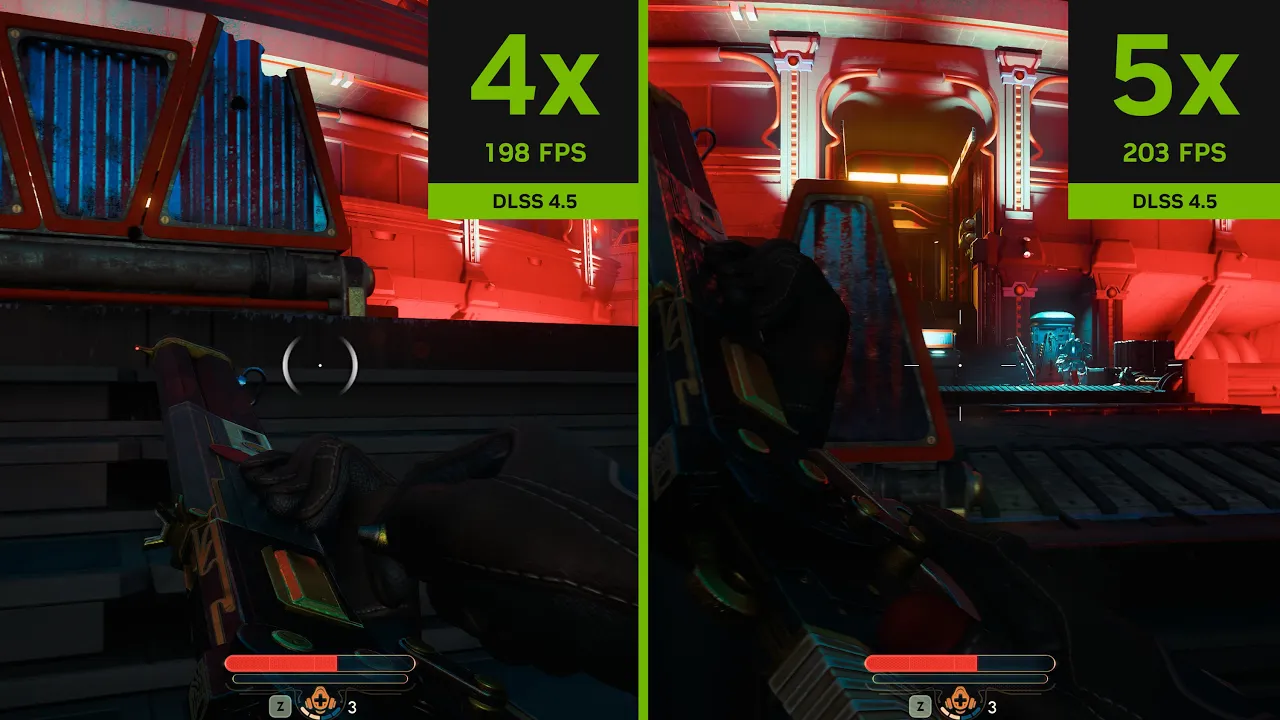
DLSS 4.5 Dynamic Multi Frame Generation maximizes frame rates on a 240Hz display
DLSS 4.5 Dynamic Multi Frame Generation can be activated and configured globally, or on a per game basis in the NVIDIA app’s Graphics tab.
Open “DLSS Override - Frame Generation Mode”, select “Dynamic”, and choose “Max refresh rate” for the NVIDIA app to synchronize your maximum frame rate with the maximum refresh rate of your display, for optimum motion clarity. Alternatively, pick “Custom” and type in a maximum frame rate for DLSS 4.5 Dynamic Multi Frame Generation to target.
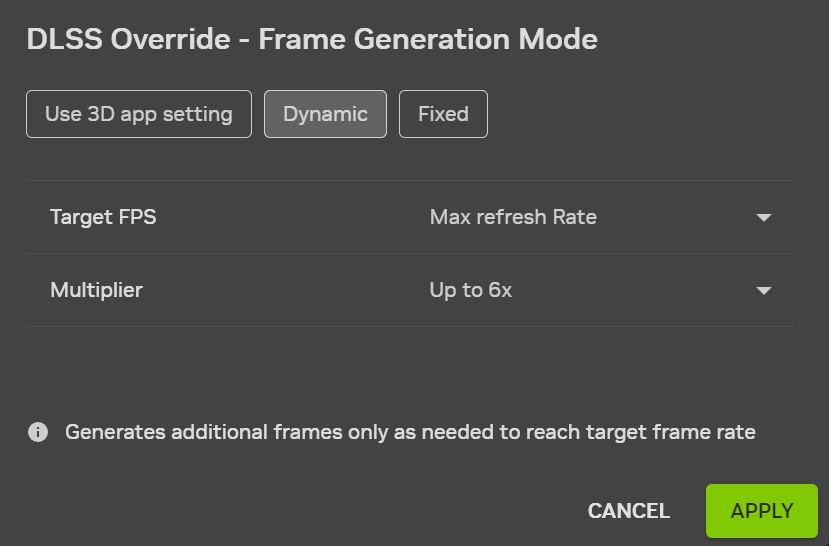
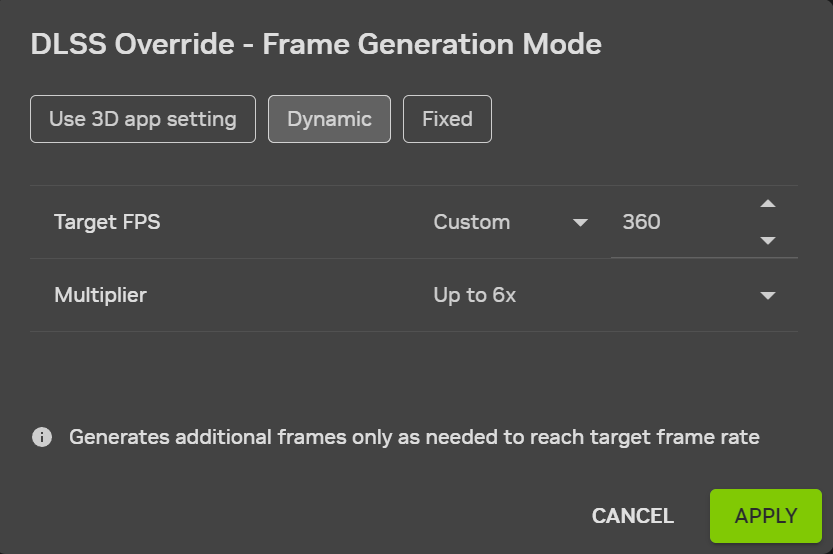
In all titles compatible with DLSS Dynamic Multi Frame Generation, users can activate up to 6X Multi Frame Generation. To see the full list of 6X-compatible titles, please head here
Game developers are natively adding DLSS 4.5 Dynamic Multi Frame Generation and other DLSS 4.5 features to their games, 20 of which we announced at GDC. Head on over to our DLSS 4.5 games article to learn more and to watch DLSS 4.5 game trailers.
NVIDIA DLSS 4.5 Multi Frame Generation 5X & 6X Modes
DLSS Frame Generation introduced a 2X multiplier, rendering 1 additional frame per traditionally rendered frame. Then, DLSS 4 Multi Frame Generation leveraged the capabilities of GeForce RTX 50 Series GPUs to increase the maximum multiplier to 4X.
Now, our 2nd generation transformer model, along with improvements to frame pacing and image quality, enable us to raise the maximum multiplier to 6X, generating five additional frames for every natively rendered frame on GeForce RTX 50 Series GPUs.

NVIDIA DLSS 4.5 Multi Frame Generation 6X Mode - Made possible by DLSS Super Resolution and DLSS Frame Generation improvements
On GeForce RTX 50 Series GPUs, the shift from 4X to 6X Multi Frame Generation increases 4K frame rates in path-traced titles by up to 35%. And by combining our new, highly efficient Frame Generation model with NVIDIA Reflex’s low latency technology, DLSS 4.5 Multi Frame Generation can generate these additional frames with minimal impact to responsiveness:
This combination of new and enhanced features creates the smoothest path-traced gaming yet, unlocking the full potential of 4K 240Hz OLED gaming displays. And for users on super high refresh rate 1080p and 1440p displays, and those with G-SYNC Pulsar, Dynamic Multi Frame Generation 6X Mode can enable you to use their full capabilities, for an enhanced experience.
With the introduction of DLSS 4.5 Dynamic Multi Frame Generation, NVIDIA app users must now choose between Dynamic and Fixed Multi Frame Generation.
“Fixed” mode operates identically to previously-available Multi Frame Generation options in the NVIDIA app, running at the Frame Generation multiplier you select.
Open “DLSS Override - Frame Generation Mode”, either globally or on a per game basis, select “Fixed”, and choose a Frame Generation multiplier.

To only use a 2X multiplier, select “Use 3D app setting”, then activate DLSS Frame Generation in-game
In all titles compatible with DLSS Multi Frame Generation, users can activate 4X Multi Frame Generation, and in select titles using more recent Frame Generation .dlls, users can select up to 6X. To see the full list of 6X-compatible titles, please head here.
NVIDIA DLSS 4.5 Enhanced Frame Generation Model
Our new NVIDIA app update also introduces a new DLSS Frame Generation model that enhances in-game user interfaces in select titles, by incorporating additional game engine data.
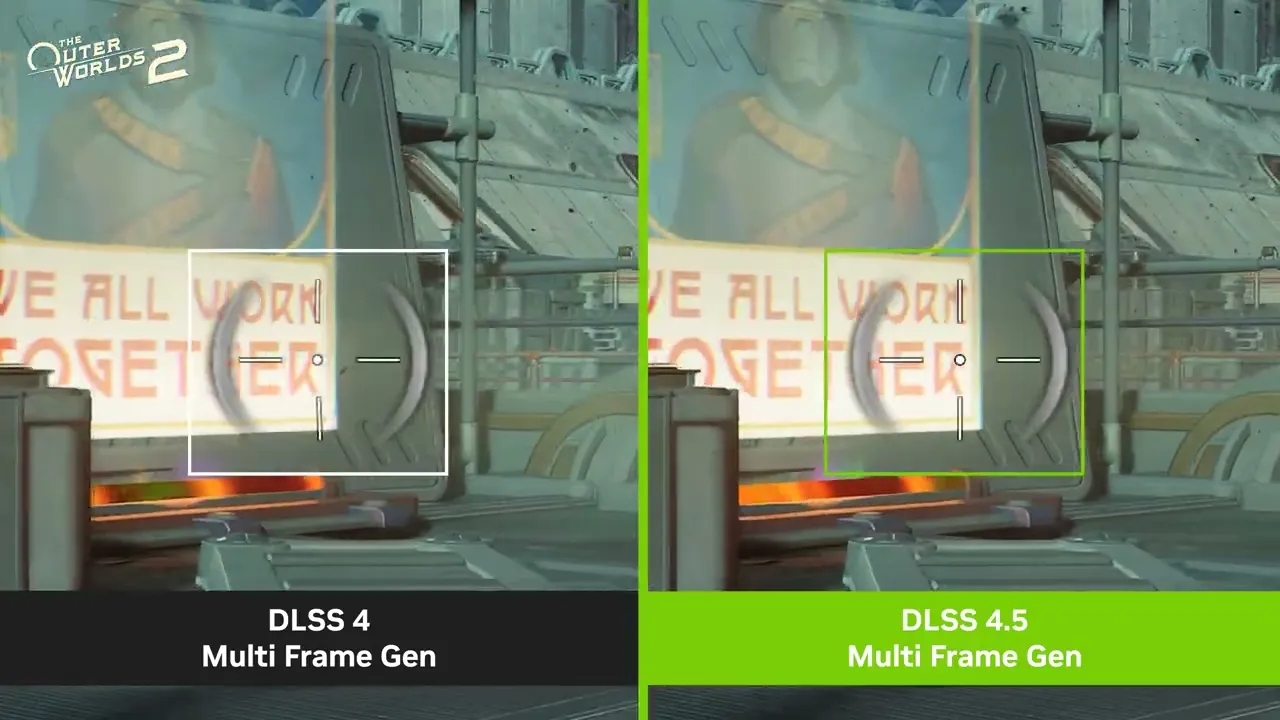
The Outer Worlds 2: Improved user interface elements with the new DLSS 4.5 Multi Frame Generation Model
Available for GeForce RTX 40 Series and 50 Series users, the new model improves the quality and clarity of mini maps, on-screen user interface elements, and other aspects of game interfaces.
The new model takes additional UI buffers available for selected game engines allowing it to more intelligently manage the rendering of static user interfaces when DLSS Dynamic Multi Frame Generation, DLSS Multi Frame Generation, or DLSS Frame Generation are activated. As of March 31st, 2026, some supported games include Battlefield 6, Borderlands 4, Dragon Age: The Veilguard, EA SPORTS F1® 25, God of War Ragnarök, Hogwarts Legacy, Indiana Jones and the Great Circle™, Marvel’s Spider-Man 2, Monster Hunter Wilds, Star Wars Outlaws™, The Elder Scrolls IV: Oblivion Remastered, and The Outer Worlds 2.
To activate the new model in a supported game, open “DLSS Override - Model Presets”, either globally or on a per game basis, click the “Frame Generation” dropdown, and select “Preset B”.
To activate the new model in a supported game, open “DLSS Override - Model Presets”, either globally or on a per game basis, click the “Frame Generation” dropdown, and select “Preset B”.

NVIDIA DLSS 4.5 Super Resolution: Superior Image Quality For All GeForce RTX Gamers
Building on eight years of research, including six years refining Convolutional Neural Networks (CNNs), DLSS 4.5 Super Resolution is our second generation transformer AI model. Utilizing five times the compute power of the original transformer model, having been trained on a significantly expanded, high-fidelity dataset, the model has a deeper understanding in every scene, and more intelligently uses game engine pixel sampling and motion data to deliver images that have better lighting, finer edges, and improved motion clarity.

DLSS 4.5 Super Resolution: Forged by 8 years of continuous innovation
DLSS 4.5 achieves a breakthrough in lighting effects by solving a traditional challenge faced by Temporal Anti-Aliasing (TAA), and earlier Super Resolution models. Previous techniques operated in logarithmic space to dampen flickering, which unfortunately resulted in muted lighting, clipped details, and crushed shadows in high-contrast scenes. In comparison, DLSS 4.5 Super Resolution trains and infers directly in linear space, the game engine’s native ground truth. Because the new AI model is powerful enough to manage instability without compressing the data, it accumulates lighting with physical accuracy, allowing glowing neon signs and bright reflections to retain their full color range and detail.
Check out the videos below to see DLSS 4.5 Super Resolution in action, and head to our DLSS 4.5 launch article for full details about this much-loved addition.
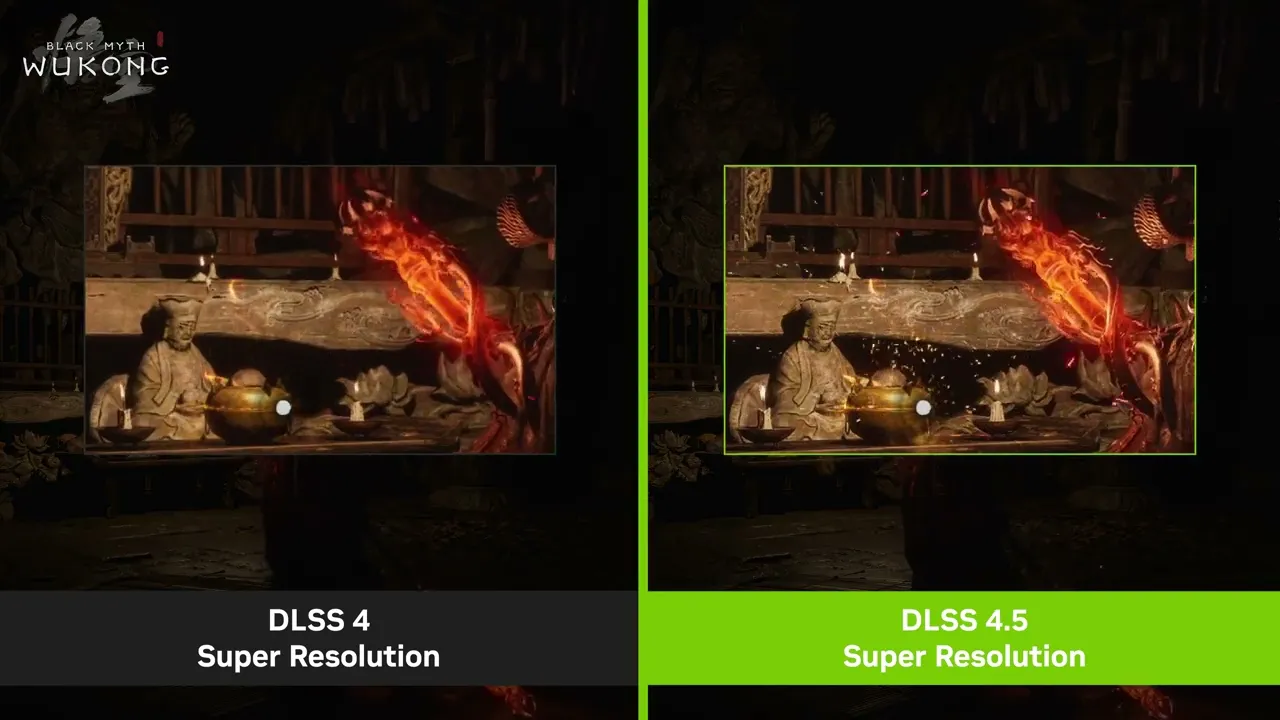
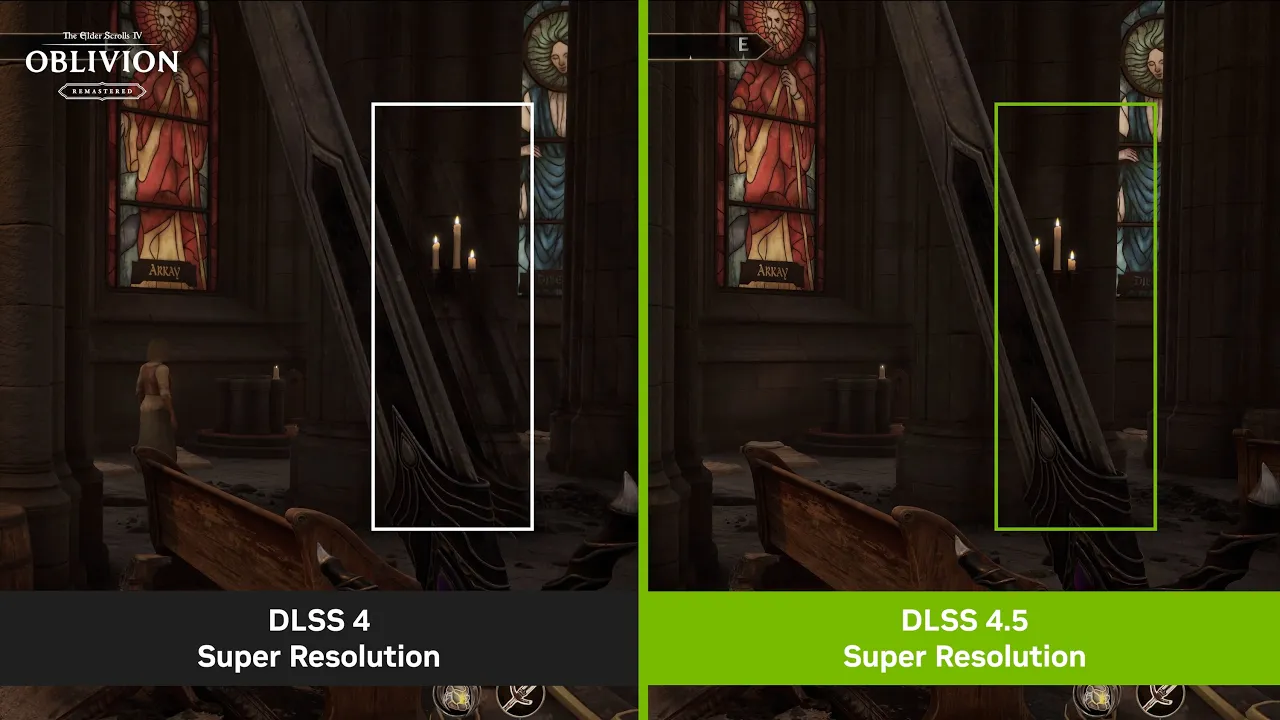
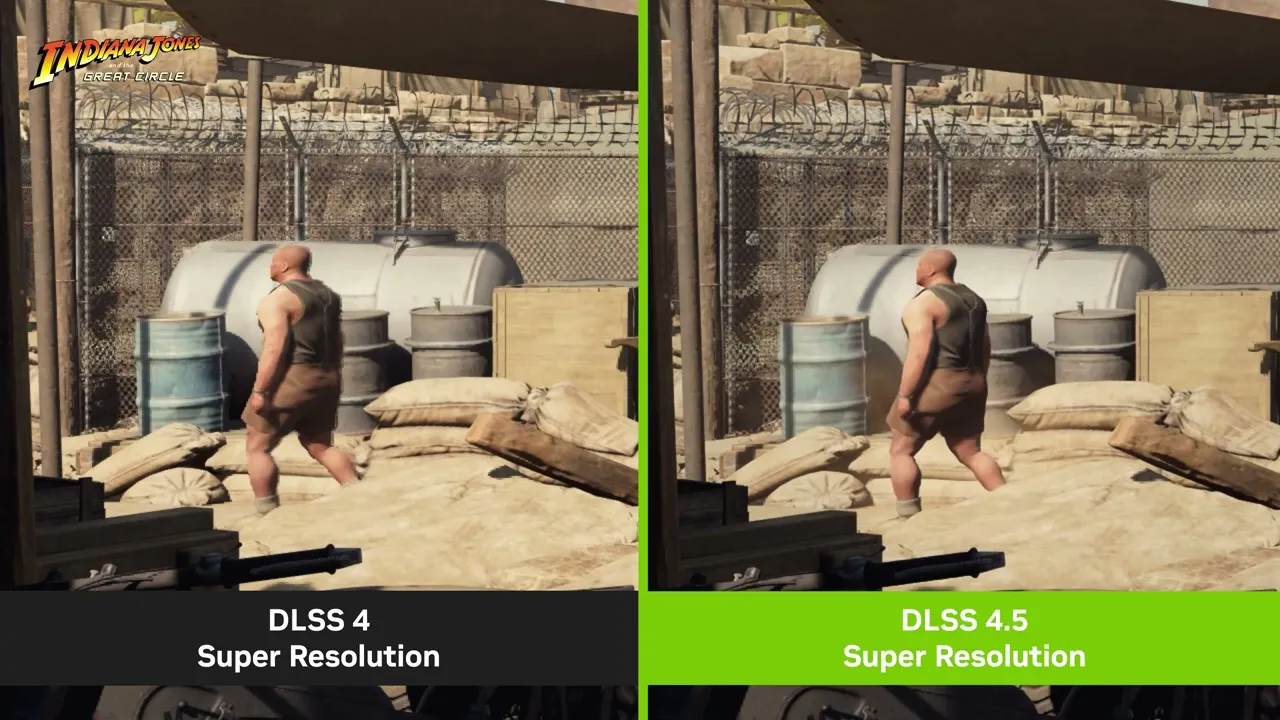
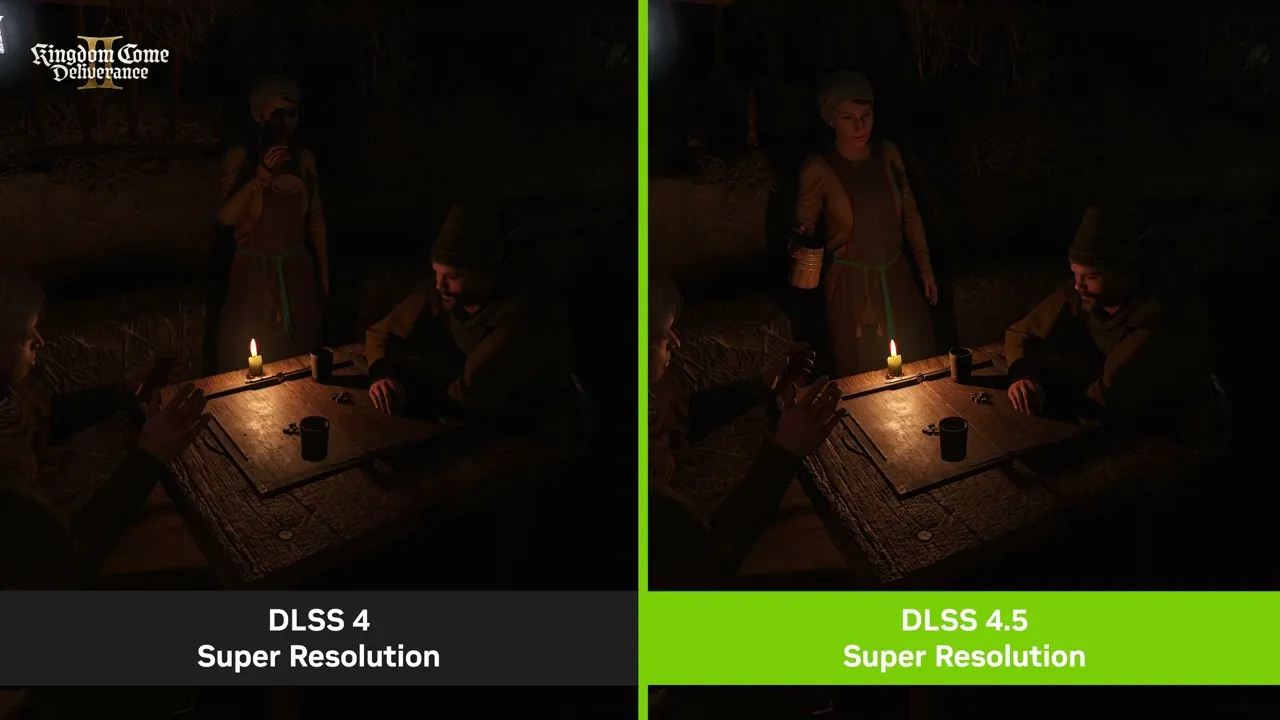
- Video 1
- Video 1
- Video 1
- Video 2
To activate DLSS 4.5 Super Resolution, open “DLSS Override - Model Presets” in the Graphics tab, globally or on a per-game basis, and choose “Recommended”:

To verify that the intended model is enabled, turn on the NVIDIA app overlay statistics view via Alt+Z > Statistics > Statistics View > DLSS
“Recommended” activates Preset M when selecting DLSS Performance mode in-game or via NVIDIA app, Preset L when using DLSS Ultra Performance mode, and our first-generation transformer model, Preset K, for all other DLSS modes. To override this behavior, select Preset L or M in the dropdown, applying the preset to all DLSS modes.
Both models are supported for both DLSS Super Resolution Quality and Balanced modes, and DLAA, but users will see the best quality vs. performance benefits in Performance and Ultra Performance modes.
Please note that GeForce RTX 20 and 30 Series GPUs lack native FP8 support, so Models M and L carry a heavier performance impact for these GPUs. Those users may therefore prefer to remain on Model K (DLSS 4.0), for an optimal balance of performance and image quality. With the NVIDIA app's DLSS Overrides, you control the Model, and the balance between image quality and performance for your PC.
NVIDIA Auto Shader Compilation Beta
We’ve all experienced it: you power your PC on, sit down to play and encounter the dreaded “Compiling Shaders” progress bar. Other times, you get right into the game but your shaders compile in the background, introducing annoying stutters.
To combat these issues, we’re introducing a beta version of NVIDIA Auto Shader Compilation (ASC), which rebuilds DirectX 12 shaders while your system is idle, reducing the frequency of game runtime compilation after driver updates.
Shaders define every pixel on screen. Because this code is written in developer-friendly languages, it must be translated into compatible machine code. This process, known as compilation, begins at game install. During this time, your CPU converts the generic shader code into an optimized format that your GPU can execute. Modern titles require tens of thousands of shader translations, a process that must be repeated after game patches or GPU driver updates. This beta is the first step into optimizing shader compilation for GeForce gamers.
By default, Auto Shader Compilation will be off, but by going to the NVIDIA app’s Graphics tab, you can activate it in Global Settings > Shader Cache. If you want to immediately recompile shaders, rather than waiting for them to be recompiled while your system is idle, you can select the “Compile Now” option located under the 3 dots on the Shader Cache screen.

Please note, after downloading a game for the first time, you must still generate shaders in-game. NVIDIA Auto Shader Compilation will update these shaders following a driver update.
NVIDIA Auto Shader Compilation requires GeForce Game Ready Driver 595.97 WHQL, or newer. If you have NVIDIA Auto Shader Compilation feedback, please share it via the NVIDIA app’s built in form, found on the top right of the app window.
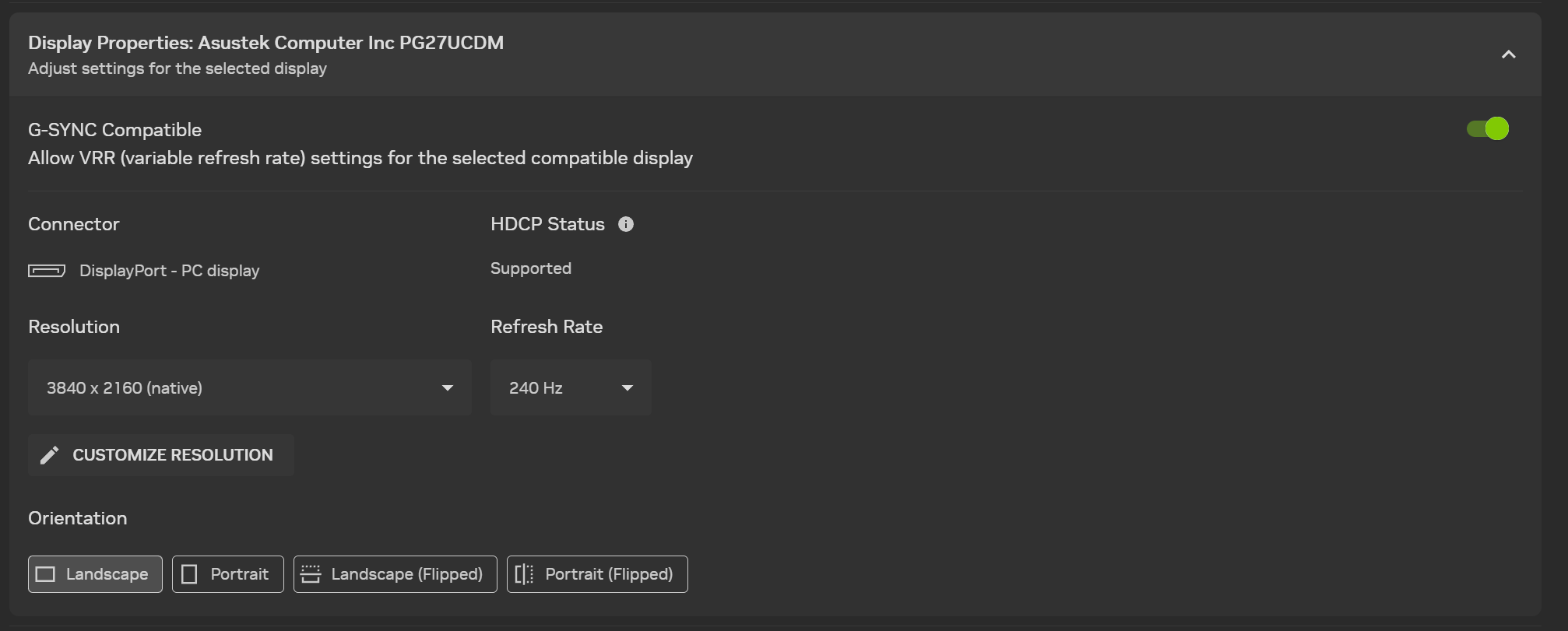
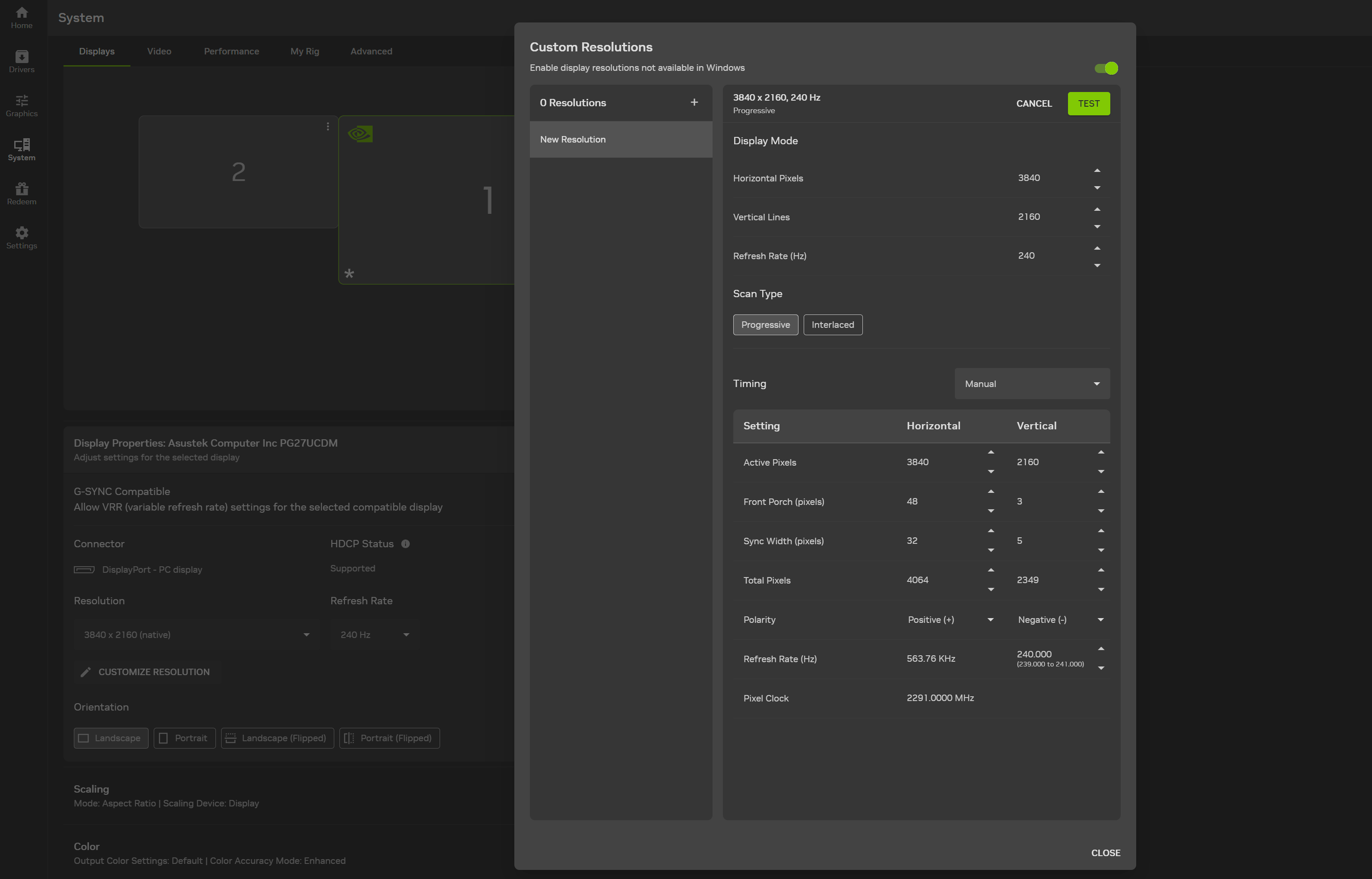
New Streamlined Custom Resolution Setup
Creating and using a custom display resolution enables power users to overclock their displays, and retro gamers to better render classic systems and titles, among other use cases.
Our new NVIDIA app beta update streamlines and modernizes this NVIDIA Control Panel feature, incorporating it into System > Graphics.
As Always, More Features Are In Development
In future updates, we’ll continue to add new features, and further enhancements to the technologies you know and love. Please share your thoughts about NVIDIA app via the in-app feedback feature at the top right of the window, and let us know which other features you’d like to see incorporated. And if you have any issues,please use the “Report an issue” form.

To send NVIDIA feedback about any feature of the new app, please click the exclamation point to the right of the NVIDIA Overlay button
Stay tuned for updates on future NVIDIA app developments on GeForce.com, and if you haven’t already installed NVIDIA app, download it now from our website!
To use the new features listed above, opt into beta and experimental features in Settings > About. And ensure you have GeForce Game Ready Driver 595.97 WHQL, or newer, installed.